
Trim video and audio
Trim video and audio clips directly on iPhone or iPad for quick cleanup and shortening of source media.

ClipFlow is an iPhone and iPad media editor for trimming, joining, captioning, converting, and exporting video and audio. It is designed for on-device editing with optional online features such as subscription verification and AI text-to-speech.
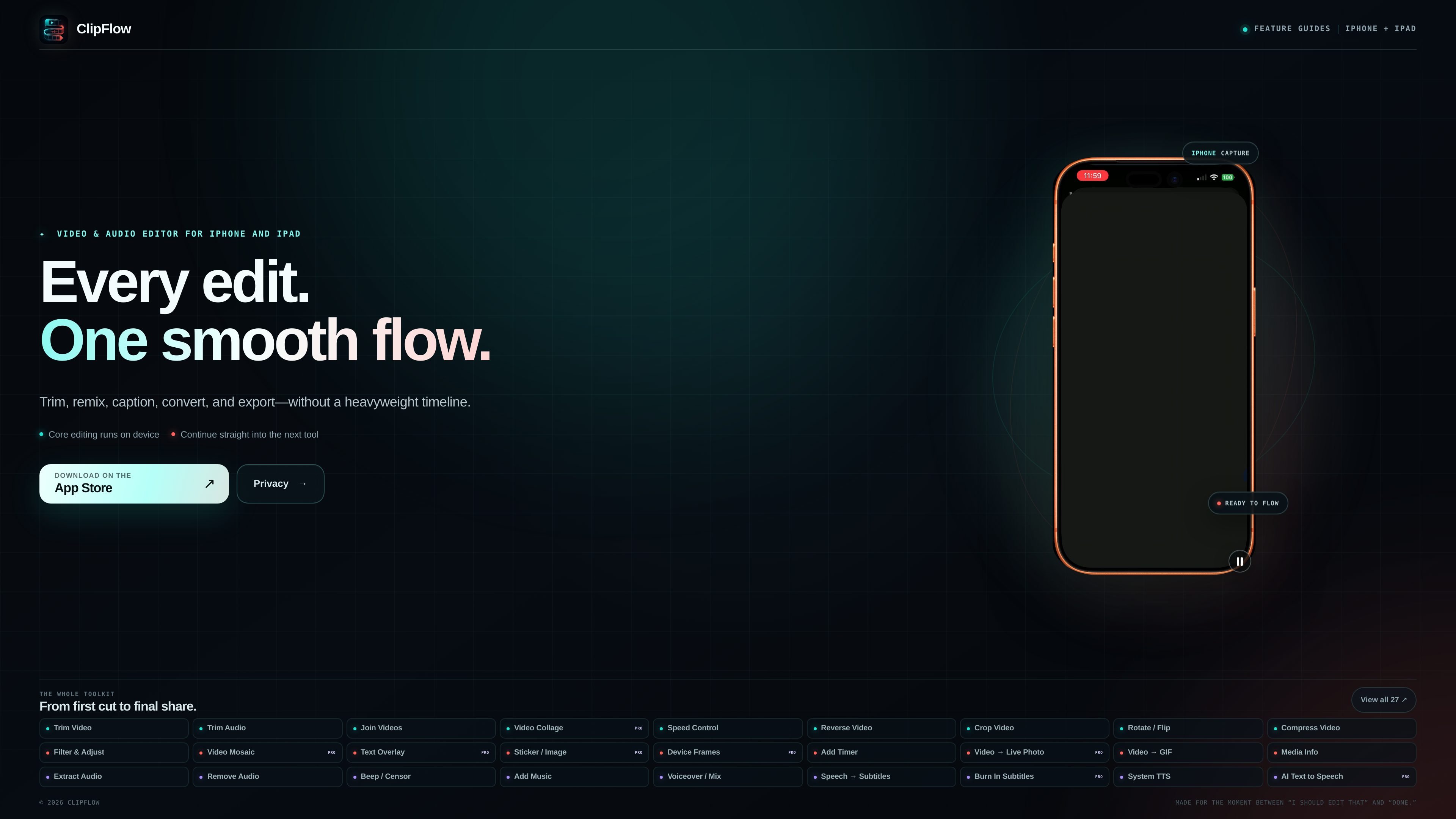
ClipFlow is a video and audio editor for iPhone and iPad built around a set of focused tools instead of a heavyweight timeline. The homepage positions it as a way to trim, remix, caption, convert, and export media in a smoother, tool-by-tool workflow.
The app’s feature set spans common editing tasks such as trimming, joining, cropping, rotating, compressing, filtering, and adding overlays, as well as caption workflows like speech-to-subtitles and subtitle burning. The privacy policy adds that most processing happens locally on the device, with online access used only for specific features such as subscription verification and AI text-to-speech.
Trim video and audio clips directly on iPhone or iPad for quick cleanup and shortening of source media.
Join videos, build video collages, and control playback speed or reverse clips for short-form edits and sequence assembly.
Crop, rotate, flip, compress, filter, adjust, and apply mosaic effects to refine framing and appearance before export.
Add text overlays, stickers or images, device frames, and timers to create annotated or presentation-style outputs.
Convert media between formats, including video to GIF and video to Live Photo, and extract audio or remove original audio when needed.
Turn speech into subtitles, burn subtitles into video, and generate audio with system text-to-speech or AI text-to-speech.
Clean up recorded clips by trimming sections, joining multiple takes, or reversing and adjusting speed before sharing.
Prepare social-ready assets by adding text, stickers, image overlays, device frames, or collage layouts.
Create captioned videos from spoken footage with speech-to-subtitles, subtitle burning, and subtitle styling tools.
Convert source media into GIFs or Live Photos, or extract and replace audio for repurposing clips in other formats.
Use local processing for everyday edits when you want a focused iPhone or iPad workflow without a full timeline editor.
ClipFlow is an iPhone and iPad media utility for editing video and audio, adding captions and text, converting formats, and exporting results. The homepage presents it as a focused toolkit rather than a traditional timeline-based editor.
The source material shows ClipFlow as an iOS / iPadOS app. It is described as available on iPhone and iPad, with core editing running on device.
The privacy policy says most video, audio, image, subtitle, and export processing happens locally on your device. Online processing is used only for specific features such as ClipFlow Pro subscription verification and AI text-to-speech.
ClipFlow Pro is an auto-renewable subscription handled through Apple’s App Store and StoreKit. The privacy policy says purchases, renewals, refunds, billing, and subscription management are handled by Apple.
The source does not provide team or collaboration features. Based on the site text, ClipFlow is positioned as a personal editing utility for individual use on iPhone or iPad.

CAMB.AI Streams dubs live audio in multiple languages in real time for broadcasts on platforms like YouTube, Twitch, and X. It plugs into existing live workflows using common streaming protocols and avoids a post-production step.

Zella is a screen recorder and on-device AI video editor for Mac and iPhone. It helps creators record screens or cameras, automatically clean up footage, add captions, reframe clips, and export videos without uploading the core project to the cloud.

Optimo is a free, open-source CLI for optimizing and converting images and videos with format-specific commands built on ImageMagick and FFmpeg. It helps developers prepare web assets, batch process media, and automate compression from the shell or a Node.js script.

FlexClip is an AI-powered online video maker and editor that helps users create videos from templates or from scratch. It combines browser-based editing with AI tools for scripting, voiceover, subtitles, translation, and background removal.

Video Effects SDK adds real-time webcam effects such as background blur, background replacement or removal, denoising, framing, beautification, and color grading. It is built for teams shipping live video experiences on web, desktop, and mobile platforms.

DeepMotion is a web-based AI motion capture and 3D animation platform with Animate 3D for video-to-animation and SayMotion for text-to-animation. It helps creators and teams generate motion in a browser and export results in common production formats.