
Flexible screen capture
Record a tab, whole screen, window, page area, or camera with microphone and optional tab audio. A keyboard shortcut can start recording from anywhere.

Flicka is a Chrome extension for Mac and Windows that records tabs, screens, windows, page areas, or camera footage and turns clicks into editable auto-zooms. It helps product teams and other desktop users create annotated demos, tutorials, screenshots, and locally rendered exports.
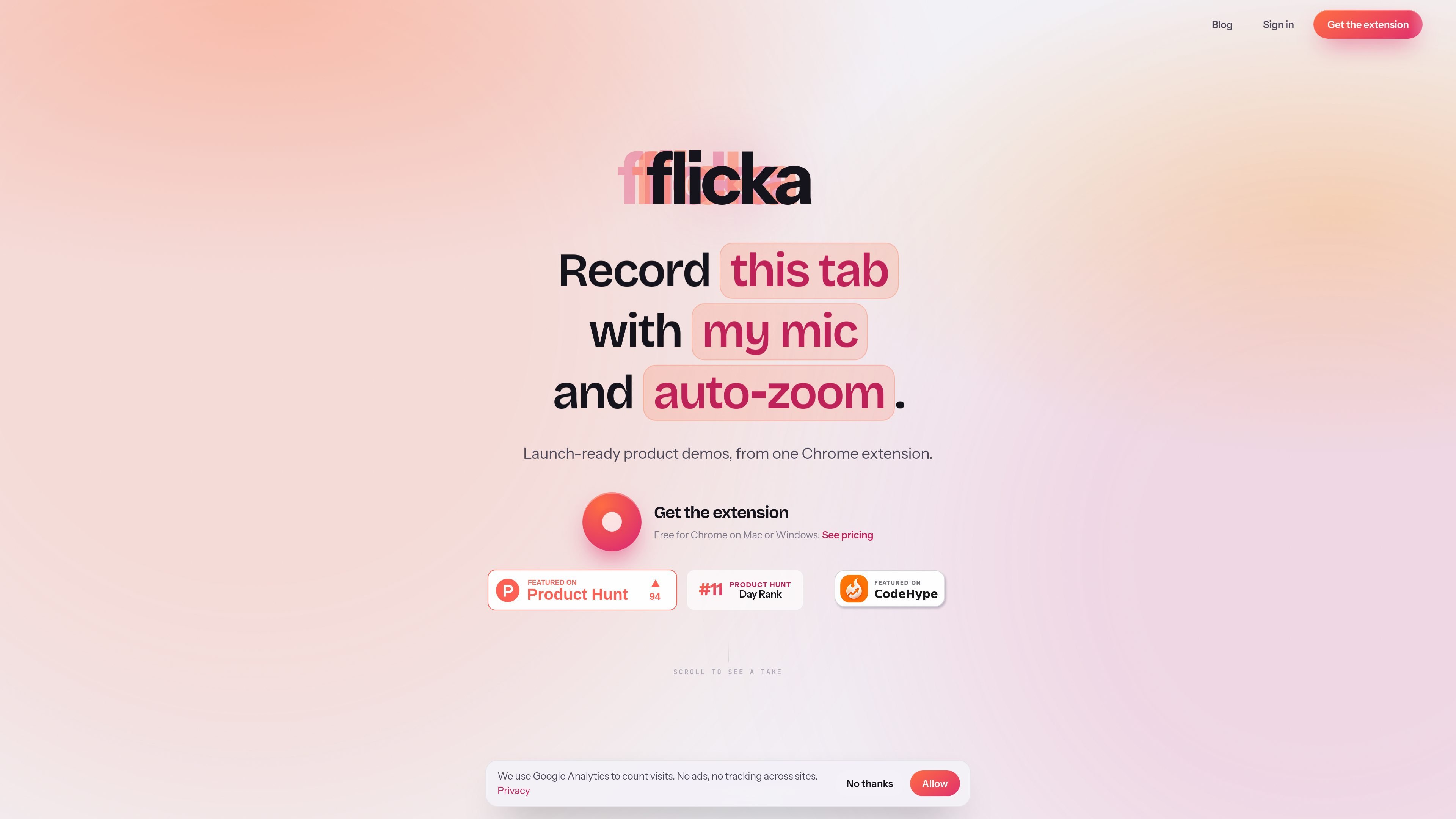
Flicka is a Chrome extension for recording and polishing browser-based product demos on Mac or Windows. It captures a tab, screen, window, page area, or camera, with microphone and optional tab audio, then opens the take in an editor where clicks are presented as editable zooms.
The product combines capture, live annotation, screenshot markup, timeline editing, backdrops, device frames, captions, and local export in one desktop workflow. Recordings, screenshots, projects, and captions remain on the computer; the site says no account is needed for recording, editing, or exporting, and the extension can work offline after a tab has loaded.
Record a tab, whole screen, window, page area, or camera with microphone and optional tab audio. A keyboard shortcut can start recording from anywhere.
Clicks are converted into editable zoom blocks in the timeline, so users can move, trim, or delete them rather than creating every zoom manually.
Draw, highlight, add arrows, boxes, text, blur, cursor, click, and spotlight effects during capture. The annotator also supports still screenshots and 15 tools.
Apply gradient or image backdrops, device frames, padding, shadows, and 3D tilt. Pro also includes camera layouts such as bubble, side-by-side, and camera-only.
Edit on a timeline with lanes for zoom, drawing, cuts, clicks, and audio. Add music or voice-over tracks, word-by-word captions generated on the device, and cuts on Pro.
Export WebM and GIF on Free, or MP4 and 4K on Pro. Presets are available for YouTube, X, TikTok, and Instagram, with rendering performed on the user's computer.
Capture a browser workflow and let clicks create the initial zoom sequence, then adjust the zooms and add framing before exporting a finished walkthrough.
Record a bug or interaction with live blur, arrows, text, or spotlight effects so the important area is clear during playback.
Drop in screenshots, annotate them with redaction and callouts, and export still images for documentation or product communication.
Create generated plates from code snippets, posts, or testimonials and apply the same backdrops, framing, and export treatment used for captures.
Use camera capture, microphone audio, camera layouts, and captions to produce a narrated walkthrough without sending the recording to a cloud service.
Flicka is a Chrome extension for Mac or Windows. It can record a browser tab, the whole screen, a window, an area of a page, or the camera, with microphone and optional tab audio.
No account is needed to record, edit, or export. Flicka is installed from the Chrome Web Store, and signing in is optional for purchasing a Pro plan.
While recording, Flicka can show a page bar for pausing, muting, restarting, and stopping. It also supports live pen, highlighter, arrows, boxes, text, blur, cursor, click, and spotlight effects. After recording, clicks appear as editable zooms in the editor.
Free exports are WebM and GIF at up to 1080p. Pro adds MP4 and 4K export, and removes the watermark. Rendering runs on the device and the file is saved to downloads; MP4 falls back to WebM if the browser cannot encode H.264.
Flicka's refund policy provides a full refund within 14 days of a first Pro purchase, including monthly, yearly, and lifetime purchases. Subscription renewals can also be refunded within 14 days of the renewal charge if the user contacts Flicka, and cancellation is handled through the account page or Paddle billing portal.

Zella is a screen recorder and on-device AI video editor for Mac and iPhone. It helps creators record screens or cameras, automatically clean up footage, add captions, reframe clips, and export videos without uploading the core project to the cloud.

Jupitrr Cut is a free iOS and Android teleprompter and recording app for scripted talking-head videos. It records scenes separately, lets users retake individual lines, trims pauses, and stitches the takes into a jump-cut video.

Ailytics is an AI-powered video analytics product for construction, manufacturing, and other heavy industries. It is positioned to improve safety and operational efficiency by turning site footage into actionable insight.

Tavus is an AI video platform for building real-time, face-to-face agents, digital twins, and AI companions. It combines APIs, custom replicas, and multilingual conversational workflows for developers and teams.

HiringPartner.ai is an autonomous AI recruiting platform for sourcing, screening, and interviewing candidates 24/7. It supports ATS-connected workflows, bulk resume uploads, and reviewable interview outputs for hiring teams.

CAKIE is a Mac app for recording your screen and voice for an AI agent. It adds a transcript and screenshot highlights, then lets you copy a prompt and paste or attach the context in another AI app.