
Custom split-flap messages
Create custom messages on a 24-column by 8-line split-flap layout, then send a message immediately or save it for later use.

KarmaBoard turns browser-capable TVs and other screens into 24×8 split-flap message boards for custom text, playlists, menus, announcements, and live feeds. It is designed for homes, cafés, offices, schools, hospitality venues, and travel displays that want remotely managed signage without dedicated split-flap hardware.
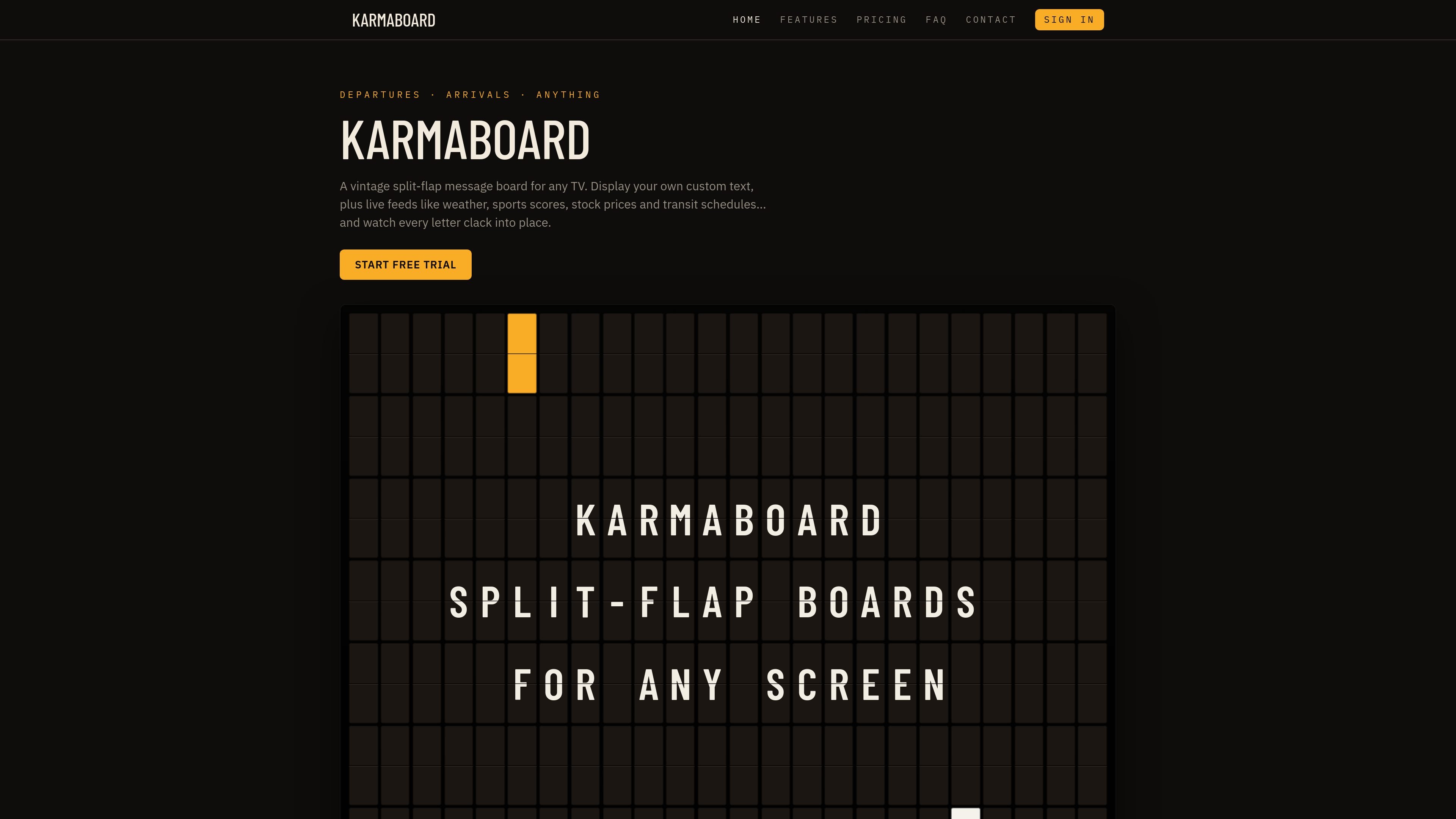
KarmaBoard is a browser-based split-flap display app that turns an existing TV, monitor, tablet, computer, or other browser-capable screen into a 24-column by 8-line message board. It reproduces the visual transition and click-clack sound of a mechanical departure board without requiring dedicated split-flap hardware.
Users can write custom messages, send one immediately, or organize messages and live feeds into playlists. The service is suited to home message boards and public-facing displays such as café menus, specials, event notices, office announcements, school schedules, hotel information, and travel updates.
Create custom messages on a 24-column by 8-line split-flap layout, then send a message immediately or save it for later use.
Combine custom text with weather, news, sports scores, stock and crypto data, flights, Amtrak departures, quotes, historical facts, and a time-and-date display.
Save messages and live content into looping playlists. Screens pick up playlist edits, additions, and reordering within a few seconds without re-pairing.
Open the player in a browser and pair a TV, tablet, computer, monitor, or streaming stick with a six-character PIN, then manage the display remotely.
Choose a light or dark look per screen and enable or disable flap sounds. Browsers may require an initial tap or click before audio can play.
Adapt the player to different browser hardware: higher-powered devices provide richer animation and audio, while less powerful TVs and streaming sticks use a lighter version for smoother playback.
Display family notes, dinner plans, weather, scores, and short reminders on a household TV. A playlist can rotate recurring information without requiring each item to be rewritten.
Publish breakfast, lunch, dinner, drinks, specials, or tap lists on a café or bar screen. Staff can update short menu lines from a phone and switch the active playlist as the day changes.
Use a lobby, break-room, or reception display for announcements, welcome messages, KPIs, market updates, or rotating operational information managed from a phone or computer.
Show schedules, lunch menus, countdowns, reminders, and event information on a school or venue screen using separate playlists for different activities.
Present welcome messages, event details, Wi-Fi information, local weather, and flight or train departures in hotels, airports, and stations where browser-capable displays are available.
Sign in at karmaboard.app, write a message in the Edit tab, open karmaboard.app/player on a TV, computer, tablet, or streaming stick, and pair the screen by entering its six-character PIN under Screens. After pairing, send a message or playlist to the display.
A message sent to a screen appears immediately and remains until another message is sent. A playlist rotates through saved messages and live content such as weather, news, sports scores, flights, and trains.
KarmaBoard runs in modern Chrome, Safari, Edge, and Firefox browsers. No app installation is required. It works on smart TVs, streaming sticks, computers, tablets, monitors, and phones, although a 16:9 widescreen display is recommended for the best layout.
The first paired screen has a seven-day free trial, with no card required to start. After the trial, the price is $9.99 per screen per month. Each additional screen is billed from day one, and one trial is available per account.
Menus can use up to 24 characters per line across 8 lines. Messages can be saved into playlists for breakfast, lunch, dinner, specials, or drinks, and the active playlist can be switched from the Screens tab.

MacSpoof es un cambiador de MAC para macOS: cambia o aleatoriza tu MAC Wi‑Fi para reconectar y reducir el registro de identidad en redes públicas.

DemoTV is an audience-ranked station for discovering and comparing independent product demos. Founders can submit videos, embed approved demos on their websites, collect viewer inquiries and optionally commission demo production or labelled promotion without buying ranking.

Ship It: Idle Dev Tycoon is an iPhone incremental simulation game about building apps, managing a software studio, and selling it for lasting progression benefits. It supports offline play, automated builds, adviser collection, and optional in-app purchases.

NomNak es una app gratuita para iPhone para descubrir restaurantes con recomendaciones de amigos, guardar lugares, crear tu pasaporte gastronómico y buscar ciudades.
CAPTA is a mobile GPS waypoint app for quickly saving, organizing, and revisiting locations. It supports offline use, camera-based coordinate capture, optional cross-device synchronization, and GPX export for fishermen, explorers, and field professionals.

Ctrl+Shift+3 is a calm, text-first community platform with a chronological feed, profiles, RSS, and private groups called Clicks. It is built for reading, posting, and joining smaller communities without algorithmic ranking or vanity counts.