
Flexible screenshot capture
Capture the visible area, a full scrolling webpage, or a precise selected region. Full-page captures are automatically scrolled and stitched into a high-resolution PNG.
FramioCam is a Chrome extension for capturing screenshots and recording tabs, windows, or the full display, with built-in screenshot styling and timeline video editing. It suits product, support, training, sales, and documentation workflows that need locally processed screen media.
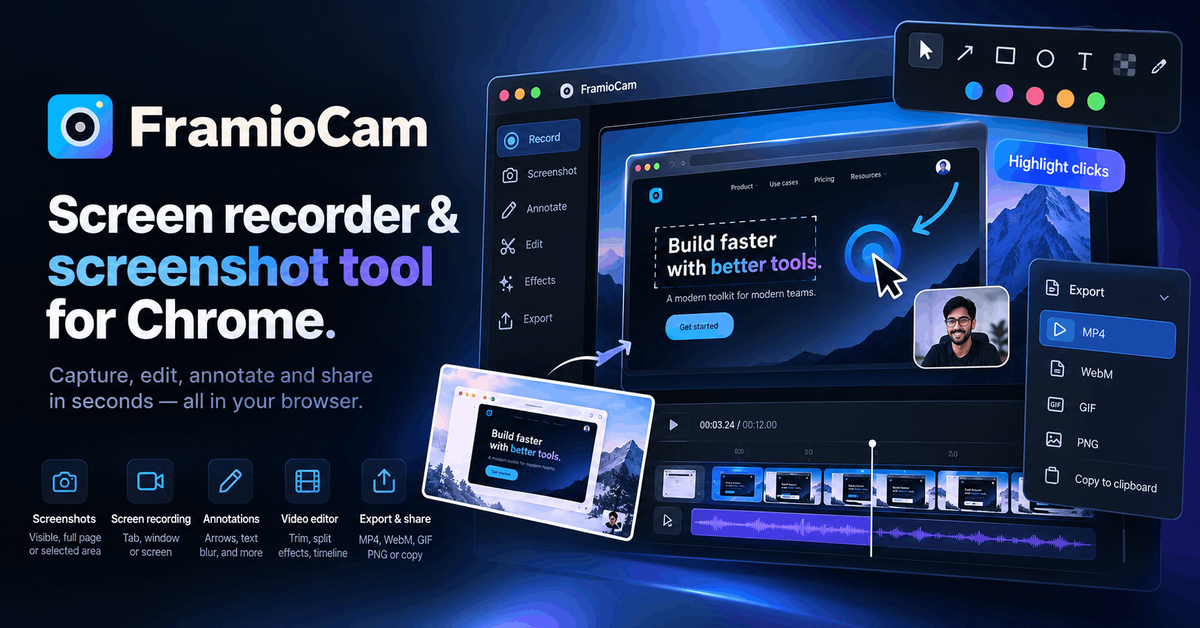
FramioCam is a Chrome extension for capturing screenshots and recording screens, then editing the results in the browser. It can capture a visible tab area, a full scrolling page, a selected region, an application window, or an entire display.
Its screenshot studio adds presentation elements such as backdrops, browser and window frames, annotations, and watermarks. Screen recordings open in a timeline editor for trimming, splitting, zooming, text overlays, and other markups. Processing is local by default; Team and Business plans optionally connect to the user’s Google Drive for file sharing and project synchronization.
Capture the visible area, a full scrolling webpage, or a precise selected region. Full-page captures are automatically scrolled and stitched into a high-resolution PNG.
Style captures with gradients, solid colors, textures, grain, browser or window frames, shadows, text, blur, shapes, spotlight, and watermarks. Images can be added by dragging, pasting, or using the Add control.
Record the current tab, an application window, or the entire display with system audio, microphone audio, or both. The recorder supports cursor click highlighting and has no stated recording-duration limit.
Edit recordings on a multi-lane timeline with trim and split controls, zoom and pan, text overlays, annotations, cursor highlighting, and export presets.
Processing takes place in the browser and media is not uploaded to FramioCam. Team and Business users can optionally save exports to Google Drive, share Drive links, and synchronize projects across computers.
Capture a product flow or feature walkthrough, trim the recording to the relevant steps, and export a short clip for a standup or internal update.
Record a reproducible issue, use cursor highlighting and timeline annotations to show the failure, and attach the resulting video or screenshot to a support or QA ticket.
Capture a webpage or application lesson, divide a longer recording into sections on the timeline, and add text or annotations before sharing it with learners.
Create a tailored screen walkthrough for a prospect or customer without switching to a separate recording and editing application.
Turn a screenshot into a presentable mockup with a backdrop, window frame, labels, and a watermark, then download it as a PNG or share it through Google Drive where available.
FramioCam is a Chrome extension. You can try the first 50 screenshots without an account, and recording and editing are also available without one. Video export requires a free account; creating that account also removes the 50-screenshot limit.
You can capture the visible area, a full scrolling page, or a selected region. Screenshots can be edited in the built-in studio and exported as PNG files. Recordings can be cut and annotated on the timeline before export.
Captures, recordings, and edits stay in the browser’s local storage on your machine unless you choose Google Drive sync. Team and Business users can send screenshots and video exports to their own Google Drive and can sync projects between computers.
The free plan includes unlimited screenshots, recordings, and exports, but exported video carries a FramioCam watermark and is limited to 1080p. Paid plans remove the watermark; Solo exports at the size recorded, while Team and Business add Google Drive cloud and project sync.
Team supports three people and six shared browser devices, while Business supports ten people and thirty shared browser devices. Devices are shared across the team and seats can be released and reassigned from the account page.

Zella is a screen recorder and on-device AI video editor for Mac and iPhone. It helps creators record screens or cameras, automatically clean up footage, add captions, reframe clips, and export videos without uploading the core project to the cloud.

Jupitrr Cut is a free iOS and Android teleprompter and recording app for scripted talking-head videos. It records scenes separately, lets users retake individual lines, trims pauses, and stitches the takes into a jump-cut video.

Ailytics is an AI-powered video analytics product for construction, manufacturing, and other heavy industries. It is positioned to improve safety and operational efficiency by turning site footage into actionable insight.

Tavus is an AI video platform for building real-time, face-to-face agents, digital twins, and AI companions. It combines APIs, custom replicas, and multilingual conversational workflows for developers and teams.

HiringPartner.ai is an autonomous AI recruiting platform for sourcing, screening, and interviewing candidates 24/7. It supports ATS-connected workflows, bulk resume uploads, and reviewable interview outputs for hiring teams.

CAKIE is a Mac app for recording your screen and voice for an AI agent. It adds a transcript and screenshot highlights, then lets you copy a prompt and paste or attach the context in another AI app.