
On-device gaze direction
Uses the Mac camera and Apple's Vision framework to estimate head and eye direction locally, without recording or transmitting camera frames.

Glance Switch is a macOS menu bar utility that uses the Mac’s camera to move keyboard focus toward the screen, window, or supported split pane you are facing. It is intended for multi-monitor, terminal, coding, and single-screen window-switching workflows.
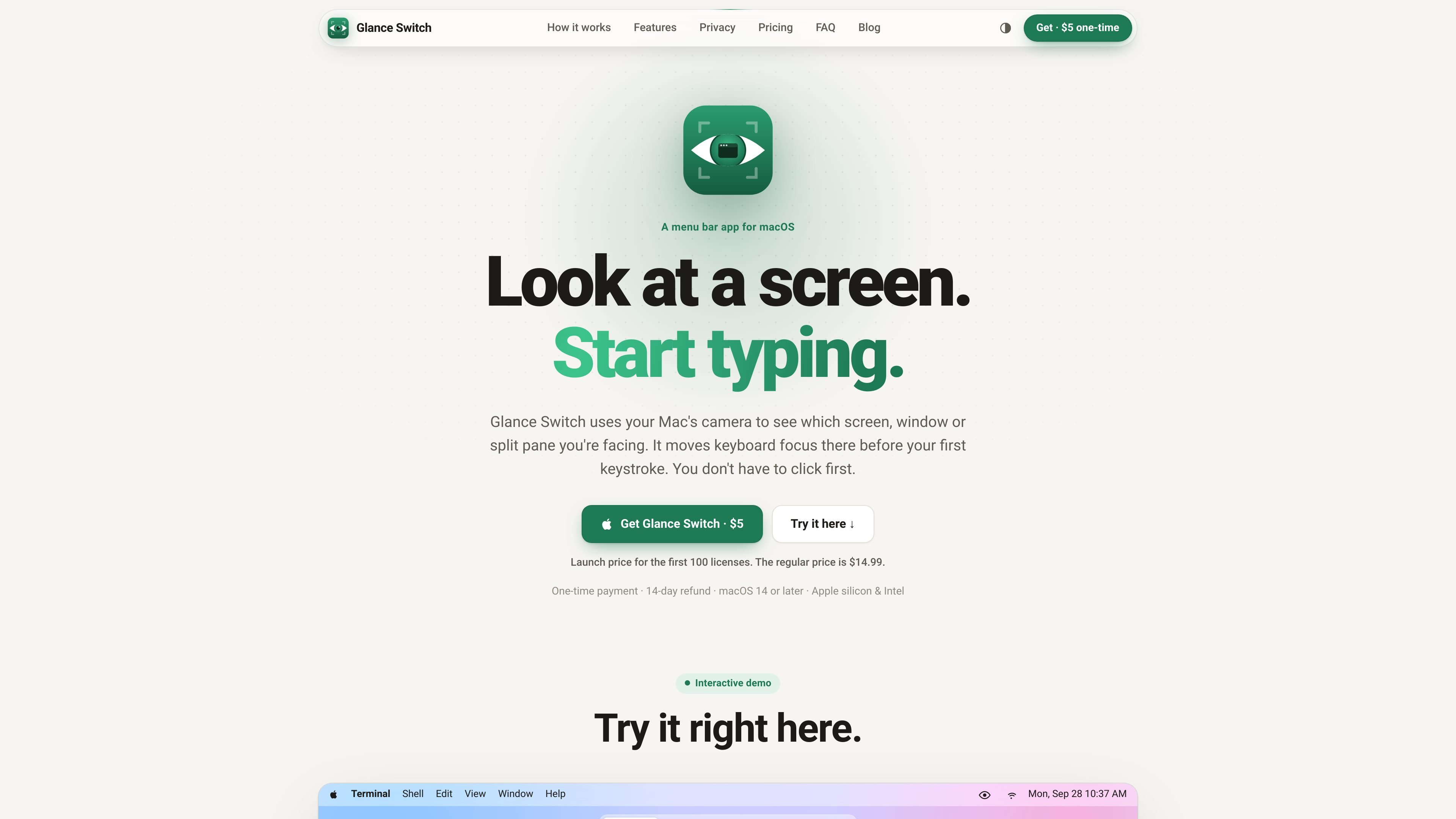
Glance Switch is a macOS menu bar app that moves keyboard focus based on the screen, window, or split pane you are facing. It is designed for workflows where people alternate between displays or read one pane while typing in another, removing the need to click before entering text.
The app uses a built-in or external camera with Apple's Vision framework to estimate head and eye direction on the Mac. After calibration, it brings the relevant screen's last-used window forward, can focus windows or supported split panes on the same display, and keeps camera processing in memory rather than sending frames to servers.
Uses the Mac camera and Apple's Vision framework to estimate head and eye direction locally, without recording or transmitting camera frames.
A guided nine-point calibration maps where you sit to the position of each display, with compensation when you move closer or farther away.
Brings forward the last window used on the screen you face and moves the pointer to that display, supporting side-by-side, stacked, and laptop-plus-monitor arrangements.
Can switch focus between windows on one display and between panes in supported terminals and code editors. Other applications are handled as whole windows.
Uses delays, boundary settings, typing protection, and mouse-priority behavior to reduce accidental switching. It can also ignore viewing directions that do not correspond to a screen.
Learns from clicks by default, can detect when accuracy has declined, and provides pause, recalibration, and gaze-dot controls from the menu bar or settings.
Look toward a monitor running an editor and begin typing without first clicking that display. The app restores the last window used there and can move the pointer along with focus.
Read one pane in a terminal or code editor, then turn toward another pane to continue entering commands or code. The source specifically lists iTerm2, Ghostty, Warp, kitty, WezTerm, Hyper, VS Code, Cursor, Windsurf, VSCodium, Zed, Sublime Text, Xcode, JetBrains IDEs, and Android Studio.
On a single display, use gaze direction to move between application windows or supported split panes instead of clicking each target, while browsers, chat, and documents remain whole-window targets.
Use the pause shortcut or menu bar controls when you do not want gaze-based switching, and enable the gaze dot while checking calibration or tuning delay and boundary settings.
Glance Switch is a macOS menu bar app that uses your Mac's camera and Apple's Vision framework to detect which direction you are facing. A one-time calibration maps your viewing position to each screen; after that, the app can move focus when you turn toward a screen, window, or supported split pane.
The source lists macOS 14 or later and support for both Apple silicon and Intel Macs. It can use a built-in or external camera, provided it faces you directly.
Quick glances are ignored by default. The app waits about 300 ms before switching, avoids moving focus while you type, and keeps the mouse or trackpad in control while in use and for 1.5 seconds afterward. These behaviors can be adjusted through settings where supported.
The app offers a calibration flow that samples nine positions on a screen and takes about 20 seconds per screen. It can also learn from clicks by default and can notify you when recalibration may be needed after your screens or seating position move.
Camera frames are processed on the Mac in memory with Apple's Vision framework. The site says frames are not recorded, written to disk, or sent to cloud servers, and that the camera stops when the Mac locks or sleeps.

Goldfish is an AI memory app for macOS that helps you reply, write, summarize, and continue using the context already on your Mac. It stores memory locally and writes in your tone.

ArtDeck is a visual reference board app for iPhone, iPad, and Mac that lets artists collect mixed reference material on one canvas and study it with ToolBox lenses. It works offline, supports optional iCloud sync, and is sold as a one-time purchase with no account required.

Biji es una plataforma versátil diseñada para mejorar la productividad a través de herramientas y características innovadoras.

Malyatko is a baby tracker for logging feeding, sleep, growth, teething, and milestones in one app. It works on iPhone, Apple Watch, and widgets, with no sign-up, offline use, and family sharing through iCloud.

Redline is a budgeting tool for Claude Code that paces sessions to stay within time, token, cost, or plan-percentage limits. It uses Claude Code’s native hooks and statusline to help sessions finish with a usable result instead of stopping abruptly.

Claude Overlay is a Windows desktop overlay for Claude Code that reads your screen so you can ask questions, inspect content, and request edits without leaving the current app. It runs on your existing Claude subscription through the Claude CLI, so no separate API key is required.