
Automatic click-based zoom
Kapshot detects clicks and creates zoom segments that move between 1× and 4× with cinematic easing. Rapid clicks in one area are clustered into a smoother zoom rather than separate jumps.

Kapshot is a macOS screen recorder that automatically adds click-based zooms, cursor smoothing, and styled framing to screen captures. It is designed for creators, developers, educators, and product teams who need polished tutorial, demo, or presentation videos without a complex editing workflow.
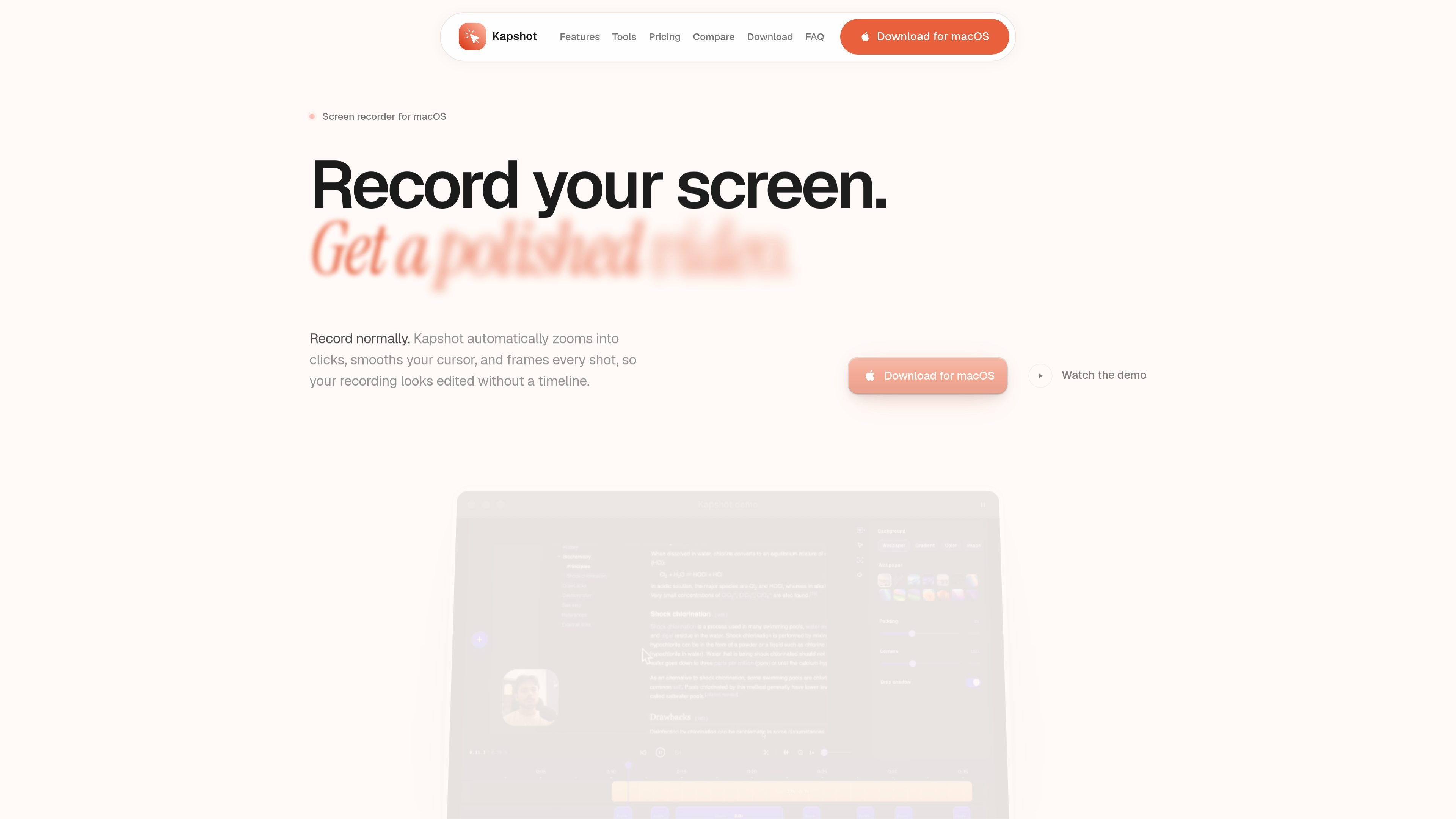
Kapshot is a native macOS screen recorder for turning ordinary screen captures into edited-looking videos without a traditional editing timeline. It records a display or window, then automatically adds click-focused zooms, a smoother cursor, and a framed background for a more directed presentation.
After recording, users can trim the result, scrub through the timeline, adjust generated zoom segments, and preview the video in the built-in editor. The workflow ends with a one-click H.264 MP4 export, while recording, editing, and exporting remain on the Mac according to the product site.
Kapshot detects clicks and creates zoom segments that move between 1× and 4× with cinematic easing. Rapid clicks in one area are clustered into a smoother zoom rather than separate jumps.
The app redraws the pointer with spring-physics smoothing. Users can set its size from 16 to 200 pixels, enable click animations, and add ripple effects to make interactions easier to follow.
Recordings sit on a customizable canvas with five background presets or a custom image, plus adjustable padding, rounded corners, and drop shadows.
A built-in editor provides trimming, cutting, timeline scrubbing, zoom-segment adjustment, and real-time preview before export.
Kapshot records at 60 frames per second through ScreenCaptureKit, which is intended to keep fast scrolling and animations fluid.
The recording dock is designed not to appear in the capture. An optional camera overlay can be enabled while recording, and finished videos can be exported as H.264 MP4 files with fast-start playback settings.
Create tutorial or demo recordings where automatic zooms emphasize the controls being clicked and cursor effects make each interaction legible to viewers.
Record feature walkthroughs or bug reproductions with a visible pointer trail and click ripples, then trim the result before sending an MP4 to colleagues or users.
Prepare course or lesson screencasts without assembling a separate capture-and-edit workflow. The editor provides a way to remove unwanted sections and review the result before export.
Produce launch or presentation videos with a styled canvas, custom background, rounded corners, and shadows instead of presenting an unframed desktop capture.
Kapshot currently supports macOS 14 Sonoma or later, on both Apple silicon and Intel Macs. Windows and Linux support is described as planned rather than currently available.
Choose Display or Window from the capture bar, optionally enable the camera, and record with the floating dock. The dock hides from the recording, after which the built-in editor opens with the recording and generated zoom segments ready to review.
Kapshot exports H.264-encoded MP4 files using CRF 18, yuv420p, and fast start settings. The site also lists MP4, WebM, MOV, and MKV as supported file types, but the one-click export described in the workflow produces MP4.
No. The site says recording, editing, and exporting happen locally on the Mac, and that no data is sent to a server.
Kapshot is presented as a one-time purchase rather than a subscription. The site lists a $19 launch price, a $49 regular price after launch, lifetime updates, and a 14-day refund window; a valid license is required to activate the downloaded app.

Zella is a screen recorder and on-device AI video editor for Mac and iPhone. It helps creators record screens or cameras, automatically clean up footage, add captions, reframe clips, and export videos without uploading the core project to the cloud.

Jupitrr Cut is a free iOS and Android teleprompter and recording app for scripted talking-head videos. It records scenes separately, lets users retake individual lines, trims pauses, and stitches the takes into a jump-cut video.

Ailytics is an AI-powered video analytics product for construction, manufacturing, and other heavy industries. It is positioned to improve safety and operational efficiency by turning site footage into actionable insight.

Tavus is an AI video platform for building real-time, face-to-face agents, digital twins, and AI companions. It combines APIs, custom replicas, and multilingual conversational workflows for developers and teams.

HiringPartner.ai is an autonomous AI recruiting platform for sourcing, screening, and interviewing candidates 24/7. It supports ATS-connected workflows, bulk resume uploads, and reviewable interview outputs for hiring teams.

CAKIE is a Mac app for recording your screen and voice for an AI agent. It adds a transcript and screenshot highlights, then lets you copy a prompt and paste or attach the context in another AI app.