
Wireless and wired mirroring
Mirror an iPhone wirelessly over AirPlay or connect with a USB cable. The app also supports iPad, Apple TV, Vision Pro, and iPod touch.

Bezel is a macOS app for mirroring and recording Apple devices on a Mac. Supports wireless AirPlay and USB mirroring for demos, walkthroughs, and screen recordings.
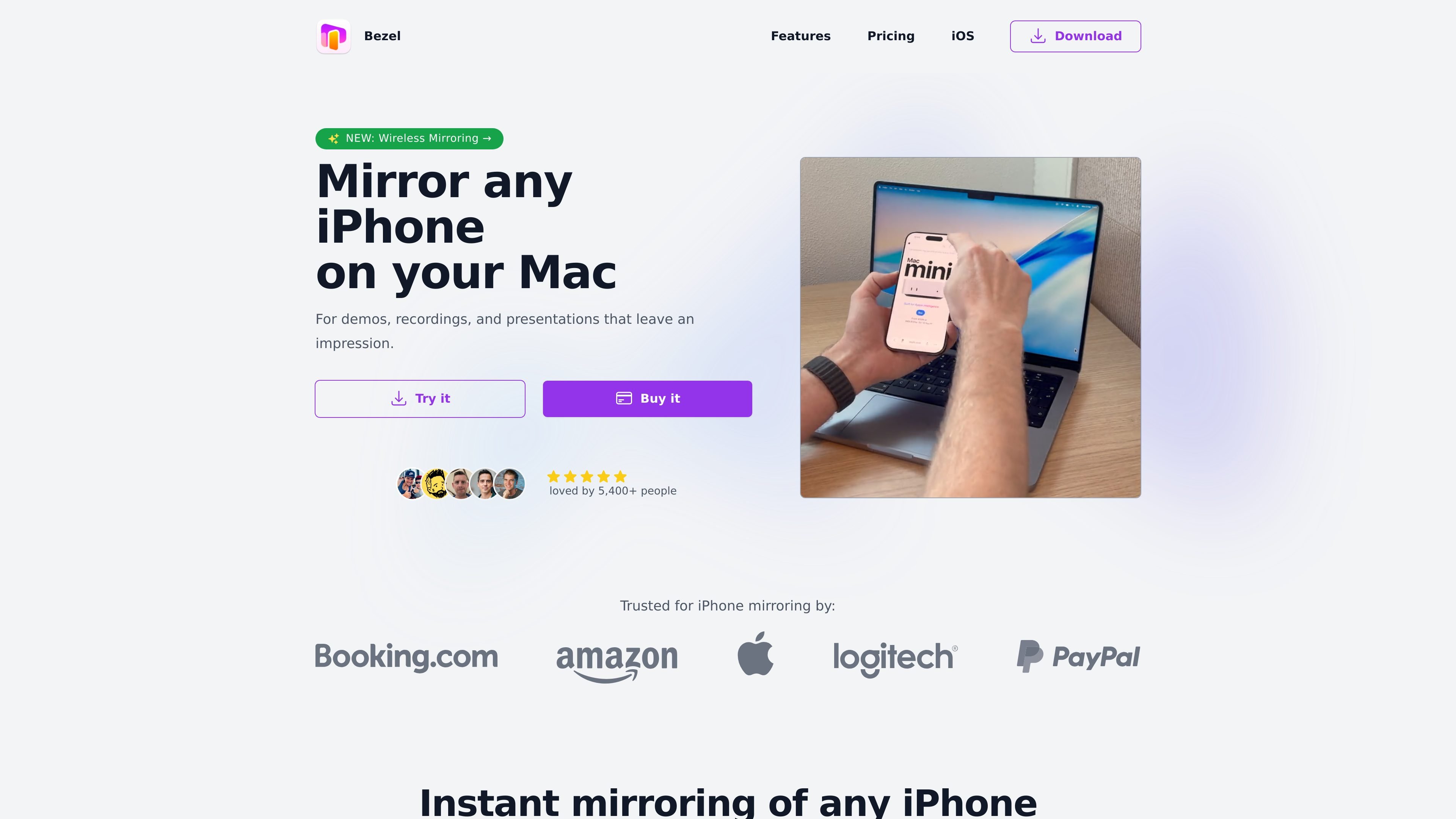
Bezel is a macOS app for mirroring and recording iPhone, iPad, Apple TV, Vision Pro, and iPod touch screens on a Mac. It supports both wireless mirroring through AirPlay and wired mirroring over USB, and it is positioned for demos, recordings, and presentations.
The product focuses on making device output easy to show and share: it can add a bezel and background to recordings, capture high-resolution screenshots, mirror audio, and switch into full-screen or always-on-top viewing modes. The site also says it supports every iPhone, including devices signed into different iCloud accounts.
Mirror an iPhone wirelessly over AirPlay or connect with a USB cable. The app also supports iPad, Apple TV, Vision Pro, and iPod touch.
Record mirrored screens with a bezel and backdrop so demos and walkthroughs are ready to share without extra editing.
Capture screenshots in high resolution and mirror audio alongside the device display.
Keep the mirrored device on top, switch to full screen, and let the app auto-rotate as the device changes orientation.
Match bezels and colors automatically, customize bezel colors, and choose true-to-life or pixel-perfect sizing for the display.
Use guided setup for new devices and sleep and lock detection to make repeated mirroring sessions easier to manage.
Show a live iPhone app or device flow on a Mac during a product demo, stakeholder review, or client presentation without asking the audience to focus on the handheld device.
Record device screens with a bezel and backdrop when you need a clean clip for marketing, documentation, or social media.
Mirror your own device while testing new app behavior so you can observe the real device on a larger screen during development or QA.
Use full-screen and always-on-top modes to keep the mirrored device visible while you present, switch apps, or guide someone through a task.
Keep a personal license available on multiple Macs so you can use the same Bezel setup on a desktop and laptop, or at work and home.
Bezel can mirror iPhone, iPad, Apple TV, Vision Pro, and iPod touch. The site also says it supports every iPhone, even when the device uses a different iCloud account.
The pricing page says personal licenses are valid for one user and can be installed on up to three Macs. If you cancel a subscription, Pro access continues until the end of the billing period, then the app reverts to the free trial version.
Yes. The pricing page offers a free trial version, and the product pages mention a watermark and time limits on the trial. Pro removes the watermark and time limits.
The pricing page lists Monthly, Yearly, and Lifetime options for Bezel Pro, plus a Business plan with employee enrollment, consolidated billing, and team management.
The site says Bezel records screens with bezel and backdrop, supports screenshots in high resolution, audio mirroring, full screen mode, always-on-top pinning, auto-rotate, and guided setup for new devices.

Goldfish is an AI memory app for macOS that helps you reply, write, summarize, and continue with context already on your Mac. It stores memory locally and writes in your tone.

ArtDeck is a visual reference board app for iPhone, iPad, and Mac. Collect mixed references on one canvas and study them with ToolBox lenses. Offline, optional iCloud sync, one-time purchase.

Biji is a versatile platform designed to enhance productivity through innovative tools and features.

Malyatko is a baby tracker for feeding, sleep, growth, teething, and milestones. Use it on iPhone, Apple Watch, and widgets offline, with iCloud sharing.

Tavus is an AI video platform for real-time face-to-face agents, digital twins, and AI companions, with APIs and multilingual workflows for developers.

Redline is a budgeting tool for Claude Code that paces sessions by time, tokens, cost, or plan percentage, helping them end with a usable result.