

ChocolateBar
ChocolateBar is a native macOS app that adds a second row below the menu bar so hidden notch-obscured icons and open app windows stay visible. It helps Mac users on Monterey or later access crowded menu bar items and switch windows more easily.
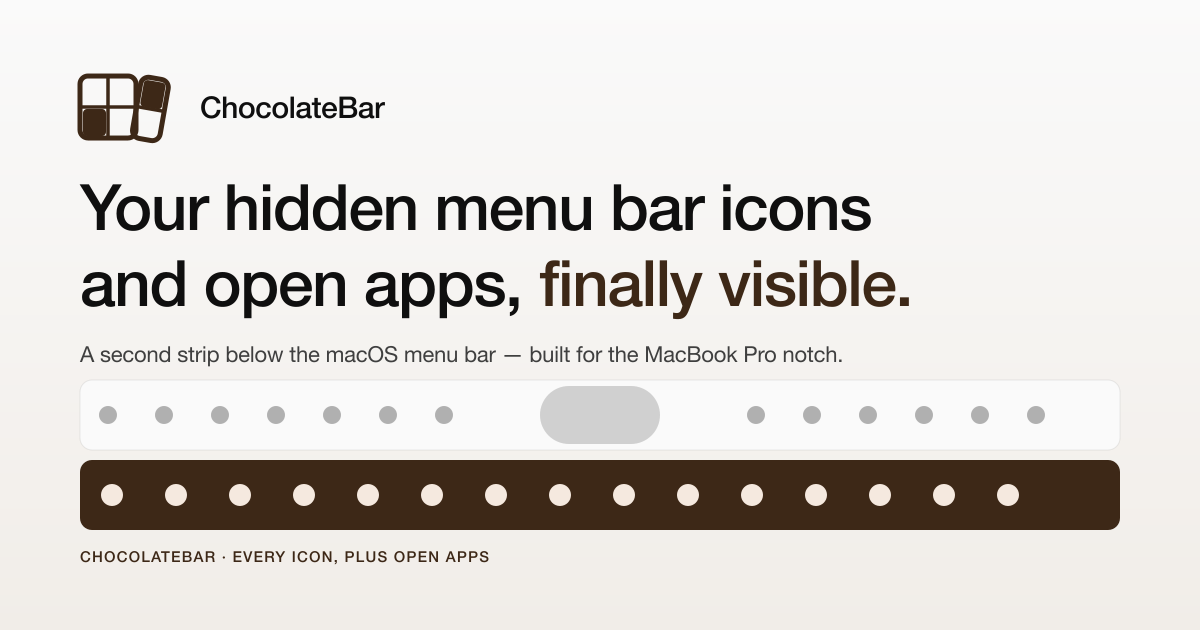
What is ChocolateBar?
ChocolateBar is a native macOS app that adds a second row below the menu bar so hidden menu bar icons and open app windows stay visible. It is designed for Mac laptops where the notch can obscure status items and make it harder to reach frequently used utilities.
The app works with macOS Monterey or later and uses Accessibility permission to read existing menu bar items, list active windows, and click through to the original app controls. The result is an additional strip that mirrors the items macOS hides behind the notch, without replacing the original menu bar UI.
Key Features
- Adds a second row under the menu bar, making hidden status icons visible again when the notch blocks them.
- Shows open app windows in the same strip, so you can switch to running apps without relying on
Cmd-Tabor the Dock. - Preserves the real menus: clicking an item in ChocolateBar triggers the actual menu bar control rather than a recreated mockup.
- Supports two layouts, horizontal across the screen or vertical along either edge, which lets users choose a layout that fits the display and workflow.
- Includes a hover magnification strip, which helps users inspect items when the bar is dense or the screen layout is tight.
- Is a small native download with a listed size of 5 MB and support for Apple Silicon and Intel Macs.
How to Use ChocolateBar
Download the DMG, mount it, and drag ChocolateBar into the Applications folder. On first launch, macOS will ask for Accessibility permission; granting it allows the app to read and interact with your existing menu bar items and open windows.
After setup, the hidden icons and running apps appear in the strip below the menu bar. You can use it in a horizontal layout beneath the menu bar or switch it into a vertical column on either side of the display.
Use Cases
- A MacBook Pro user with a notch can keep VPN, sync, password manager, Slack, and other status items visible without rearranging the menu bar.
- Someone who frequently switches between many open apps can click a window from the strip instead of cycling with
Cmd-Tab. - A user with a tall external display can move the strip to a vertical edge to keep the top of the screen clear.
- A person who wants to preserve access to native menu bar controls can surface hidden items without changing how those apps behave.
- A new Mac setup can use ChocolateBar to make crowded menu bar items easier to access from day one.
FAQ
What problem does ChocolateBar solve? It gives the menu bar more room by showing hidden icons and open windows in a second strip below the menu bar.
How does ChocolateBar work? It uses Apple’s Accessibility API to read menu bar items and active windows, then clicks the original controls when you select an item.
What systems does it support? The site says ChocolateBar works on macOS Monterey or later and is compatible with Apple Silicon and Intel Macs.
Does it require a permission prompt? Yes. macOS asks for Accessibility permission on first launch so the app can read and interact with menu bar items.
What is the refund policy? The site states a 7-day refund window with no forms.
Alternatives
- A manual menu bar cleanup approach: users can reduce the number of status items, but that does not add a second row or help with open windows.
- The Dock for app switching: it provides access to running apps, but it does not surface hidden menu bar icons.
Cmd-Tabapp switching: useful for moving between apps, but it does not expose menu bar utilities that are hidden behind the notch.- Other menu bar manager utilities: some tools focus on hiding, grouping, or rearranging menu bar items rather than presenting a second visible row beneath the notch.
Alternatives

Biji
Biji is a versatile platform designed to enhance productivity through innovative tools and features.

MacSpoof
MacSpoof is a macOS MAC address changer that lets you change or randomize your Wi‑Fi MAC to reconnect and limit device logging on public Wi‑Fi.

Decision Jar
Create virtual jars of options with Decision Jar—shake your phone to pick instantly, use AI suggestions, and view decision logs over time.

Planndu: Daily Task Planner
Planndu is an intuitive productivity application designed to help users organize tasks, manage projects, build routines, and enhance focus using tools like AI generation and a built-in Pomodoro timer.

Carbon Voice
Carbon Voice is an asynchronous voice messaging app for teams with people and AI agents, plus transcribed updates, voice or text replies, and desktop, mobile, watch, and widget access.
MealTime
MealTime is your personal, offline-first recipe companion designed to help you save, organize, plan meals, and generate smart grocery lists, all while keeping your data private.