
Signed-in browser access
Lets Codex work in Chrome when a task depends on signed-in browser context instead of the in-app browser.

Codex Chrome extension lets Codex use a signed-in Chrome session for browser tasks that need existing website context, alongside the in-app browser and plugins.
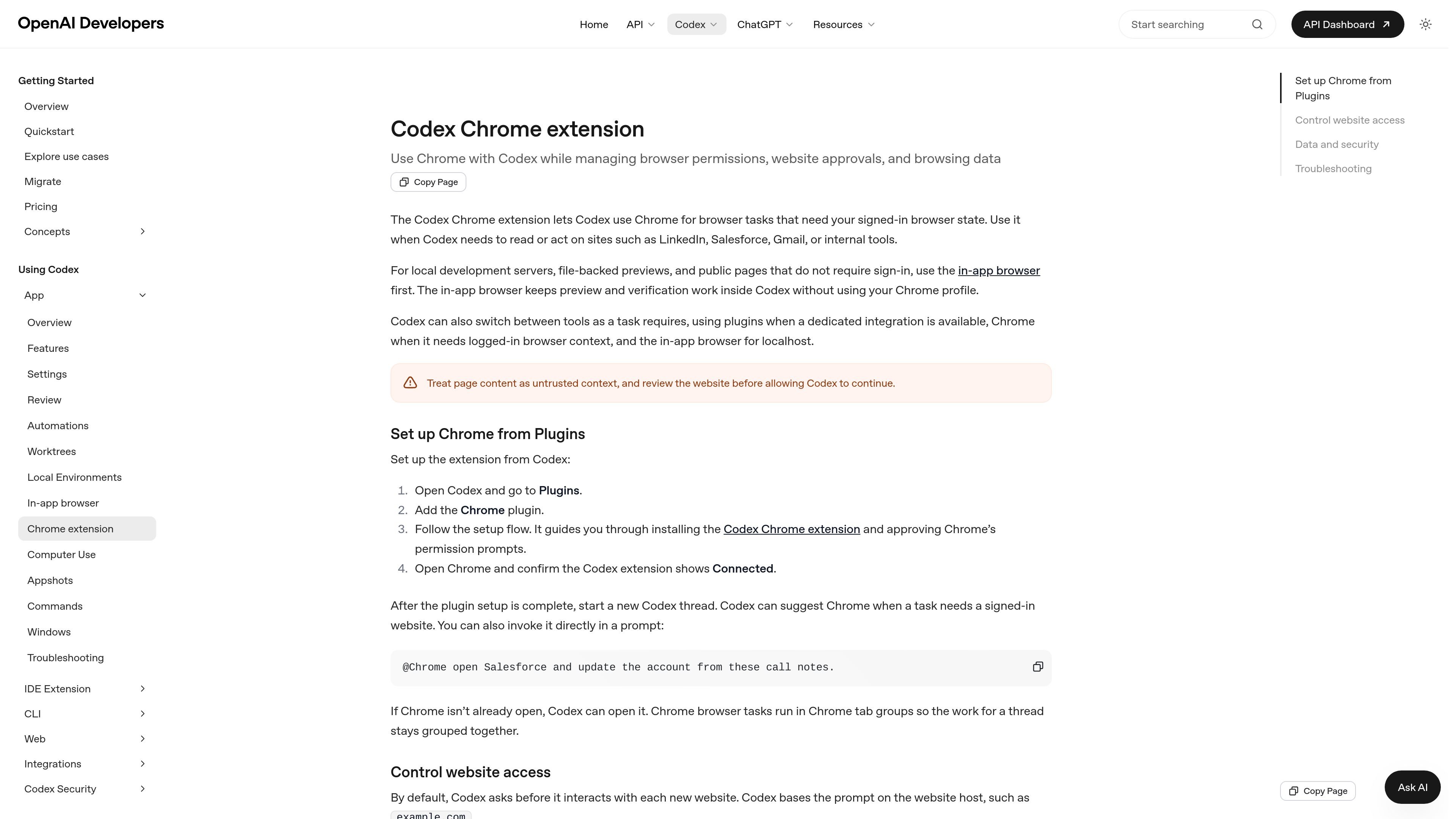
The Codex Chrome extension lets Codex use Chrome for browser tasks that depend on your signed-in browser state. It is intended for sites where login context matters, such as LinkedIn, Salesforce, Gmail, or internal tools.
For local development servers, file-backed previews, and public pages that do not require sign-in, the page recommends using Codex’s in-app browser first. Codex can switch between plugins, Chrome, and the in-app browser depending on the task, and it asks before using new websites unless you change the access settings.
Lets Codex work in Chrome when a task depends on signed-in browser context instead of the in-app browser.
Supports interactive approval for each new website, with options to allow once, always allow a host, or decline.
Provides allowlists and blocklists in Computer Use settings so teams can manage which domains Codex can revisit or avoid.
Can use browser history as scoped context when enabled, while warning that history may contain sensitive telemetry, URLs, and activity.
Runs browser tasks in Chrome tab groups so the work for a thread stays grouped together.
Works alongside other Codex tools, using plugins where a dedicated integration exists, Chrome for logged-in sites, and the in-app browser for localhost and previews.
Have Codex read or act on a signed-in CRM, social, or email session when the work depends on browser state already present in Chrome.
Use the extension when a task needs browser context from a live Chrome profile rather than a clean localhost or preview environment.
Let Codex handle websites one host at a time with approval prompts, then promote frequently used domains to the allowlist when appropriate.
Switch to Chrome when a task requires a dedicated integration is unavailable and the browser is the best available interface for the job.
Prepare Chrome file access when a browser task needs to upload local files from your machine into a web app.
The extension is set up from Codex under Plugins. Open Codex, add the Chrome plugin, follow the setup flow, approve Chrome’s permission prompts, and confirm the extension shows Connected in Chrome before starting a new thread.
Use Chrome when Codex needs your signed-in browser state on sites like LinkedIn, Salesforce, Gmail, or internal tools. For localhost, file-backed previews, and public pages that do not require sign-in, the page recommends using the in-app browser first.
By default, Codex asks before it interacts with a new website. You can allow a site for the current chat, always allow a host, decline it, or manage allowlists and blocklists in Computer Use settings.
Chrome asks you to accept extension permissions during installation. The permission prompt may include access to the page debugger, browsing history, bookmarks, downloads, tab groups, notifications, and cooperating native applications.
If a Chrome task needs a file upload, the extension must be allowed to access file URLs in Chrome. The setup page also recommends using the same Chrome profile where the extension is installed and re-adding the plugin if the connection fails.

Timeslicer is a time tracking and distraction-blocking app that infers tasks from visible browser and desktop content, with activity data stored locally.

DockAMP is a Docker image for browser-based management of Apache or Nginx, PHP, MySQL, MariaDB, PostgreSQL, and proxy containers, plus files, backups, updates, and status tools.

Notwen is a freelance finance tool that tracks earnings, tax reserves, and safe spend, with AI for invoicing, contracts, and follow-ups.

ClipStudios is a web-based AI video platform for creating clips from prompts or images, with built-in audio, lip sync, stitching, and model selection tools. Free tier available; paid plans from €20/month.

drifty is a Mac AI time tracker that captures app, site, and session context in the background, then classifies activity as focus, neutral, or drift.

Sumora is an autonomous outreach agent for LinkedIn and Instagram that finds, qualifies, warms, and books leads, with replies managed in one inbox and final sends under review.