
Automatic background capture
Records active apps, sites, and session context in the background, so the timeline is ready without starting a timer or cleaning up tags later.

drifty is a Mac AI time tracker that captures app, site, and session context in the background, then classifies activity as focus, neutral, or drift.
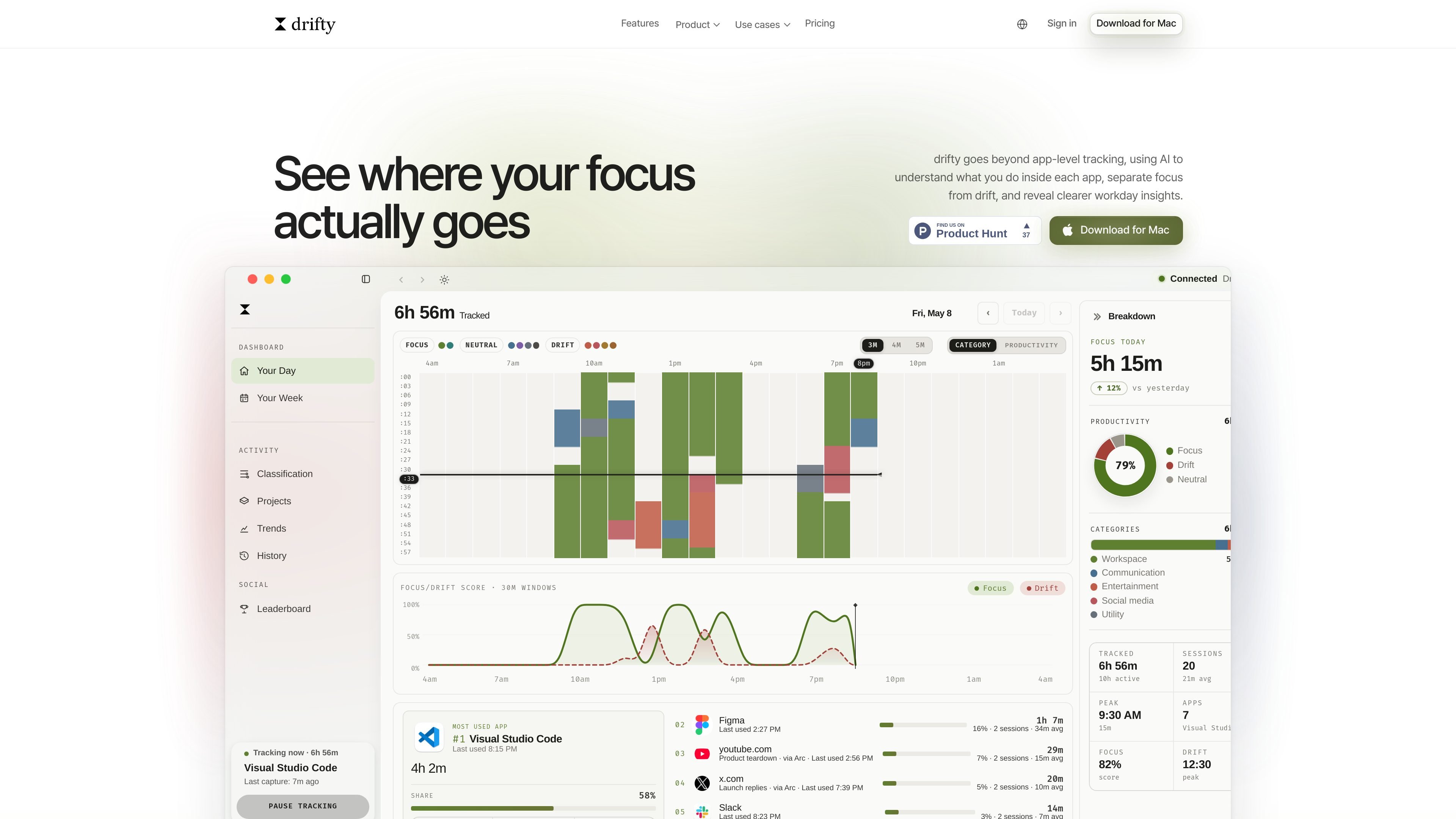
drifty is a Mac time-tracking app that captures activity in the background and uses AI to interpret what you were doing, not just which app was open. It is designed to separate focus from drift by looking at app, site, and window context, then turning that data into a reviewable timeline.
The product is aimed at people who want more meaning from activity tracking than raw totals. Instead of manual timers or screen recording, drifty classifies sessions into categories such as focus, neutral, and drift, then presents daily and weekly summaries that can help users understand where attention actually went.
Records active apps, sites, and session context in the background, so the timeline is ready without starting a timer or cleaning up tags later.
Uses AI to label sessions as Focus, Neutral, or Drift based on context rather than app names alone.
Shows three-minute timeline blocks plus weekly calendar views, making it easier to inspect the day at different levels of detail.
Keeps raw activity local by default and avoids screen recording or saved screenshots.
Supports different analysis modes, including drifty Cloud, Local AI on Mac, and OpenRouter API key-based setup.
Adds drift alarms and review surfaces such as recent focus targets and end-of-day review for catching distractions before they spread.
Useful for people who want to understand how their workday was spent without manually starting and stopping timers. drifty records activity in the background and organizes it into a later reviewable timeline.
Helps when the same app can mean different things depending on the task. For example, a browser window may represent research, a lecture, or distraction, and drifty classifies those sessions by context.
For developers and other Mac users who move between IDEs, browsers, and communication tools, drifty can summarize where deep work happened and where context switching took over.
For people trying to reduce drift, the alarm and review surfaces can make recent focus work easier to return to before a distraction session becomes longer.
Teams or individuals comparing setup options can use the pricing model to choose between the free local plan, hosted Cloud AI, or a key-based local-first setup.
No. drifty is built around automatic Mac activity capture, so you can review a timeline later instead of starting timers or tagging work manually.
drifty classifies activity using context around each session, including the app, site, title, and how the session fits into the rest of your day.
No. drifty is not a screen recorder and does not save screenshots; it focuses on activity context instead of visual capture.
You can choose between drifty Cloud, Local AI on your Mac, or your own OpenRouter key. The pricing page also shows a local-first free plan and a hosted Cloud AI plan.
Activity capture stays local on your Mac. Cloud and OpenRouter classification need a connection, while Local AI can classify on-device after setup.

PromptScout tracks how ChatGPT, Gemini, Google AI Overviews, and Perplexity mention your brand or competitors, with source analysis and website audits.

Sleek Analytics is a privacy-friendly web analytics tool with real-time visitor tracking, Core Web Vitals, and revenue attribution.

Goldfish is an AI memory app for macOS that helps you reply, write, summarize, and continue with context already on your Mac. It stores memory locally and writes in your tone.

SaveMRR is a Stripe retention tool for SaaS teams to scan churn and MRR leaks, then automate recovery with dunning, cancel-save offers, win-back emails, and onboarding nudges.

Hype is a web tool for finding trending YouTube topics by category, time range, and scoring mode. Spot emerging ideas and review source videos.

ArtDeck is a visual reference board app for iPhone, iPad, and Mac. Collect mixed references on one canvas and study them with ToolBox lenses. Offline, optional iCloud sync, one-time purchase.