
Screen recording with synced debug context
Record the browser window or a selected region, then capture console logs, network requests, and navigation events alongside the video.

DevRecorder is a screen recorder for developers that captures console logs, network requests, errors, and navigation events with video for faster debugging and bug reports.
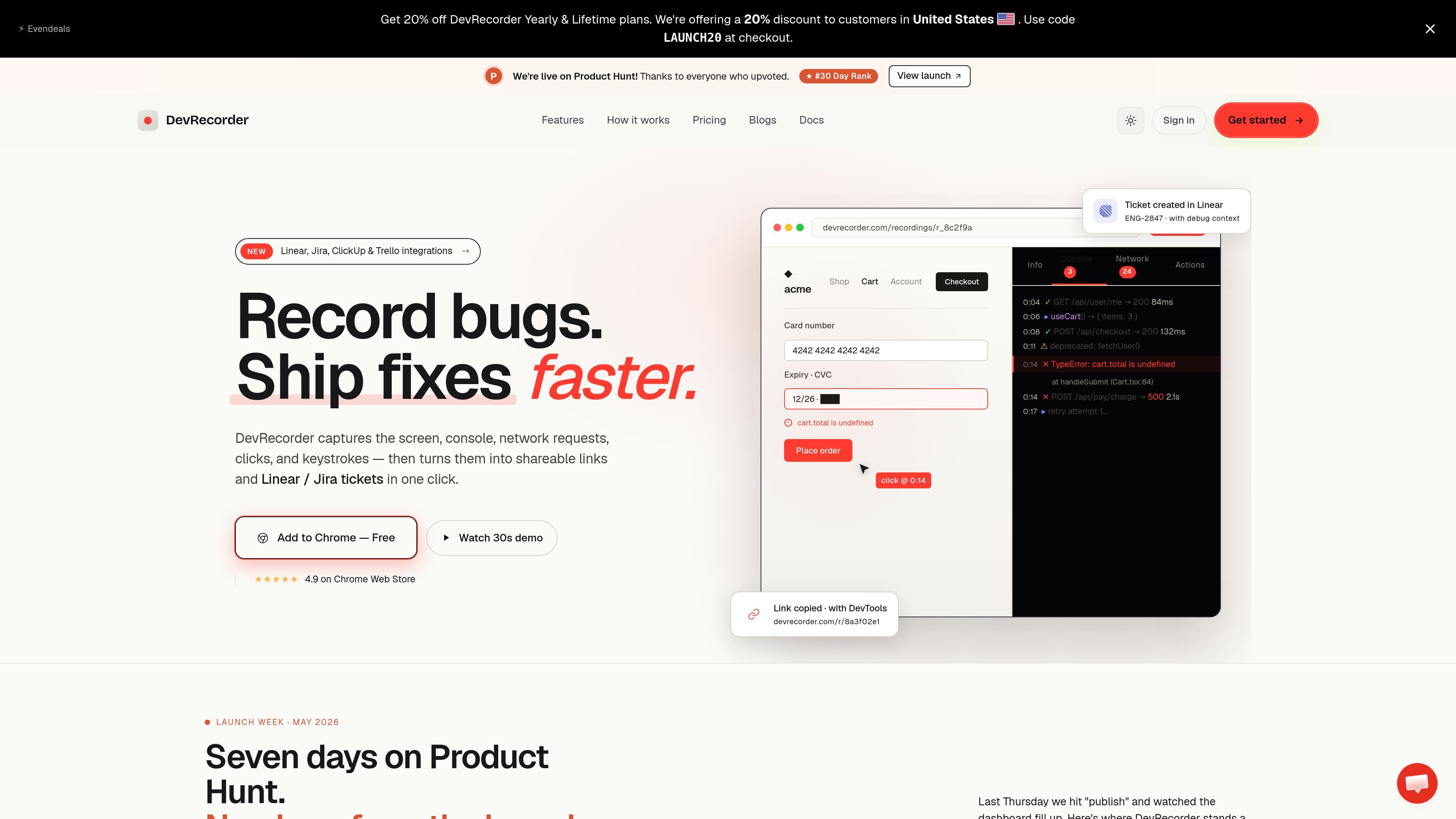
DevRecorder is a screen recorder for developers that pairs video capture with synchronized debugging data. It records browser activity together with console logs, network requests, errors, and navigation events so teams can review what happened in context.
The product is designed for debugging, bug reports, and handoff workflows. Users can start with the Chrome extension, share recordings through public links, add comments, and push recordings into issue trackers or AI coding tools through integrations and MCP support.
Record the browser window or a selected region, then capture console logs, network requests, and navigation events alongside the video.
Review recordings with a timeline panel that lets you jump to events and inspect console errors, network requests, and response details.
Share recordings through a public link so viewers can watch the video with synchronized debug data without logging in.
Add time-stamped comments and threaded replies, with emoji reactions for team review on recordings.
Create linked issues or tasks from a recording in Linear, Jira, ClickUp, or Trello, with context prefilled from the recording.
Connect an MCP endpoint so supported AI coding tools can query recorded errors, console logs, and network requests directly from your account.
Capture a bug while keeping the relevant console errors and network activity attached to the recording, so a teammate can review the issue without recreating the same environment.
Share a public recording with synchronized debug data when handing off work to another engineer or a support teammate, reducing back-and-forth over missing context.
Use time-stamped comments and threaded replies to review a recording as a team, especially when a fix needs quick discussion around a specific moment in the playback.
Turn a recording into a linked issue or task in Linear, Jira, ClickUp, or Trello when a bug needs to move from investigation into the team’s workflow.
Ask an AI coding tool for details from recent recordings through the MCP server when you want logs, errors, or request data surfaced in your development workflow.
Yes. The Free plan includes 5 recordings, 500 MB of storage, and no credit card is required to get started. The documentation says your first recording is free.
The docs say setup takes under 5 minutes: create an account with Google, install the Chrome extension, and start a recording from the extension menu.
DevRecorder captures console logs, network requests, and navigation events with the recording. The docs also say it can capture response bodies on paid plans and redacts sensitive headers such as Authorization and cookies.
Yes. The documentation says recordings can be shared with a public link so viewers can see the video with synchronized debug data without logging in.
DevRecorder supports Linear, Jira, ClickUp, and Trello integrations, and it also offers an MCP server for AI coding tools such as Claude Code, Cursor, Windsurf, and VS Code (Copilot).

ByteAsk is a terminal-first AI coding agent for C and C++ that edits repos and verifies changes with compilers, debuggers, sanitizers, and tests.

Manta AI is an autonomous web app testing tool that maps app behavior, catches regressions, and generates tests from a URL, no scripts or selectors needed.

CreateOS Sandbox is an isolated compute environment for running code and agent workloads in Firecracker micro-VMs with private networking and SDK, CLI, or MCP control.

hob is an independent workspace for coding agents, with local control over sessions, terminals, history, routing, and follow-up work.

Ably Chat is a chat API platform for custom realtime chat apps, with rooms, typing indicators, presence, reactions, message updates and usage-based pricing.

Tavus is an AI video platform for real-time face-to-face agents, digital twins, and AI companions, with APIs and multilingual workflows for developers.