
Multiple generation modes
Generate speech in Single Speaker, Multi Speaker, or Instant Speech mode depending on whether you are working with monologues, dialogue, or quick conversions.

FlowSpeech is a context-aware text-to-speech studio that turns scripts and uploaded files into human-like audio. Free plan and paid tiers available.
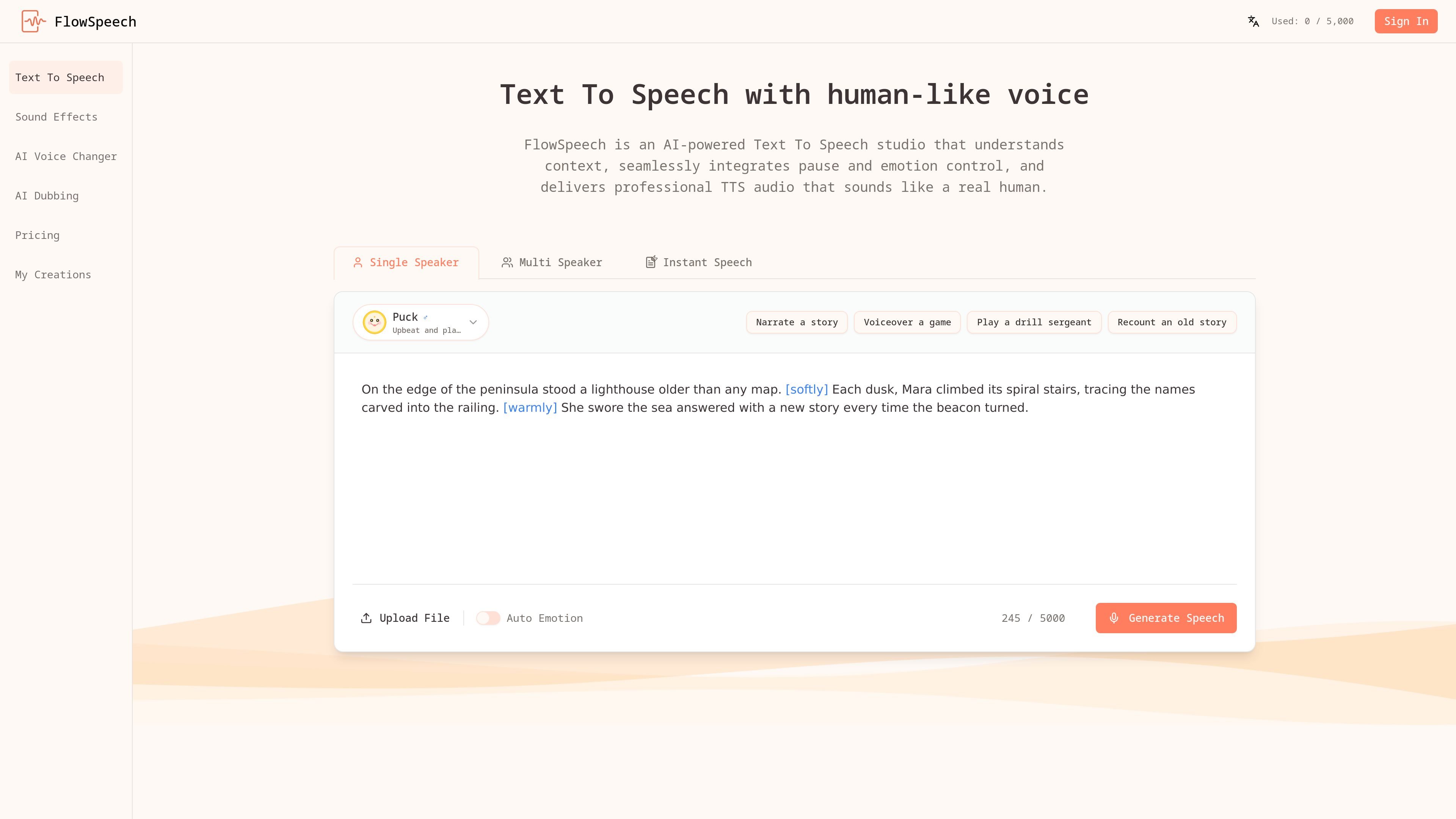
FlowSpeech is an AI text-to-speech studio that converts scripts and uploaded documents into lifelike audio. It is built around context-aware speech generation, so the output can reflect sentiment, timing, and nuance instead of sounding mechanically read.
The product centers on three workflows: Single Speaker for monologues, Multi Speaker for conversations, and Instant Speech for quick generation. Users can also add bracketed instructions for pauses, emotion, and accent changes, making the tool useful when the delivery of the narration matters as much as the words themselves.
The site positions FlowSpeech for creators, marketers, educators, and anyone producing long-form or multi-voice audio. It supports direct text entry as well as common document and image formats, and the homepage also highlights audiobook narration, video voiceovers, and podcast-style dialogue as typical applications.
Generate speech in Single Speaker, Multi Speaker, or Instant Speech mode depending on whether you are working with monologues, dialogue, or quick conversions.
Let the system analyze the script’s tone and timing so the output reflects context, sentiment, and nuance instead of reading each line flatly.
Insert tags such as [whisper], [shout], [strong British accent], or [⌛1.0s] to guide emotion, accent, and pauses directly in the script.
Upload PDF, DOC, DOCX, PPT, PPTX, TXT, RTF, EPUB, or image files and have FlowSpeech extract the text for conversion.
Choose from 30 voices across news, marketing, narrative, and character styles, with support for 70+ languages.
Render long-form projects up to 200k characters at once, which helps when working with chapters, scripts, or extended narration.
Turn books, articles, and study material into long-form narration where pacing and emotional delivery need to stay consistent across extended audio.
Create spoken tracks for clips, explainers, and product demos, with voice and pause control that lets the audio match the edit.
Build dialogue, podcast segments, and multi-character scenes by splitting scripts across speakers and assigning suitable voices automatically.
Convert classroom materials into spoken audio for lessons and presentations, especially when you want to ingest documents rather than retype scripts.
Use the tool for fast script-to-audio generation when you need a polished result without moving into a DAW for manual timing edits.
FlowSpeech is a text-to-speech studio that turns scripts and uploaded files into human-like audio with context-aware delivery, emotion control, and pause tags.
The site says FlowSpeech supports Single Speaker, Multi Speaker, and Instant Speech modes, plus manual emotion, accent, and pause tags for finer control over delivery.
Yes. The pricing page includes a Free plan alongside paid Basic, Pro, and Scale plans, so there is a no-cost entry point for trying the product.
The homepage FAQ asks about commercial use, but the public page text provided does not spell out the license terms, so you should confirm usage rights before publishing generated audio commercially.
The homepage FAQ includes a question about data safety, but the collected text does not provide the answer, so privacy and retention details are not confirmed here.

Fylom is an AI podcast generator that turns topics or questions into researched, narrated episodes with voice selection and recurring listening.

Gemini 3.1 Flash TTS is Google’s preview text-to-speech model for expressive AI speech with fine-grained style and delivery control across Gemini API, Google AI Studio, Vertex AI, and Google Vids.

蓝藻AI is an online AI voice generation and dubbing platform that turns text into speech and supports self-service voice cloning for short videos and audiobooks.

Ondoku is a browser-based text-to-speech tool that turns text into downloadable .mp3 audio, with free and paid plans, multilingual reading, image reading, and commercial use options.

Typecast is an online AI voice generator that turns text into life-like speech with emotional delivery and hyper-realistic voices.

Noiz AI is an AI text-to-speech, voice cloning, and voice design tool for lifelike speech from text, with emotion control in one workflow.