

Cai
Cai is a free, open-source AI action layer for macOS. Select text or an image, press ⌥C, then run inline prompts, scripts, OCR.
What is Cai?
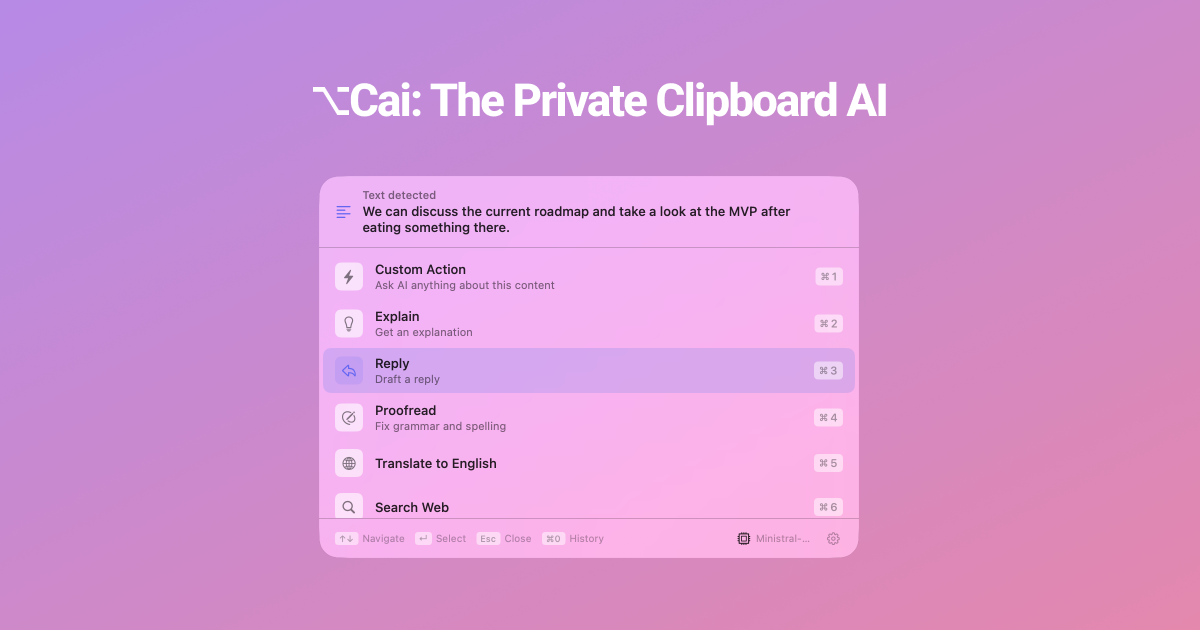
Cai is a free, open-source “AI action layer” for macOS that runs actions directly on whatever you select in any app. The core idea is to avoid app switching: you highlight text or an image, press a single shortcut, and choose from inline actions like prompts, scripts, OCR, and issue creation.
It comes with built-in local AI (including Ministral 3B via MLX) and is designed to keep processing local by default. It can also connect to local model servers and optional cloud providers, depending on which model you choose.
Key Features
- Selection-based actions (not clipboard-only): Cai acts on your highlighted text or selected image, rather than just storing or searching clipboard history.
- Inline shortcut workflow: Press ⌥C to open an action list, then pick an action to run—intended to keep results in-context where you were working.
- Smart actions for text and images: Supports actions such as AI prompts, terminal scripts, summaries, translations, fixing grammar, OCR (image to text), and more.
- Developer work built in: Create GitHub issues and Linear tickets from selected content; it also supports terminal-style scripting as actions.
- Local-first model support: Ships with a built-in local model and can run offline using on-device capabilities; cloud is optional.
- Custom action library: Build your own actions using custom prompts, shell scripts, and URL-based actions, then save them as one-keystroke actions.
How to Use Cai
- Install Cai via Homebrew (the site provides a tap + cask install command).
- In any app, select text (or select an image/screenshot containing text).
- Press ⌥C to open Cai’s action list.
- Choose an action (for example, summarize, translate, run an OCR-to-text flow, or create a GitHub/Linear item). If you’ve built custom actions, they appear alongside built-in ones.
Use Cases
- Summarize an error or message while staying in the same app: Highlight a terminal error message or chat text, press ⌥C, and run an action to generate a summary or suggested fixes.
- OCR a screenshot and then act on the extracted text: Select a screenshot containing text, run Image to Text (OCR), and then route the result into another action (e.g., translate, summarize, or create an issue).
- Turn selected details into an engineering ticket: Highlight relevant requirements, logs, or context in a document or email draft, then create a Linear ticket (or GitHub issue) directly from the selection.
- Run a terminal command from selected code or identifiers: Use Cai’s shell action capability to parameterize a command (example shown uses selected text), such as searching pull requests or crafting git commands.
- Create reusable one-keystroke prompts: Save a custom prompt template or a URL search action so the same workflow can be run repeatedly with a single shortcut on future selections.
FAQ
-
Is Cai really free?
Yes. Cai is described as free and open source, with no subscription or account required for the app itself. -
Do I need an API key or account?
No for the default local setup. If you choose a cloud model provider, the site states you’ll need that provider’s API key. -
Can Cai work offline?
The site states that built-in models and local LLM providers run on-device, and that everything works without internet; cloud providers require internet. -
How is Cai different from a clipboard manager?
Cai is selection-based: it runs actions on what you highlighted, rather than focusing on clipboard history storage and retrieval. -
How is it different from a chat app that requires switching apps?
Cai is designed to run inline on your selected text, using the same shortcut workflow, so you can avoid switching to a separate AI chat application.
Alternatives
- Clipboard managers (text history tools): These help you search and reuse clipboard contents, but they don’t primarily run AI or scripts directly on your current selection.
- AI chat apps with copy/paste workflow: Chat apps can generate summaries, translations, and responses, but they typically require switching apps and manually moving text between them.
- Keyboard-first productivity tools (launcher/automation utilities): Tools that run scripts or commands from a hotkey can support similar workflow patterns, but may not be tailored to selection-based AI actions with built-in OCR and inline routing.
- Local LLM UIs (running models on-device): Local model interfaces can provide offline AI, but may require you to paste text and manually manage prompts instead of using selection-driven actions and integrations like issue/ticket creation.
Alternatives

Biji
Biji is a versatile platform designed to enhance productivity through innovative tools and features.

Tavus
Tavus builds AI systems for real-time, face-to-face interactions that can see, hear, and respond, with APIs for video agents, twins & companions.

HiringPartner.ai
HiringPartner.ai is an autonomous recruiting platform with AI agents that source, screen, call, and interview candidates 24/7, reducing time-to-hire from weeks to as little as 48 hours.

Decision Jar
Create virtual jars of options with Decision Jar—shake your phone to pick instantly, use AI suggestions, and view decision logs over time.

Planndu: Daily Task Planner
Planndu is an intuitive productivity application designed to help users organize tasks, manage projects, build routines, and enhance focus using tools like AI generation and a built-in Pomodoro timer.

AgentMail
AgentMail is an email inbox API for AI agents to create, send, receive, and search email via REST for two-way agent conversations.