
Clause risk detection
Scans freelance contracts and highlights risky language, including uncapped liability, broad IP assignments, auto-renewal terms, and missing protections that are not written into the contract.

ClauseCheck is a browser-based AI contract scanner for freelancers and small businesses that flags risky clauses in plain English. Optional redlines and comparison tools on paid plans.
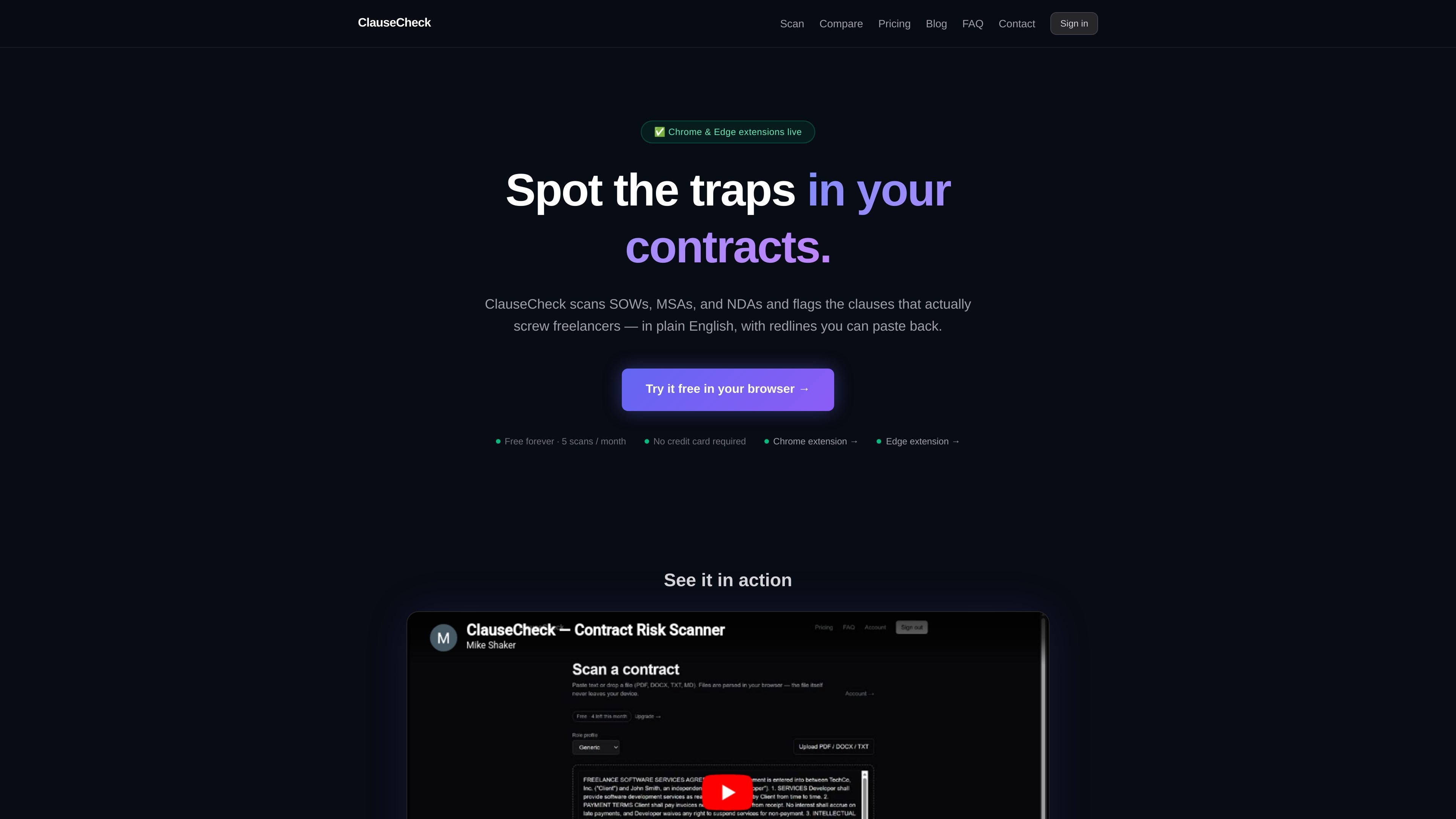
ClauseCheck is a browser-based contract scanner for freelancers and small businesses. It reviews SOWs, MSAs, NDAs, and similar agreements and flags risky clauses in plain English so users can understand what may need to change before they sign.
The product is built around a fast, in-browser workflow: paste text or upload a PDF or DOCX, review the flagged clauses, and use the suggested fixes, comparison view, or negotiation tools to prepare a response. Chrome and Edge extensions are available for right-click scanning from Gmail, Google Docs, and other web pages.
Scans freelance contracts and highlights risky language, including uncapped liability, broad IP assignments, auto-renewal terms, and missing protections that are not written into the contract.
Returns plain-English explanations for each flagged clause, plus suggested replacement language that users can paste into a reply or revision.
Supports contract comparison in a side-by-side diff view so users can inspect changes between two versions before signing.
Lets Pro users generate a negotiation email that references the flagged clauses and proposed edits.
Lets Pro users upload a Word contract and download a redlined DOCX with tracked changes applied.
Supports follow-up questions on scan results so users can ask for context on a specific clause or proposed fix.
Review a client contract before signing to catch liability caps, IP assignment language, auto-renewal terms, and other clauses that may be unfavorable to independent workers.
Compare a revised agreement against the original version to see what changed and whether a new edit introduces hidden risk.
Prepare a reply to a client by using suggested replacement language and the Pro negotiation email draft to communicate requested changes clearly.
Scan contracts directly from a browser context such as Gmail or Google Docs when you receive agreements by email or shared document link.
Ask follow-up questions on a scan result when you need clarification about why a clause matters or what a fair alternative might look like.
No. ClauseCheck is an automated contract review tool, and its output is informational only. The site says it is not a substitute for a licensed attorney and may be wrong, incomplete, or inappropriate for a specific situation or jurisdiction.
You can use the web app without installing the extension. The site says the web scanner works in any modern browser, while the Chrome and Edge extensions add right-click scanning from Gmail, Google Docs, and other web pages.
ClauseCheck supports PDF, DOCX, TXT, and Markdown uploads. The FAQ notes that PDF support is for text-based PDFs only, with scanned or image-only PDFs not supported in v1.
The pricing page lists Free, Pro, and Lifetime plans. Free includes 5 scans per month, while Pro adds unlimited scans and export and review features; Lifetime is a one-time payment that includes Pro features and is capped at the first 500 users.
ClauseCheck says uploaded PDFs and DOCXs are parsed in the browser, only extracted text is sent for scanning, and contract content is not stored after the scan completes. It also says contract text is not used to train AI models.

Termsy Chrome extension scans Terms of Service and Privacy Policy pages, highlights critical clauses, and shows them in a sidebar. Not legal advice.

nolainocr is an AI OCR tool that extracts structured data from PDF invoices, receipts, forms, contracts, and bank statements into Excel, Google Sheets, JSON, or CSV.

PDFTools is a browser-based suite of free and premium PDF tools for editing, conversion, and document handling—process PDFs locally without uploading files.
司马阅 is an AI document agent platform for enterprises, turning scattered document knowledge into structured capabilities for Q&A, search, writing, and review.

Hugogen is an AI collaboration workspace for docs, design, video and chat. Turn notes, briefs and sales data into brand-consistent drafts, decks, posts and short videos.

DocuSmart AI is a cloud-connected document search tool for nonprofits and civil society organisations. Search Drive, OneDrive and Dropbox files with cited answers for reporting, compliance and grants.