

Highlight Studio
Highlight Studio is a macOS screen recording app to capture, edit, and share polished videos with AI transcription, smart zoom, brand kits, and multi-track editing.
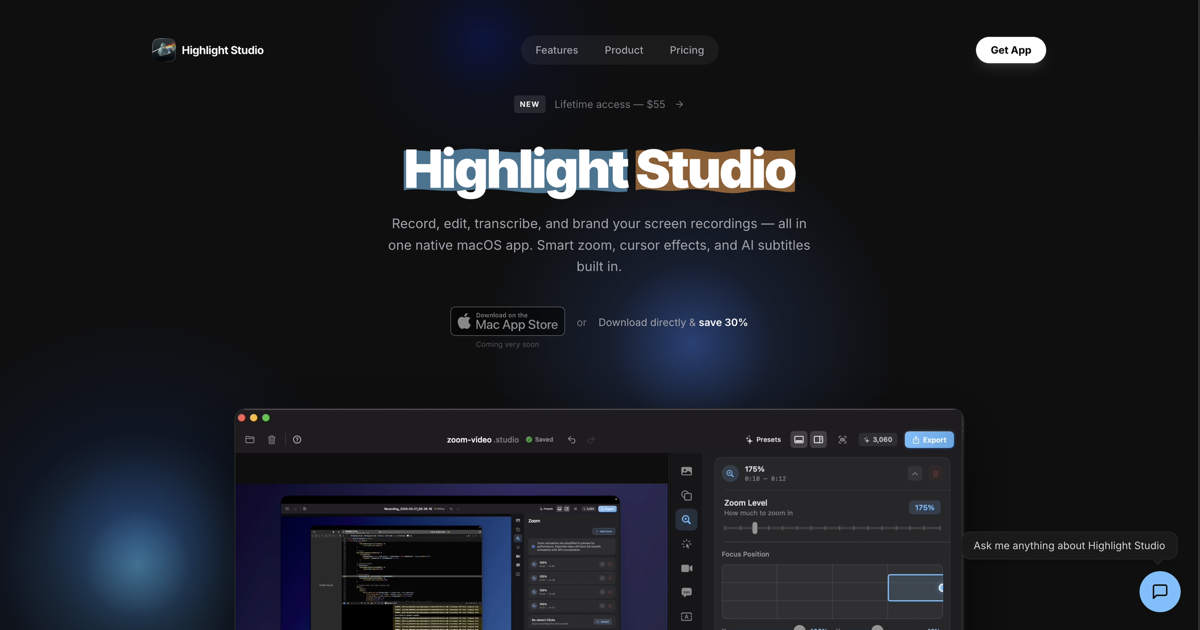
What is Highlight Studio?
Highlight Studio is a macOS screen recording app built for capturing, editing, and sharing polished screen recordings. It combines recording tools with post-production features such as transcription, zooming, branding elements, and multi-track editing.
Its core purpose is to help users turn screen activity into review-ready videos with consistent presentation (e.g., brand styling and device frames) while adding supporting context through AI transcription and guided viewing.
Key Features
- Screen recording on macOS: Captures screen content for making instructional, walkthrough, or presentation-style videos.
- AI transcription: Generates transcription to add readable context alongside the recording.
- Smart zoom: Adds emphasis by automatically managing zoom behavior to keep the viewer focused on relevant areas.
- Brand kits: Provides branded visual styling so recordings can match an organization or creator’s look.
- Device frames: Adds device frame overlays to present recordings in a framed, product-like format.
- Multi-track editing: Supports editing across multiple tracks for assembling and refining different elements of the final video.
- Metal-powered performance: Indicates the app is built to leverage Metal on macOS for graphics acceleration.
How to Use Highlight Studio
- Start a recording: Launch Highlight Studio on macOS and begin recording the screen content you want to share.
- Refine the viewing: Use smart zoom and other editing tools to control how the video draws attention to key areas.
- Add context and branding: Apply brand kit styling and device frames as needed, then generate or incorporate AI transcription.
- Edit with multi-track tools: Assemble and adjust elements using multi-track editing to produce a polished final timeline.
- Share the result: Export or share your completed screen recording after review.
Use Cases
- Software walkthroughs: Record a sequence of steps while using smart zoom to keep attention on controls and UI changes, then add AI transcription for faster scanning.
- Product onboarding and internal training: Create repeatable training videos with brand kits and device frames to maintain consistent visuals across sessions.
- Support and troubleshooting videos: Capture a user’s screen, emphasize specific regions using zoom, and include transcription to help viewers follow along and search for details.
- Marketing-style demo reels: Record product interactions and present them within device frames and branded styling for a more structured presentation format.
- Creator or developer documentation: Use multi-track editing to combine recording with additional on-screen elements into a single, shareable artifact.
FAQ
-
Is Highlight Studio available on macOS? Yes. The product is described as a professional screen recording solution for macOS.
-
Does Highlight Studio include transcription? Yes. The page states it includes AI transcription.
-
What editing tools are included after recording? The page mentions smart zoom, brand kits, device frames, and multi-track editing.
-
Does Highlight Studio support branded visuals? Yes. It includes brand kits to apply styling to recordings.
-
What technology is Highlight Studio built with on macOS? The page states it is built with Metal.
Alternatives
- Screen recording + video editor workflows (general-purpose editors): Alternatives may include using a dedicated screen recorder alongside a separate editor. This often requires more manual setup to achieve consistent branding or device-frame presentation.
- Dedicated screen recording apps with basic trimming: Some screen recorders focus on recording and simple editing. They may lack multi-track editing, smart zoom, or transcription features described for Highlight Studio.
- AI-assisted presentation and documentation tools: Tools that help generate documentation from screen activity may be positioned around writing or publishing rather than video-first editing with brand kits and device frames.
- UI capture and developer documentation tools: Some tools target developer workflows and may provide specialized capture or annotation, but may differ in how they handle brand kits, transcription, or multi-track editing.
Alternatives

Tavus
Tavus builds AI systems for real-time, face-to-face interactions that can see, hear, and respond, with APIs for video agents, twins & companions.

Captions.ai
Captions.ai is an online video editor and app with AI-powered editing, automatic captions, music, and AI avatars for faster video creation.

Sanota
Sanota turns your voice into clear, beautiful text—capture memories and ideas easily, then start for free.

DeepMotion
DeepMotion is an AI motion capture and body-tracking platform to generate 3D animations from video (and text) in your web browser, via Animate 3D API.

Scriptmine
Scriptmine turns real audience conversations into camera-ready scripts with community questions and trending angles—helping you write, edit, and record faster.

Lemon
Lemon AI agent converts voice to tasks: manage messages, research, delegate work without app switching. Boost productivity.