

MacQuit
MacQuit is a macOS menu bar utility to quit multiple apps at once, force quit unresponsive apps, and auto-close idle apps with live CPU/memory stats.
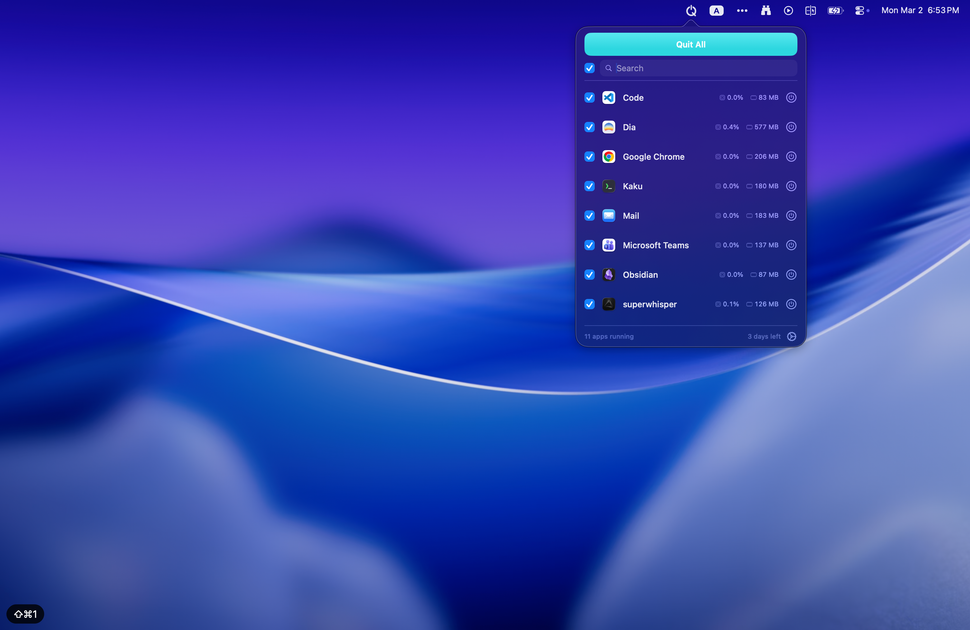
What is MacQuit?
MacQuit is a macOS menu bar utility for quitting applications in a single step. Instead of quitting apps one by one, it lets you review a list of running apps and close selected items with a one-click “Quit All” workflow.
Beyond a basic quit-all shortcut, MacQuit supports forcing quit for unresponsive apps, protects selected apps from being quit, and can automatically close apps that have been idle for longer than a threshold. It also provides live CPU and memory usage so you can see resource impact as you decide what to close.
Key Features
- One-click Quit All with selectable checkboxes: Choose which running apps to close, then quit them together from a menu bar panel.
- Protected apps (“Never-Quit List”): Add apps you don’t want included in a quit-all action; they’re shown as protected with a shield badge in the list.
- Force Quit mode (with Option key): Switch the quit action to force quit for stuck apps; a red indicator is used for force-quit mode.
- Live resource stats per running app: Display real-time CPU and memory usage next to each running app to help spot resource-heavy processes before closing.
- Auto-quit idle apps via a timer: Set an idle-time threshold so apps unused longer than the threshold are quit automatically.
- Search and sorting for the running-apps list: Use search-as-you-type to filter running apps and sort by CPU, memory, or name.
- Global shortcuts: Quit all apps from anywhere using a keyboard shortcut rather than switching to the menu bar panel.
- Background process management: View and manage hidden background processes grouped by parent, and manage how these processes are treated alongside visible apps.
How to Use MacQuit
- Install and open MacQuit so it appears as a control in the macOS menu bar.
- Open the MacQuit panel to view running apps, including their live CPU and memory usage.
- Select the apps to close using the provided checkboxes, then click Quit All.
- If an app is unresponsive, hold Option to switch the buttons to Force Quit, then confirm the forced closure.
- (Optional) Configure the Never-Quit List for apps you want protected, and set an auto-quit idle timer if you want apps to close automatically.
Use Cases
- Clean up a crowded desktop quickly: When you have many open apps and one-off windows, use Quit All to close multiple apps at once rather than quitting each individually.
- Recover from frozen apps: If an app is stuck and won’t respond, switch into force quit mode to close it without going to Activity Monitor.
- Spot resource hogs before closing: Use the live CPU and memory indicators next to running apps to decide what to quit based on current system load.
- Keep your Mac lean during the day: Set a timer for idle apps so unused applications are automatically closed after they’ve been inactive for your chosen threshold.
- Prevent accidental shutdown of critical tools: Add apps such as password managers or development servers to the Never-Quit List so they’re skipped during Quit All.
FAQ
How does MacQuit quit apps at once?
MacQuit shows running apps in a menu bar panel. You select which apps to quit using checkboxes, then choose Quit All to close them together.
Can MacQuit force quit frozen apps?
Yes. When an app is stuck, MacQuit can switch to force quit mode (using the Option key), allowing you to close unresponsive apps.
Does MacQuit show system resource usage?
Yes. It displays real-time CPU and memory usage for running apps directly in the app list.
Can MacQuit automatically close idle apps?
Yes. It supports auto-quit behavior by letting you set a timer; apps unused longer than your threshold are quit automatically.
Is MacQuit only a “QuitAll” replacement?
It is positioned as a native macOS alternative focused on one-click quitting. It also adds force quit support, protected-app rules, auto-quit for idle apps, and resource monitoring.
Alternatives
- Activity Monitor (built into macOS): Useful for manually finding and force-quitting individual processes, but it doesn’t offer the same one-click, menu bar-based quit-all workflow.
- macOS app Quit/Force Quit (standard shortcuts): You can quit or force quit apps via the app menu or standard system gestures, but you’ll need to handle apps one by one and won’t get the same protected list, idle rules, or per-app resource display.
- Other menu bar process managers: Categories of menu bar utilities can help manage running apps and processes; they may vary by whether they include protected “never quit” lists, auto-quit timers, and per-app resource monitoring.
Alternatives

Biji
Biji is a versatile platform designed to enhance productivity through innovative tools and features.

Sleek Analytics
Lightweight, privacy-friendly analytics with real-time visitor tracking—see where visitors come from, what they view, and how long they stay.

MacSpoof
MacSpoof is a macOS MAC address changer that lets you change or randomize your Wi‑Fi MAC to reconnect and limit device logging on public Wi‑Fi.

OpenFlags
OpenFlags is an open source, self-hosted feature flag system with a control plane and typed SDKs for progressive delivery and safe rollouts.

Decision Jar
Create virtual jars of options with Decision Jar—shake your phone to pick instantly, use AI suggestions, and view decision logs over time.

Planndu: Daily Task Planner
Planndu is an intuitive productivity application designed to help users organize tasks, manage projects, build routines, and enhance focus using tools like AI generation and a built-in Pomodoro timer.