

Plask
Plask is an AI motion capture and 3D animation tool that turns uploaded video into character motion, with video renders or 3D asset export.
What is Plask?
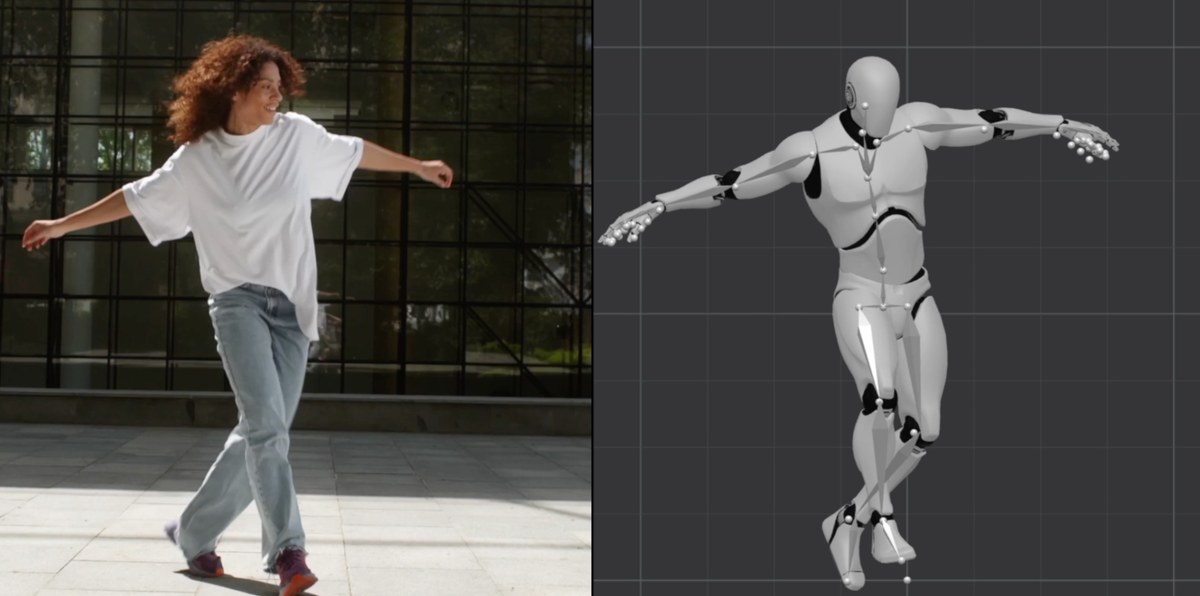
Plask is an AI-powered motion capture and 3D animation tool that transforms a user’s video into 3D animation using motion data extracted by AI. Its core purpose is to let creators apply captured motion to 3D characters and produce rendered videos or export 3D assets.
The workflow centers on uploading a video, extracting motion data, applying that motion to an imported 3D model, then adjusting video direction elements like lighting and camera controls before exporting outputs for animation or downstream 3D tools.
Key Features
- AI motion capture from uploaded video: Upload video footage (including smartphone and online clips) and have AI extract motion data for use in 3D animation.
- Character animation using extracted motion: Import a 3D character model and apply extracted motion; blinking and physics support are listed for MMD and VRM models.
- Video direction controls: Use a few-click interface for lighting and camera control, including cinematic effects such as motion blur and depth-of-field.
- Export renders or 3D assets: Generate high-quality video renders or export 3D assets compatible with common DCC and real-time pipelines.
- Post-processing for rendered output: Add effects called out in the page text, including vignettes, motion blur, auto-focus depth-of-field, and advanced tone mapping.
- Workflow integration with 3D software: Export to tools mentioned on the page, including Unreal, Maya, Blender, and Unity.
- Free to get started: The page includes a “Get started— it’s free” callout for onboarding.
How to Use Plask
- Start a project and upload a video clip you want to animate.
- Run AI motion capture so the system extracts motion data from your footage.
- Import your 3D character (with support noted for MMD/VRM) and apply the extracted motion.
- Adjust lighting and camera direction to set up the look of the scene, including effects like motion blur and depth-of-field.
- Export your results either as a rendered video or as 3D assets for use in other software.
Use Cases
- Turn smartphone footage into a 3D animation: Upload a casual recording and generate a 3D animation from the motion captured in the video.
- Animate MMD/VRM characters with extracted motion: Apply captured movement to MMD or VRM models while supporting blinking and physics (as indicated in the page).
- Create cinematic-style animation clips: Use the listed lighting/camera controls and post-processing options (e.g., motion blur and depth-of-field) to produce a stylized render.
- Send animation output into a production pipeline: Export to tools such as Unreal, Unity, Maya, or Blender to continue work in an existing 3D workflow.
- Request quick custom animations: If you don’t want to generate the animation yourself, the page describes custom TikTok-style videos and viral dance animations created for you within 24 hours after describing a dance video.
FAQ
How much does it cost to use Plask?
The page includes a “How much does it cost to use Plask?” FAQ question, but it does not provide pricing details in the provided text.
Can I use my Plask animations for commercial use?
The page includes a “Can I use my Plask animations for commercial use?” FAQ question, but the provided content does not include the answer.
Can I upload my own 3D model?
There is a FAQ item asking whether you can upload your own 3D model; the provided page content does not include the response.
Does Plask support finger tracking?
The FAQ list includes a question about finger tracking, but no details are provided in the supplied content.
What’s the difference between MoCap V1 and V2?
The page includes a FAQ item asking about the difference between MoCap V1 and V2, but the actual distinction is not included in the provided text.
Alternatives
- Manual 3D animation (keyframing in Blender/Maya/other DCC tools): Instead of AI extracting motion from video, you animate by hand. This can offer more control but typically takes longer for motion-heavy scenes.
- Dedicated motion-capture workflows: Tools or pipelines that rely on traditional motion capture inputs (e.g., specialized capture setups) can be used when you need hardware-based tracking rather than video-based AI extraction.
- Real-time avatar animation from video: Alternatives in the category of AI-driven avatar animation may also transform video into character motion, with different levels of control and different export paths depending on the platform.
- General-purpose AI video-to-video editing tools: If your goal is mainly visual transformation rather than true 3D character animation with export to 3D software, other video editing approaches may fit better, though they may not produce the same 3D asset workflow mentioned for Plask.
Alternatives
MIRA vision
MIRA vision is an AI medical diagnostics system using patented synthetic pathology analysis for precise, rapid results in clinical workflows.

Dancing Cats App
Dancing Cats App turns your cat photos into dancing kitty clips—create short animated videos from images for easy sharing or fun.

VIDEOAI.ME
VIDEOAI.ME is an AI video generator to create studio-quality, publish-ready videos with realistic AI actors and voiceovers from text or a selfie.

HeyGen
HeyGen Developers offers an API platform to generate, translate, and lipsync avatar videos with TTS models—built for scalable production workflows.

DeepMotion
DeepMotion is an AI motion capture and body-tracking platform to generate 3D animations from video (and text) in your web browser, via Animate 3D API.

艺映AI
艺映AI is a free AI video generation platform focused on transforming text and images into high-quality dynamic videos.