
Virtual camera feed
Registers as a system-level virtual camera so iOS apps in the simulator can access the feed through standard AVFoundation APIs.

SimCam is a Mac app for testing camera features in the iOS Simulator. Stream the Mac camera, inject images or video, and generate QR codes without a physical device.
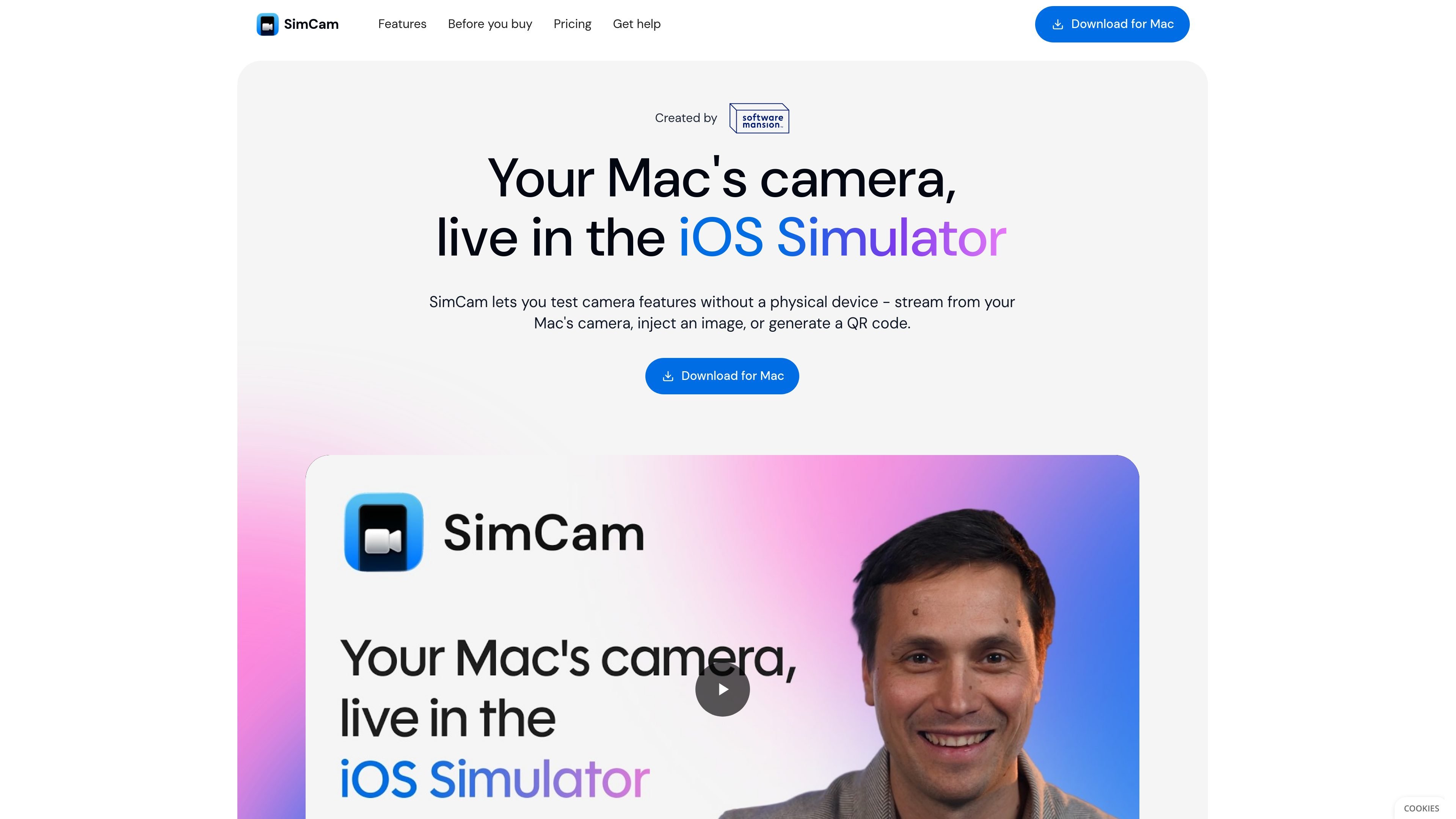
SimCam is a camera-testing app for the iOS Simulator. It lets developers exercise camera-dependent features on a Mac without connecting a physical iPhone, using the Mac camera, injected media, or generated QR codes as the simulator’s camera input.
The product presents itself as a system-level virtual camera, so simulator apps see the feed through standard AVFoundation APIs. The homepage also shows a command-line interface for changing sources and checking camera diagnostics, which makes the tool suitable for scripted testing as well as interactive use.
Registers as a system-level virtual camera so iOS apps in the simulator can access the feed through standard AVFoundation APIs.
Streams the Mac’s camera directly into the simulator for live camera testing without needing a physical iPhone.
Generates QR codes and injects them into the camera stream for sign-in, pairing, and similar workflows.
Lets you supply an image or video as the camera source for repeatable testing of scanners or recognition flows.
Provides a CLI that can change camera sources, generate QR codes, and inspect camera diagnostics.
Positions the CLI for AI agents as well as manual workflows, with example commands shown on the homepage.
Test camera-dependent app screens in the simulator before running on hardware, using the Mac camera as the live source.
Feed a known image or video into the camera pipeline to validate scanning, recognition, or framing logic with consistent inputs.
Generate QR codes directly in the stream to exercise login, pairing, and onboarding flows without printing or holding up a phone.
Use the CLI to switch sources, inspect diagnostics, or drive camera state changes during scripted checks and automated workflows.
SimCam is designed to test camera-driven iOS app flows in the simulator by providing a virtual camera source, image or video injection, and QR code generation.
The site presents a free trial and a paid lifetime license. The trial is free for evaluation, and the license is listed as a one-time purchase with 12 months of free updates.
SimCam is presented as a Mac app for the iOS Simulator. The page also says it works through standard AVFoundation APIs and registers as a system-level virtual camera.
The site says SimCam has a CLI for AI agents, including commands to switch sources, generate QR codes, and check camera diagnostics.

ByteAsk is a terminal-first AI coding agent for C and C++ that edits repos and verifies changes with compilers, debuggers, sanitizers, and tests.

Manta AI is an autonomous web app testing tool that maps app behavior, catches regressions, and generates tests from a URL, no scripts or selectors needed.

EAS Observe monitors production performance in Expo and React Native apps, showing startup metrics, session timelines, release markers, and errors in the Expo dashboard.

Traccia is an agent observability and governance platform with OpenTelemetry-native tracing, policy enforcement, prompt evaluation, and compliance evidence for AI workflows.

Hoplite is a cloud coding agent platform for teams running software tasks in isolated sandboxes with repository context and imported local setup. Pro, Scale, and Enterprise plans.

LoupeKit browser panel inspects live pages for stack, layout, SEO, accessibility and AI code smells. Free tier; Pro adds exports, reports, advisories and server-side readings.