
Cursor-side assistant
Tico stays beside the cursor and follows what appears on the screen to guide the next step in the current visual context.

Tico is an AI assistant for Windows that follows your cursor, reads the screen, and guides you by voice. Free plan with daily limits and paid upgrades.
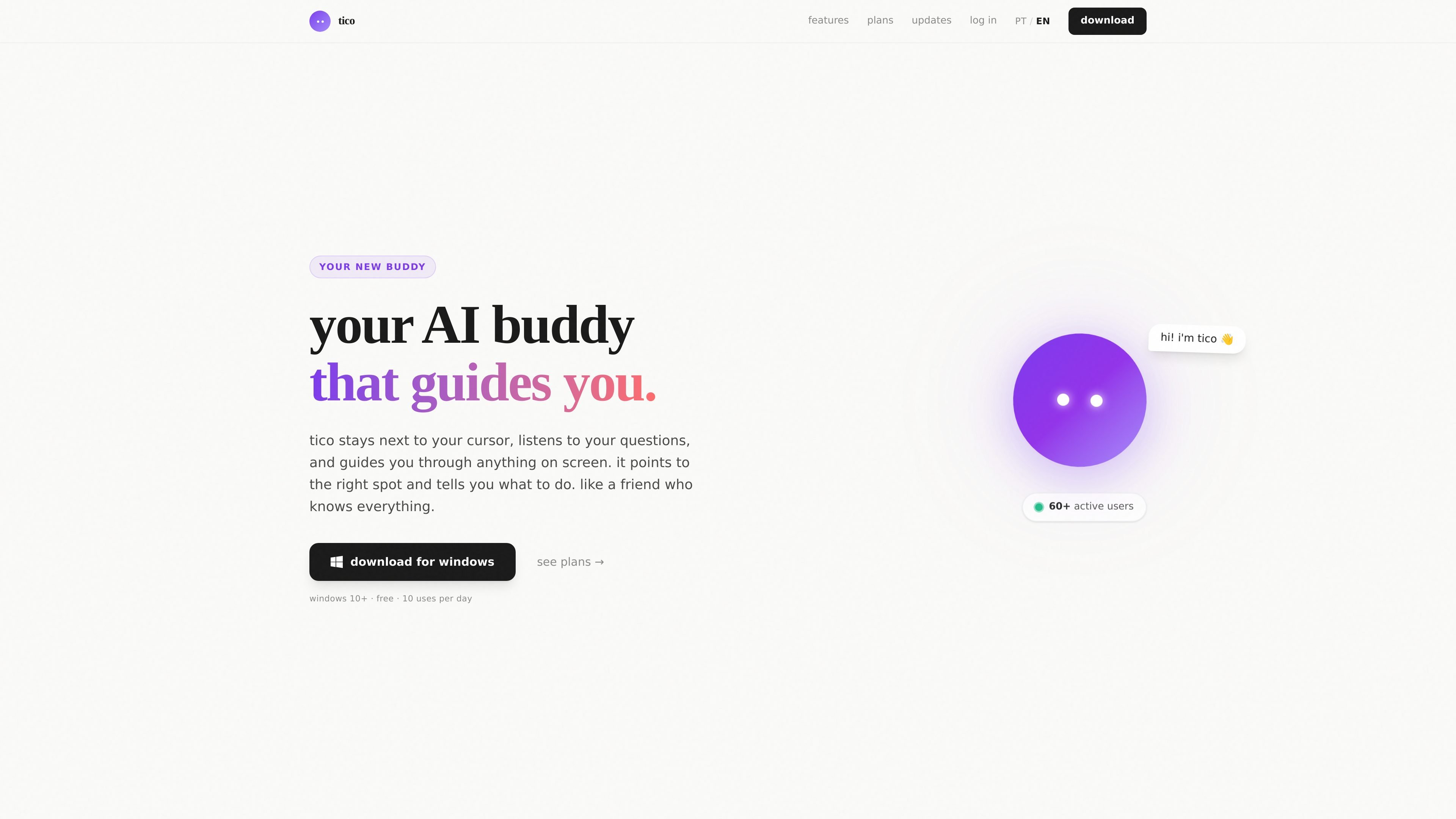
Tico is an AI assistant for Windows that follows your cursor, watches what is on the screen, and helps the user complete tasks with spoken guidance. The product’s proposal is to combine visual context, voice, and cursor pointing to reduce the time spent searching for tools, menus, and actions inside applications.
The page positions it as a buddy for video, writing, learning, design, code, and browsing tasks. The described flow is direct: the user holds F8 to speak, Tico interprets the screen context, and it returns guided instructions until the correct element is reached.
The offer shown on the homepage includes a forever-free plan and paid options with more uses, priority support, and different Claude models. The pricing page provided returns 404, so billing details should be read only as what appears on the homepage.
The login and upgrade interface indicates the product has its own account flow for signing in, creating an account, and subscribing to plans. The provided material does not show specific external integrations beyond Windows operation and support for voice in Portuguese and English.
Tico stays beside the cursor and follows what appears on the screen to guide the next step in the current visual context.
The shortcut described on the page is simple: hold F8, speak your question, and release to start the voice interaction.
After analyzing the screen, Tico responds out loud and moves the cursor to the relevant element to help with navigation.
The page highlights use with video, writing, learning, design, code, and browsing, indicating the product is suited to varied computer-interface tasks.
The plans mention natural Portuguese voice, Portuguese and English support, and Claude Sonnet and Claude Opus models.
The site’s positioning mentions 256-bit encryption and that the product was built in Brazil.
For someone working in a complex app who wants to locate a tool or setting without manually digging through menus. Tico reads the screen context and points to the right place.
For tasks like writing copy, reviewing a post, or asking for help with text structure. Voice interaction lets you ask short questions and get immediate guidance.
For people learning a new tool, such as Blender, After Effects, or Figma, and who need step-by-step instructions while exploring the interface.
For developers who switch between an editor and a terminal and want help setting up projects or understanding what is on the screen without breaking flow.
For video editing and design when the goal is to understand a panel, locate a control, or follow a click sequence with less trial and error.
Tico is an AI assistant for Windows that stays next to the cursor, understands the context on the screen, and responds out loud while pointing to the right element. The page does not provide installation details beyond the Windows download.
The page shows usage with the F8 shortcut: you hold the key, speak your question aloud, and release it. Tico then analyzes the screen, builds the response, and guides you to the right click.
The page indicates that Tico supports Portuguese and English and offers natural Portuguese voice in the listed plans.
The page lists a Free Forever plan, a Pro plan, and an Unlimited plan, but the pricing page provided returns 404. There are no reliable details about billing, extra limits, or the upgrade flow beyond the sign-up and account buttons.
The page has a frequently asked questions section covering topics such as security, offline use, cancellation, supported apps, and screen recording, but the answer text is not visible in the provided material.

SpeakoFlow is a free, open-source desktop voice-to-text app for Windows, macOS, and Linux. Dictate into any app, use Flow, cleanup, translation, and a screen-aware assistant.

Talkpal is an AI language learning app for web and mobile with speaking, listening, writing, pronunciation practice, guided courses, roleplays, and 130+ languages.

Lemon is a Mac voice assistant that turns spoken instructions into finished writing tasks and actions. Free Basic and paid Pro plans.

Flunkey is a voice-first productivity layer for Windows that turns speech into text, AI outputs, and remembered context without leaving your app.

An All-In-One AI Platform that combines tools for image, video, voice, writing, and chat to enhance creativity and collaboration.

Gemma AI is a phone call reminder app that calls you with scheduled reminders instead of push notifications, with Google Calendar sync and natural voice interaction.