
Content-based file search
The assistant reads what files contain rather than relying only on filenames, then answers questions or organizes documents across large collections.

The Drive AI is an AI assistant for organizing, searching, and creating documents across a workspace or connected Google Drive, OneDrive, SharePoint, and Dropbox files. It helps teams manage document-heavy workflows with plain-English requests, recurring automations, and approval controls.
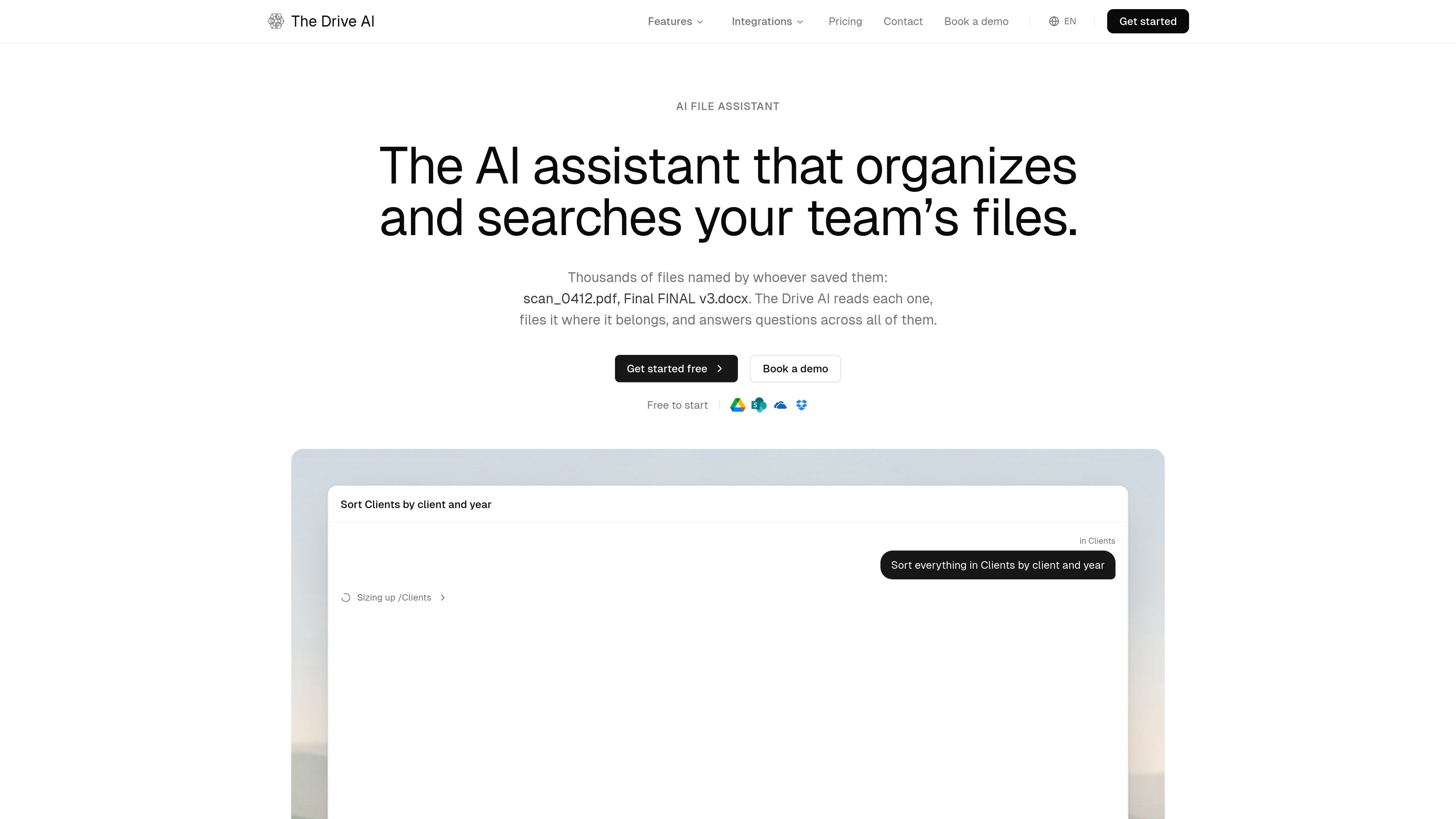
The Drive AI is an AI document-management and file-organization assistant for individuals and teams working with large collections of business files. It uses file contents—not just filenames—to answer questions, classify documents, rename and move files, create folders, and produce documents such as PDF summaries.
Files can be uploaded to The Drive AI workspace or connected from Google Drive, OneDrive, SharePoint, and Dropbox. Connected files are organized in place, while incoming attachments from Gmail, Outlook, Slack, and Microsoft Teams can be routed into a filing workflow. Users can ask for an operation in plain English, review the proposed plan, and approve actions that need confirmation.
The assistant reads what files contain rather than relying only on filenames, then answers questions or organizes documents across large collections.
Give a plain-English instruction to rename, move, classify, or create documents. The assistant can also merge contracts, split scanned stacks, and create PDF summaries.
Describe a recurring filing rule once. Workflows can process files arriving from connected drives, uploaded files, email, Slack, or Microsoft Teams, with approval steps when required.
The system presents proposed changes, applies smaller changes immediately when configured, and records decisions. Runs can be undone, replayed, or retried after a failure.
The Drive AI includes a workspace with version history, file and folder permissions, file requests, and e-signature support. Connected drives are organized in place rather than imported.
A Chrome side panel brings the same agent into Google Drive, Google Docs, OneDrive, SharePoint, and Dropbox, using the folder or file currently open as context.
Ask the assistant to sort invoices by vendor, client, year, or amount, and rename them using details extracted from each document. A recurring workflow can process new invoices as they arrive.
Search agreements for renewal dates, clauses, counterparties, or signatures, then organize contracts by client or legal entity. The assistant can also merge contracts into one PDF or route documents for signature.
Create a consistent property or project record from files received over time. The system can file inspection reports, listing agreements, and purchase contracts under the relevant address or deal.
Split an onboarding packet into individual forms, name them from their contents, and file them under the employee’s folder. Approval controls can be used for uncertain or sensitive changes.
Use the Chrome extension while working in a cloud drive to organize the current folder, share a report, rename documents, or create a spreadsheet without switching to a separate tab.
The Drive AI can connect to Google Drive, OneDrive, SharePoint, or Dropbox, or you can upload files to its own workspace. The Chrome extension provides the assistant in a side panel while browsing supported cloud storage services.
It can read file contents, rename and move documents, create folders, answer questions across files, merge or split PDFs, create summaries, share files, and handle e-signature requests. Workflows can apply these instructions to files as they arrive.
Yes. The Drive AI states that connected files are organized in place and are not imported first. Workflows target the selected folder, library, or storage location, while attachments from Gmail, Outlook, Slack, and Microsoft Teams can be given a destination.
The assistant shows a proposed plan and records changes. Small changes can apply immediately, while large changes and actions sent to another person wait for approval; runs can be undone, replayed, or retried from a failed step.
The workspace is available on every plan, and workflows on uploaded files are available on every plan, including free. Connecting an inbox, channel, or cloud drive requires Max or a Team plan. The site does not provide pricing details in the available source.

ArtDeck is a visual reference board app for iPhone, iPad, and Mac that lets artists collect mixed reference material on one canvas and study it with ToolBox lenses. It works offline, supports optional iCloud sync, and is sold as a one-time purchase with no account required.

PDFTools is a browser-based suite of free and premium PDF utilities for editing, conversion, and document handling. It helps users work on PDFs locally in the browser without uploading files to a server.

Goldfish is an AI memory app for macOS that helps you reply, write, summarize, and continue using the context already on your Mac. It stores memory locally and writes in your tone.

Lasso is an ecommerce product data platform for enriching catalog records, processing supplier files, generating product content, and monitoring competitors. It combines a web app with a REST API, SDK, and MCP server for teams and developers.

Codex Plugins bundle reusable skills, app integrations, and MCP servers into workflows you can install in the Codex app or use from Codex CLI. They help extend Codex with connected-service tasks, reusable instructions, and shared team workflows.

Struere is an AI-native platform for turning spreadsheet data into structured operational software with dashboards, alerts, and automations. It is aimed at teams that want to replace manual spreadsheet workflows without building custom tools from scratch.