

1DevTool
1DevTool is an AI-ready code editor workspace combining IDE, terminal, embedded browser, HTTP, database, Git, and interaction recording for console/API/DB context.
What is 1DevTool?
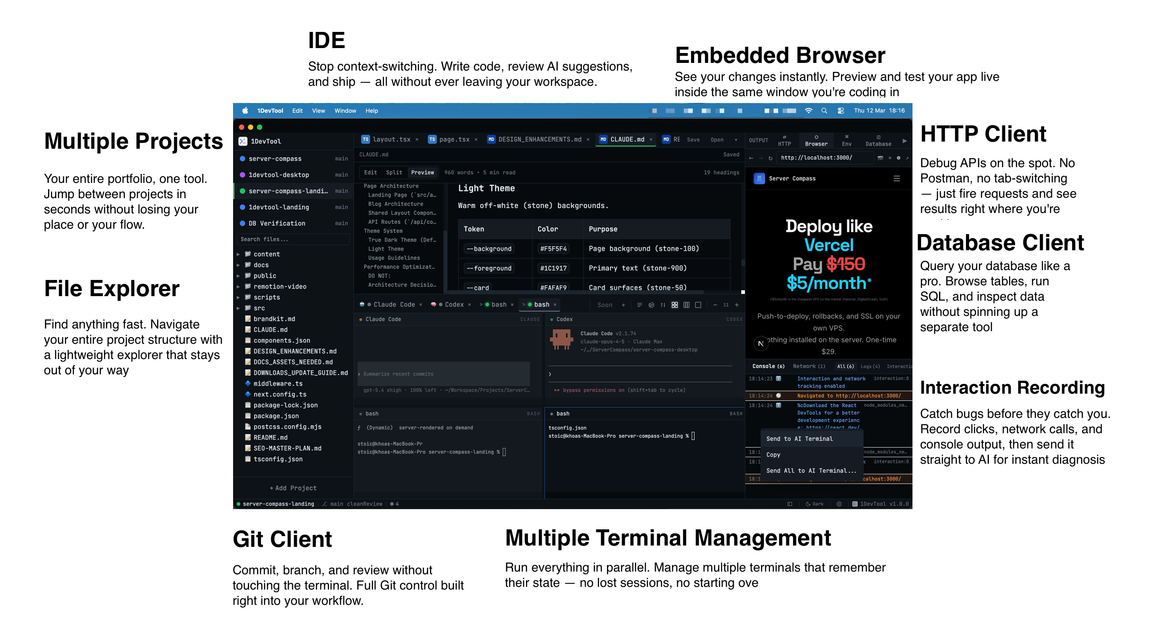
1DevTool is an AI-ready code editor and IDE that places multiple developer tools—IDE, terminal, embedded browser, HTTP client, database client, Git tools, and more—into a single workspace. The goal is to give an AI agent full visibility into what the developer is seeing, including console output and requests, without needing to copy-paste context between apps.
The site positions 1DevTool as an alternative workflow to using separate tools (for example, a browser console, terminal, API client, database UI, and documentation) while working with AI coding assistants.
Key Features
- IDE (Monaco-based) with multi-tab editing and autocomplete: A full code editor experience inside the app so you don’t need to run a separate VS Code window.
- Embedded browser: Preview the app and interact with the browser within the workspace, reducing the need to Alt-Tab to a separate Chrome window.
- HTTP client with request/response inspection and saved collections: Craft requests, inspect responses, and manage API collections without a separate Postman tool.
- Database client for SQL/NoSQL: Connect to databases and run queries in the same workspace where you edit code.
- Interaction recording & AI logs: Capture browser interactions and console output, then send those logs directly to an AI agent for context-aware debugging.
- Multiple terminal management: Run unlimited terminal sessions side by side, with sessions that persist across restarts.
- Git client with visual staging and diffs: Stage, commit, branch, and merge using a built-in Git interface.
- Markdown preview: Show a live side-by-side preview while you write documentation.
- File explorer (tree view): Navigate and manage files with a docked tree view.
- One-window AI workflow for console + API + database context: Designed so the AI agent can “see” what you see across the workspace rather than receiving fragmented information.
How to Use 1DevTool
- Download and install the free trial for macOS, Windows, or Linux.
- Open a project and use the integrated IDE/file explorer to work on your code.
- Use the embedded tools alongside your editor: run commands in the terminal, browse the app in the embedded browser, send requests via the HTTP client, and query data in the database panel.
- Record interactions and logs when debugging: reproduce the issue in the browser, generate console/network output, and send the captured logs to your AI agent.
- Keep documentation in the workspace using the Markdown preview panel and editor.
Use Cases
- Debugging an auth or API error with full context: Reproduce the problem in the embedded browser, capture console logs and network activity, and send the logs to your AI agent so it can correlate errors with the related API behavior.
- Testing and iterating on endpoints: Use the HTTP client to craft requests, inspect responses, and save collections while you edit the corresponding server/client code in the same window.
- Working with databases next to your code: Connect to a SQL or NoSQL database and run queries while investigating application logic, without switching to a separate database UI.
- Reducing friction when prompting AI for coding changes: Instead of copy-pasting console errors, requests, and screenshots, send the recorded context to the AI agent in one workflow.
- Managing multi-session development work: Run multiple terminal sessions concurrently (for example, starting the app, running workers, or tailing logs) and rely on session persistence across restarts.
FAQ
-
Does 1DevTool replace separate tools like a terminal, browser, HTTP client, and database UI? The website describes an all-in-one workspace that includes these tools in one window.
-
Can 1DevTool send console and interaction context to an AI agent? Yes. It includes interaction recording and AI logs intended to capture browser interactions/console output and send logs directly to AI agents.
-
What operating systems are supported? The page lists macOS, Windows, and Linux.
-
Does 1DevTool support multiple terminals and are they persistent? It supports multiple terminal sessions side by side, and the site states sessions persist across restarts.
-
Does 1DevTool include Git tools? Yes. The interface includes a Git client for staging and committing (and other Git actions listed on the page).
Alternatives
- Cursor or Copilot-based editor workflows: Alternative AI coding environments, but they typically rely on separate tools (browser, terminal, API client, database UI) for context.
- VS Code plus extensions (for terminal, HTTP requests, DB tools, Git): A modular setup that can replicate parts of 1DevTool’s functionality, but spreads tools across multiple panels/apps depending on your extensions.
- Browser + DevTools + standalone API/database tools: Traditional debugging workflow using separate applications (browser devtools, Postman-like tools, TablePlus/pgAdmin-like database clients) and manual copy-paste of logs.
- All-in-one database/IDE platforms: Options that focus on specific areas (e.g., databases) or provide a unified workspace, but may not combine browser interaction recording and AI-log sending as described by 1DevTool.
Alternatives

AakarDev AI
AakarDev AI is a powerful platform that simplifies the development of AI applications with seamless vector database integration, enabling rapid deployment and scalability.

Arduino VENTUNO Q
Arduino VENTUNO Q is an edge AI computer for robotics, combining AI inference hardware and a microcontroller for deterministic control. Arduino App Lab-ready.

Devin
Devin is an AI coding agent that helps software teams complete code migrations and large refactoring by running subtasks in parallel.

BenchSpan
BenchSpan runs AI agent benchmarks in parallel, captures scores and failures in run history, and uses commit-tagged executions to improve reproducibility.

open-codex-computer-use
open-codex-computer-use is an open-source “Computer Use” MCP server that lets AI agents run desktop GUI actions on macOS, Linux, and Windows.

Codex Plugins
Use Codex Plugins to bundle skills, app integrations, and MCP servers into reusable workflows—extending Codex access to tools like Gmail, Drive, and Slack.