
Reusable workflow bundles
Plugins bundle skills, app integrations, and MCP servers into reusable workflows so Codex can take on more specific tasks without rebuilding the setup each time.

Codex Plugins bundle reusable skills, app integrations, and MCP servers into workflows you can install in the Codex app or use from Codex CLI.
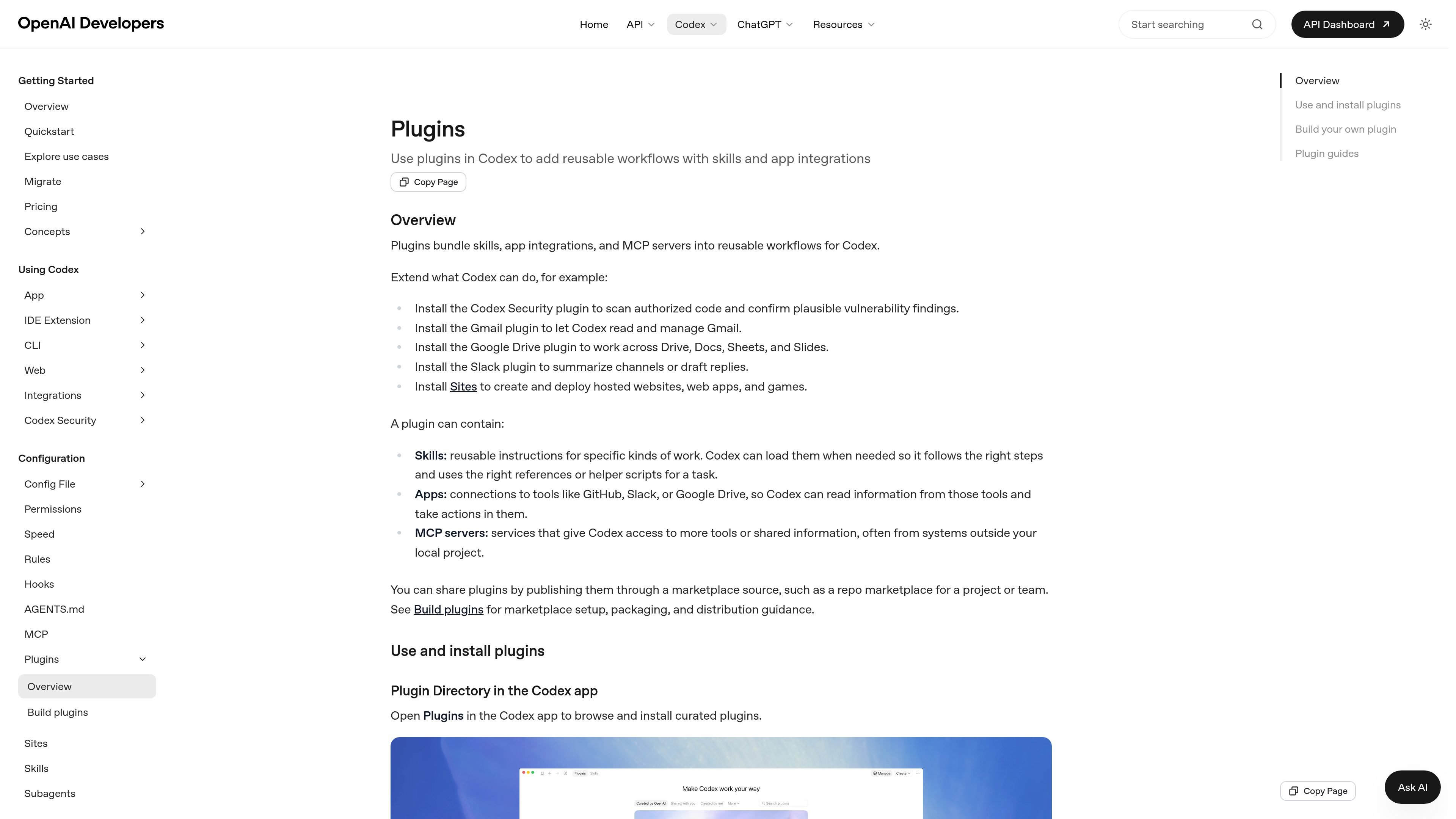
Plugins bundle skills, app integrations, and MCP servers into reusable workflows for Codex. They are meant to extend Codex with task-specific capabilities such as scanning authorized code, working with Gmail or Google Drive, summarizing Slack channels, or creating hosted websites and web apps.
The plugin directory is available in the Codex app and in Codex CLI. In the app, you can browse curated, shared, or personally created plugins; in the CLI, you can open the plugin list with `codex /plugins`, inspect marketplace entries, and install, uninstall, or toggle plugins as needed.
Plugins bundle skills, app integrations, and MCP servers into reusable workflows so Codex can take on more specific tasks without rebuilding the setup each time.
Skills provide reusable instructions for specific kinds of work, and Codex can load them when a task needs the right steps, references, or helper scripts.
App connections let Codex read information from tools such as GitHub, Slack, or Google Drive and take actions in those services.
MCP servers extend Codex with extra tools or shared information, including services outside your local project.
Plugins can be published through a marketplace source, which supports sharing across a project, team, or other workspace context.
Plugins are discoverable and manageable in both the Codex app and the CLI, including install, uninstall, and enable or disable controls.
Install a security-focused plugin when you want Codex to scan authorized code and help confirm plausible vulnerability findings before preparing reviewed fixes.
Use Gmail, Google Drive, or Slack plugins when you want Codex to read, summarize, draft replies, or pull working materials from connected services.
Choose the Sites plugin when you want Codex to create and deploy hosted websites, web apps, or games as part of a workflow.
Use a plugin from the directory when you want a reusable team or project workflow that can be shared through a marketplace source and used by multiple people.
Install a plugin and then start a new thread when you want Codex to choose among the installed tools, or invoke a specific plugin with `@` when you need precise control.
You can install plugins from the plugin directory in the Codex app or from `codex /plugins` in Codex CLI. The directory groups plugins that are curated by OpenAI, shared with you, or created by you.
A plugin can bundle reusable skills, app connections, and MCP servers. After installation, you can start a new thread and ask Codex to use the plugin, or invoke a specific plugin or skill with `@`.
Installing a plugin makes its workflows available in Codex, but your existing approval settings still apply. Connected services may also require their own authentication, privacy, and data-sharing terms.
Uninstall a plugin from the plugin browser. If you only want to disable it, set its entry in `~/.codex/config.toml` to `enabled = false` and restart Codex.

CreateOS Sandbox is an isolated compute environment for running code and agent workloads in Firecracker micro-VMs with private networking and SDK, CLI, or MCP control.

ArtDeck is a visual reference board app for iPhone, iPad, and Mac. Collect mixed references on one canvas and study them with ToolBox lenses. Offline, optional iCloud sync, one-time purchase.

GitBot is a local browser workspace for reusable coding bots powered by Claude Code, Codex, or OpenCode, with persistent threads and configurable permissions.

Struere turns spreadsheet data into structured operational software with dashboards, alerts, and automations for teams replacing manual spreadsheet workflows.

Wallie is an open-source AI streamer that watches your screen, hears chat, and delivers live commentary in a configurable persona. Runs locally with your own keys.

Wysera is an AI business platform with PostWyse for content and OpsWyse for CRM and revenue workflows, powered by shared Wyse AI and approval-first automation.