
Two-way spoken conversations
Speak to Claude and listen to its responses instead of typing and reading, which makes the experience usable when your hands are busy.

Claude voice mode is a beta feature for spoken conversations with Claude on the web and in Claude Mobile for iOS and Android, with hands-free and push-to-talk.
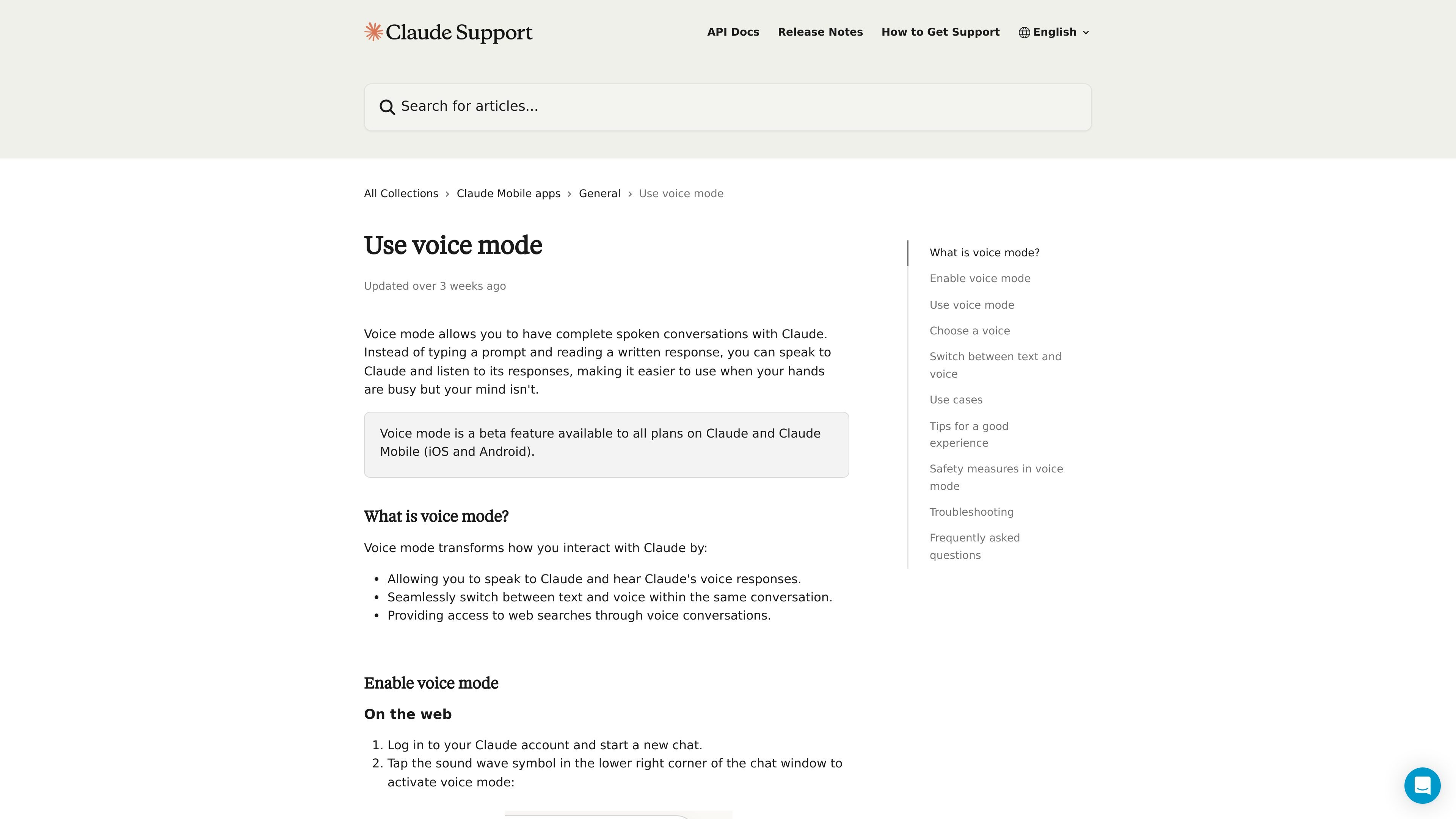
Claude voice mode is a beta feature that lets you have spoken conversations with Claude instead of only typing prompts and reading replies. It is available on all Claude plans and in Claude Mobile for iOS and Android, with support also documented for the web.
The feature is designed for situations where speaking is easier than typing, such as when your hands are busy or when you want to continue a conversation out loud. It supports both hands-free listening and push-to-talk, and you can move between voice and text in the same chat while keeping the conversation context.
Speak to Claude and listen to its responses instead of typing and reading, which makes the experience usable when your hands are busy.
Use voice mode on the web or in the Claude mobile apps for iOS and Android, with the same feature available across those surfaces.
Choose between hands-free mode and push-to-talk mode depending on noise level and how much control you want over when Claude listens.
Pick from a preset set of voices and adjust voice settings later from web or mobile settings screens.
Switch between typed prompts and voice within the same conversation without losing prior context.
Access web searches through voice conversations, with usage counted against your regular subscription limits.
Get a spoken briefing while getting ready, with Claude reading back plans or reminders without requiring typing.
Use voice conversation while commuting, exercising, or doing chores when it is easier to speak than to type.
Talk through ideas aloud when you want to develop or refine concepts without slowing down to type each thought.
Practice interviews or difficult conversations through a natural back-and-forth dialogue with Claude.
Capture ideas immediately by speaking them into Claude as soon as they come to mind.
Yes. Voice mode is available as a beta feature on all Claude plans, and it works on Claude Mobile for iOS and Android as well as on the web.
Yes. You can switch between text and voice in the same conversation, and your prior context carries over when you switch.
Voice conversations are saved as text transcripts in your chat history, similar to regular text conversations.
Voice mode uses a limited set of preset voices and is designed to avoid mimicking specific individuals. Claude also enforces its standard usage policy in voice mode.
Enterprise owners can contact Support to disable voice mode for their organization.

Wallie is an open-source AI streamer that watches your screen, hears chat, and delivers live commentary in a configurable persona. Runs locally with your own keys.

Lemon is a Mac voice assistant that turns spoken instructions into finished writing tasks and other actions. It offers a free Basic plan, a paid Pro plan, and a workflow centered on pressing fn, speaking, and staying in the same tab.

An OpenAI API guide for choosing the right speech architecture for live audio, translation, transcription, speech generation, and audio-capable chat. It helps developers map each speech application to the appropriate session type, endpoint, and connection method.

An All-In-One AI Platform that combines tools for image, video, voice, writing, and chat to enhance creativity and collaboration.

Gemma AI is a phone call reminder app that calls you with scheduled reminders instead of push notifications. It helps people who want a more direct way to stay on schedule, with Google Calendar sync and conversational call interactions.

Tavus is an AI video platform for building real-time, face-to-face agents, digital twins, and AI companions. It combines APIs, custom replicas, and multilingual conversational workflows for developers and teams.