

KushoAI UI Testing TUI
Open-source KushoAI UI Testing TUI CLI records UI flows and uses AI to expand them into exhaustive Playwright test suites, incl. edge cases.
What is KushoAI UI Testing TUI?
KushoAI UI Testing TUI is an open-source command-line interface (TUI) for generating Playwright UI test suites from a recorded browser flow. Instead of translating every click and input by hand, you record user actions once and then use AI to expand that recording into additional test variations, including edge cases and error scenarios.
The core workflow keeps you in the terminal: record with Playwright’s browser recorder, review and adjust the generated Playwright script in a terminal editor, and then ask KushoAI to extend the suite based on plain-English instructions. You can run the resulting tests headlessly or with a visible browser and generate detailed HTML reports.
Key Features
- Record UI flows with Playwright’s browser recorder: capture navigation, clicks, form input, and submission in a real browser as the starting point for test generation.
- AI expands a single recording into an exhaustive Playwright suite: generate multiple variations, edge cases, and error scenarios from the raw captured flow.
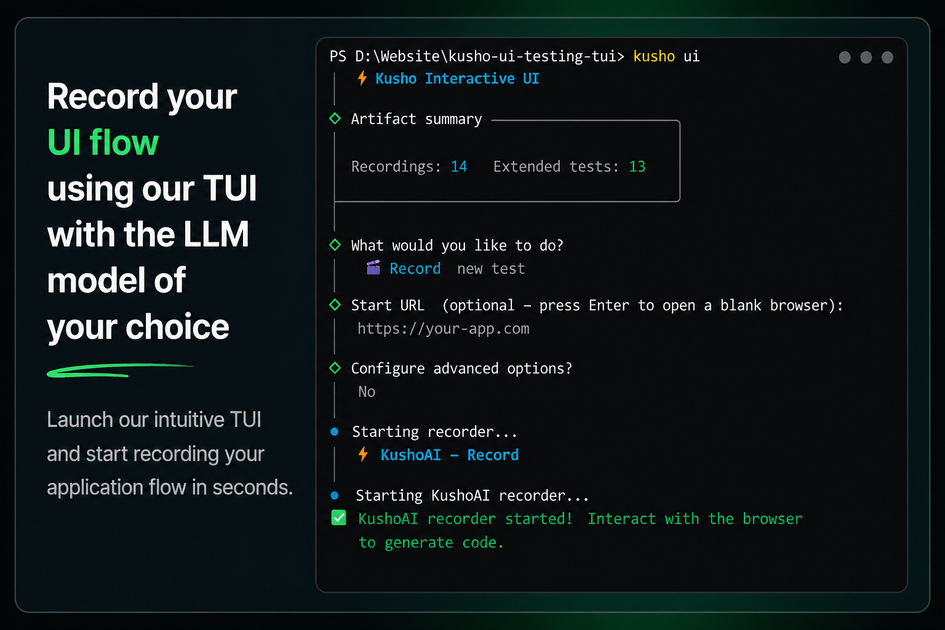
- Interactive TUI menu (arrow-key guided workflow): provides prompted steps for credentials, recording, test generation, and running without requiring memorized flags.
- Edit and refine generated tests with plain-English instructions: use the “Kusho Edit” flow to iteratively adjust extended tests based on what you want to cover.
- Run tests headlessly or headed, with optional video and HTML reports: choose execution mode and produce artifacts useful for inspecting failures.
- Local execution with local credential storage: credentials are saved to
~/.kusho-credentials, and the tool uses your chosen LLM provider.
How to Use KushoAI UI Testing TUI
- Install and link the CLI: clone the repository, install dependencies, install Playwright browser binaries, and link the
kushocommand globally.- Example commands from the page:
git clone https://github.com/kusho-co/kusho-ui-testing-tui.gitcd kusho-ui-testing-tuinpm installnpx playwright installnpm link- Verify:
kusho --help
- Example commands from the page:
- Set up your LLM provider credentials: run
kusho credentials, select a provider (OpenAI, Anthropic, or Google Gemini), and paste your API key. Credentials are stored locally at~/.kusho-credentials. - Record a user flow: run
kusho recordwith your target URL (or omit the URL and enter it interactively). After you complete actions in the browser, close it; the generated Playwright script opens in your terminal editor.- The script is saved to
kusho-tests/recordings/.
- The script is saved to
- Generate the test suite: use
kusho extend(or the TUI’s “Extend” / “Kusho Edit”) to send the recording to your selected LLM and produce an expanded suite with additional variations. - Run the suite: run the extended tests headlessly or headed, with optional video recording and detailed HTML reports.
If you prefer a guided experience, start the interactive menu with kusho ui and use arrow-key navigation to complete credentials setup, recording, test generation, and running.
Use Cases
- Covering more than the happy path: teams that currently only test the main user flow can use one recording to generate additional scenarios, including edge cases and error states.
- QA workflow for boundary conditions: QA engineers can start with a real interaction (form inputs, navigation, submission) and then extend it to exercise boundary conditions and negative cases.
- Debugging the originally captured flow: by using the “Run recording” option, you can execute the raw recording-derived test to verify what was captured before relying on AI-generated extensions.
- Iteratively refining coverage: developers can extend an initial suite and then use “Kusho Edit” to adjust what the suite covers based on plain-English instructions.
- Standardizing UI test generation across teams: the terminal-focused loop (record → review → extend → run) can provide a repeatable workflow for generating Playwright tests across web applications.
FAQ
What does KushoAI UI Testing TUI generate? It generates Playwright test suites based on a captured UI flow, including additional variations, edge cases, and error scenarios.
Do I need to write Playwright code from scratch? No. You record the flow using Playwright’s browser recorder, then review and edit the generated script in your terminal editor.
Which LLM providers are supported? The page lists OpenAI, Anthropic, and Google Gemini as supported providers. You can also override the default model during setup.
Where are API keys stored?
The tool saves credentials locally in ~/.kusho-credentials and uses them when calling your chosen provider.
Can I run tests in the browser window? Yes. The page states you can run the test suite headlessly or with a visible browser (“headed mode”). It also mentions optional video recording.
Alternatives
- Manual Playwright test authoring: writing tests directly in Playwright can provide full control, but it requires translating each click/input and adding edge-case tests by hand.
- Component/UI testing frameworks with scripted interactions: frameworks that generate tests from scripts or developer-authored scenarios still require authoring those scenarios, rather than starting from an interactive browser recording.
- Automation tools focused on record-and-replay (non-Playwright-first): record-and-replay approaches can capture user actions quickly, but the workflow may not be tailored to produce Playwright suites and may require additional conversion steps.
- AI-assisted code generation for tests: general AI coding tools can help write or expand tests, but they typically don’t provide the same terminal-first loop built around Playwright recording and extension from a single UI flow.
Alternatives

ClawTick
ClawTick is a CLI-first AI agent automation platform for scheduling webhook tasks on cron with monitoring, alerts, retries, and execution logs.

Falconer
Falconer is a self-updating knowledge platform for high-speed teams to write, share, and find reliable internal documentation and code context in one place.
OpenFlags
OpenFlags is an open source, self-hosted feature flag system with a control plane and typed SDKs for progressive delivery and safe rollouts.

skills-janitor
Audit, track usage, and compare your Claude Code skills with skills-janitor—nine focused slash commands and zero dependencies.

MakerLoft
MakerLoft is an AI app builder for non-developers that connects to your GitHub repo to generate working apps with auth, payments, files, jobs.

Rectify
Rectify is an all-in-one operations platform for SaaS, combining monitoring, analytics, support, roadmaps, changelogs, and agent management—via conversation.