
One-click keyboard lock
Lock the keyboard with a single click, then unlock it manually whenever you’re ready to resume typing.

PawseKeys is a macOS utility that locks the keyboard to prevent accidental key presses during cleaning and focus sessions. Runs locally, no data collection, free 14-day trial.
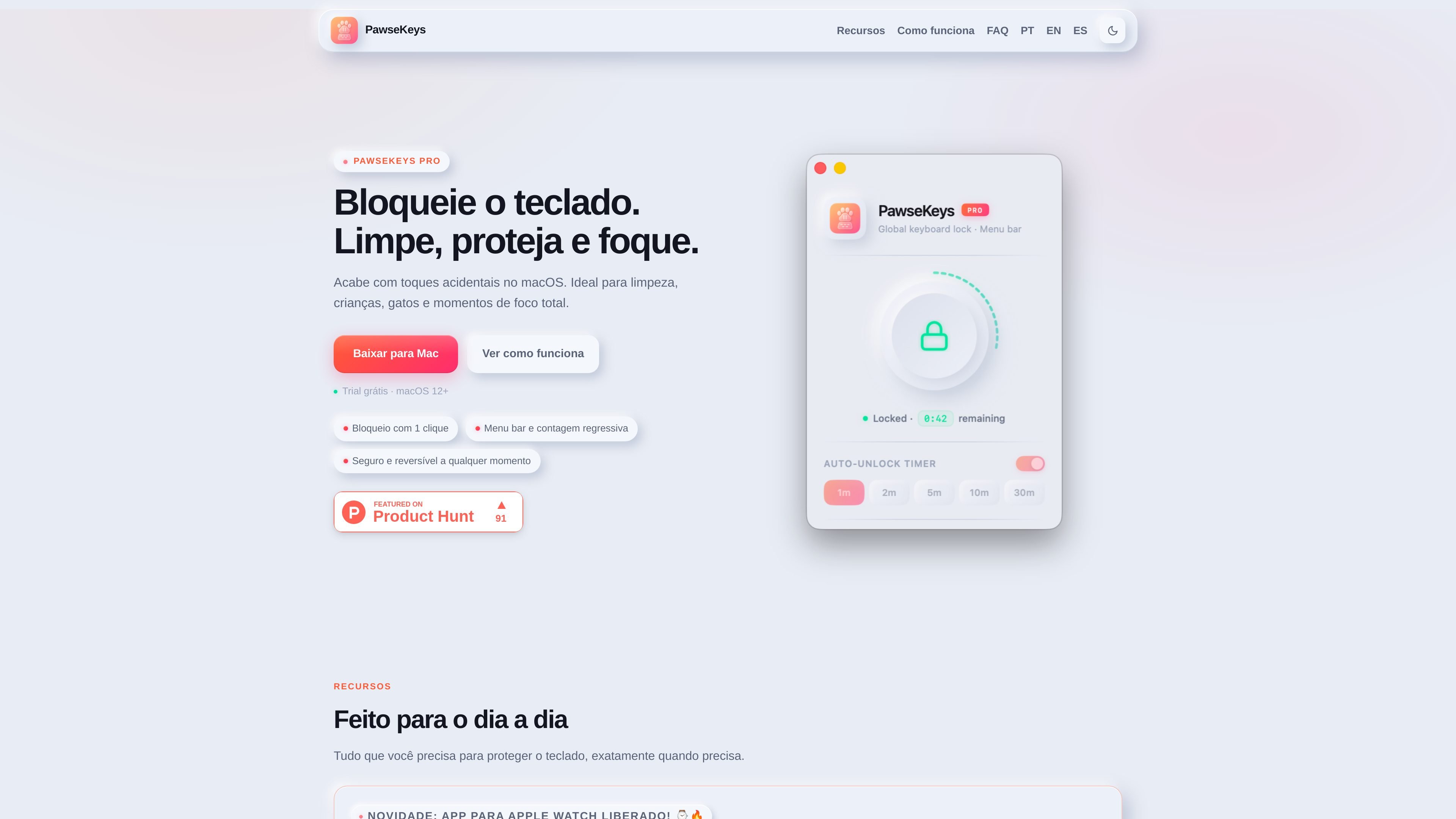
PawseKeys is a macOS utility for locking the keyboard so accidental key presses do not interrupt cleaning, focus work, or other short breaks from typing. The homepage describes it as a one-click way to “clean your Mac, avoid accidental key presses, and focus.”
The product is designed to stay lightweight and simple: you open it, lock the keyboard, optionally set a timer for auto-unlock, and unlock again with a button or shortcut. The site also says PawseKeys runs locally, works offline, and does not collect user data.
Lock the keyboard with a single click, then unlock it manually whenever you’re ready to resume typing.
Set a timer so the keyboard unlocks automatically after a cleaning session or other short interruption.
Control the app from the macOS menu bar for quick access without opening a separate window.
Use it to prevent accidental input during cleaning, presentations, focus work, or when children or pets are nearby.
Run the app locally on your Mac with no cookies, analytics, trackers, or server-side data collection.
Use the macOS app natively in Swift, with compatibility listed for macOS 12 and newer.
Lock the keyboard while cleaning a Mac so dusting or wiping the device does not trigger accidental key presses.
Temporarily block input when children or pets are around and stray keys could interrupt work or change settings.
Pause typing during deep work or reading sessions, then unlock manually or with the optional timer.
Use the menu bar control for a quick lock before presenting, stepping away, or doing another short task away from the keyboard.
Yes. The homepage says PawseKeys includes a free 14-day trial so you can try PRO features before buying.
No. The privacy page states the app runs locally on your Mac, collects no data, and does not send information to servers.
No account or login is required to try the app. The homepage says a license unlocks PRO features.
PawseKeys is built for macOS and the homepage says it is compatible with macOS 12 or newer.

DANCING CATS App turns cat photos into dancing kitty clips. Simple, focused, and easy to use for playful pet-image edits.

Cats Lock is a macOS app that locks the keyboard with one shortcut so a cat can sit on the keys without typing into your active app. It also offers silent Stealth Lock mode, menu bar use, and optional function-key locking.

Kima is a shared pet-care app for households to track meals, walks, medications, reminders, and health notes with a live timeline and Premium reports for iPhone.

Kitiz is a free cat collection game for iOS and Android. Collect unique cats, care for them, and watch their relationships and conversations grow over time.

Clawd is an open-source browser pet companion that reacts to page content, user actions, and page errors in-browser, with local-only use, optional local AI, and performance controls.

WaterMe is a browser-based plant care app for tracking watering and routine tasks, with shareable sitter sessions for travel, plus Free and paid plans.