

PDF Guru
PDF Guru is an online PDF editor that lets you edit, sign, convert, and manage PDFs in your browser—no software installation needed.
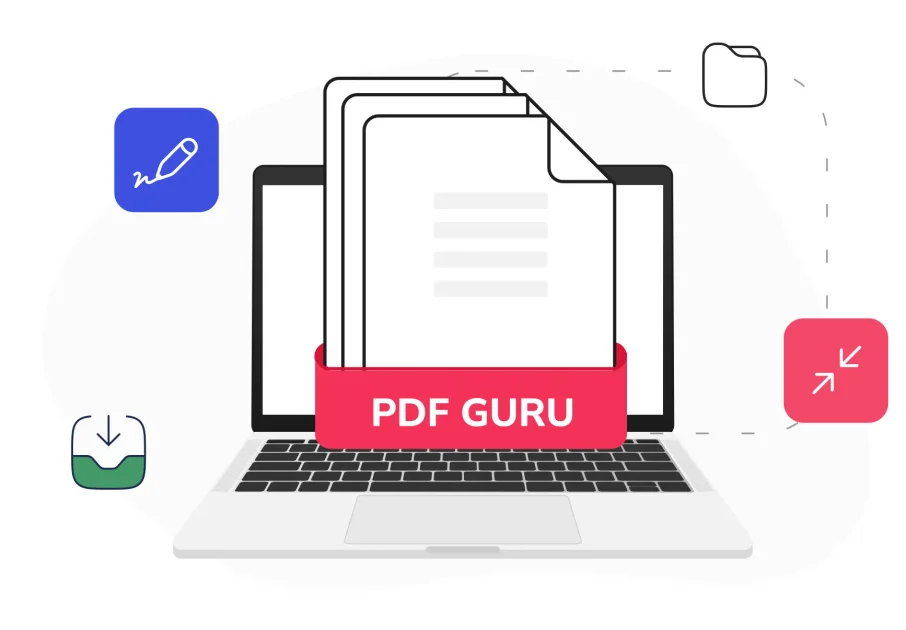
What is PDF Guru?
PDF Guru is an online PDF editor that lets you edit, sign, convert, and manage PDFs in your browser—no software installation needed.
Beyond editing, PDF Guru includes tools for converting to and from common formats, splitting and merging PDF pages, annotating documents, extracting content, and applying protections such as password protection. The core goal is to keep PDF workflows straightforward without requiring installs.
Key Features
- Edit text in PDFs (simple text editing): Click and type to correct typos or update content without extra conversion steps.
- All-in-one editing tools: Highlight information, add images, insert shapes, and leave notes for document review and updates.
- Convert between formats: Switch between formats such as Word, PPTX, or JPG while aiming to preserve layout, formatting, and structure.
- Fill and manage forms: Access fillable form templates (described as covering categories like tax and financial) and fill out documents.
- Built-in eSignature options: Use built-in eSignature tools to authorize documents within the PDF workflow.
- OCR for scanned documents: Use OCR to extract text from image-based/scanned PDFs.
- PDF utilities for document handling: Compress PDFs, split or merge PDF pages, rotate pages, annotate, extract PDF pages, and delete PDF pages.
- Security controls: Password protect PDFs and use encrypted upload connections; the site states files are encrypted during upload and further protected on servers.
How to Use PDF Guru
- Open PDF Guru and upload your PDF using the upload area (the site notes an upload size up to 100 MB).
- Choose the relevant tool for your task, such as Edit & Sign, Convert from PDF, Compress PDF, Split/Merge, OCR, or Fill PDF.
- Make changes in the editor (for example, click to edit text or add signatures), then apply the conversion or download your updated PDF.
Use Cases
- Correcting a document before sharing: Update text in an existing PDF (for example, fixing a typo in a contract or form) using direct in-browser editing.
- Converting a PDF for collaboration: Convert a PDF to a different format (such as Word, PPTX, or an image format) when the recipient needs the content in another file type.
- Preparing and signing forms: Fill out a PDF form and apply an eSignature using built-in signing options for faster approvals.
- Working with scanned documents: Run OCR to extract text from scanned pages, then use the extracted content as part of further editing or organization.
- Cleaning up large PDF files: Compress a PDF to reduce file size, or split/merge/delete pages to organize the document for specific recipients.
FAQ
What file types can PDF Guru convert? The site states the converter supports formats like Word, Excel, JPG, PNG, DWG, and more. (Exact supported formats beyond those listed are not enumerated on the provided page.)
Do I need to install software to use PDF Guru? No. The page emphasizes using the tools online “without installing a thing,” with editing and other operations performed in the browser.
How large can my file be? PDF Guru indicates you can upload files up to 100 MB.
Is PDF Guru safe to use? The page describes multiple protection layers: GDPR rules, encrypted uploads via secure SSL connections, encryption of files on servers, AES encryption, and verification by Google Safe Browsing.
Can I work with scanned PDFs? Yes. The site mentions OCR (optical character recognition) to work with scanned/image-based documents.
Alternatives
- Desktop PDF editors: Offline applications designed for full-feature PDF editing and signing. These can be preferable if you need editing without browser workflows, but require installation.
- Online “PDF to/from other formats” converters: Tools focused primarily on conversion rather than rich in-browser editing (e.g., converting to Office documents or images). These may streamline format switching but can vary in editing depth.
- OCR-focused document processing tools: Services that specialize in extracting text from scans and images. They can be a better fit when OCR is the main requirement, while a general PDF editor may be needed for subsequent layout changes.
- Document management and eSignature platforms: Workflow-oriented tools for filling, signing, and tracking document processes. They may emphasize approvals and compliance workflows, while PDF Guru also includes editing and PDF manipulation tools in the same browser experience.
Alternatives

Codex Plugins
Use Codex Plugins to bundle skills, app integrations, and MCP servers into reusable workflows—extending Codex access to tools like Gmail, Drive, and Slack.

Nolain OCR
Nolain OCR is an advanced Optical Character Recognition solution designed to accurately extract text and data from various document formats, streamlining document processing workflows.

Jenni
Jenni is an AI workspace to read PDFs, draft essays and papers, and generate in-text citations in 2.6k+ styles.

AgreeGuard
AgreeGuard is a free AI Chrome extension that analyzes Terms of Service and Privacy Policies before you click “I Agree,” flagging red flags.

DataSieve: Text to Data
DataSieve: Text to Data extracts emails, dates, URLs, and structured info from text and many file types—offline on iPhone, iPad, and Mac.
司马阅
司马阅 is a leading domestic enterprise-level AI document intelligence platform, focused on activating dormant data in enterprises and helping them create serious scenario-based AI employees.