

GhostDesk
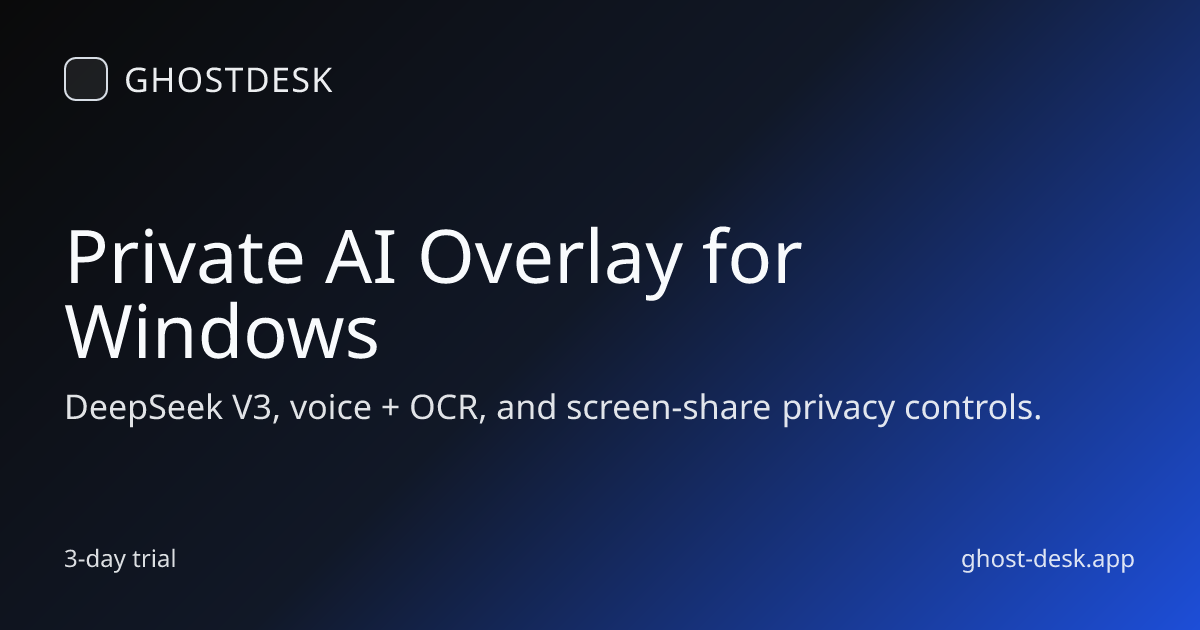
GhostDesk is a private AI overlay for Windows that stays on top for note-taking and AI assistance, with privacy-focused private notes during screen sharing.
What is GhostDesk?
GhostDesk is a private AI overlay for Windows that stays “always on top” above other applications. It’s designed for taking notes and using an AI assistant without switching tabs or interrupting the active workflow.
A key part of the product positioning is privacy during screen sharing: the overlay includes a “private notes” behavior intended to keep your notes out of the shared feed while you present or record.
Key Features
- Always-on-top overlay for Windows: GhostDesk floats above other apps so you can interact with it while keeping your main window in use.
- Click-through focus layer: The overlay is described as staying in place while allowing you to keep working in the active app without focus jumps or window shuffling.
- Private notes during screen sharing: When you share your screen, GhostDesk keeps your private notes from appearing in the shared output.
- OCR support: The page lists OCR among included capabilities.
- Voice mode: The page lists a voice mode among included capabilities.
- DeepSeek V3 AI: The page states that GhostDesk uses DeepSeek V3.
How to Use GhostDesk
- Start the 3-day trial from the GhostDesk page.
- Sign in via Google Sign-In (the page notes the trial begins after signing in).
- Open GhostDesk and use it as an overlay while working in your active application—no tab switching is required.
- During meetings, demos, or recordings, enable the sharing flow and use the overlay’s private notes behavior so your notes are not included in the shared feed.
Use Cases
- Meetings and demos with note-taking: Keep a private scratchpad with GhostDesk while presenting your screen, so your notes don’t show up in the shared feed.
- Developer workflow while coding: Use the overlay above an IDE or editor to ask questions and capture notes without leaving the active code window.
- Screen recordings: Add AI-assisted notes during capture while keeping sensitive notes out of the recording output.
- Document or screenshot text extraction: Use OCR to pull text from what’s on your screen.
- Hands-free interaction: Use voice mode when you don’t want to type.
FAQ
Does GhostDesk change focus away from my active window?
The page describes a click-through focus layer meant to let you keep working in your active app while GhostDesk stays in place.
How does GhostDesk handle privacy during screen sharing?
It states that GhostDesk keeps “private notes” from appearing in the shared feed during screen sharing.
What AI model does GhostDesk use?
The page lists DeepSeek V3.
Is OCR and voice mode included?
Yes—both OCR and voice mode are listed on the page.
Is there a trial?
Yes. The page mentions a 3-day trial and notes it starts after Google Sign-In.
Alternatives
- OS-level note-taking overlays (Windows “always-on-top” tools): These can help with always-visible notes during screen shares, but they may not provide AI features like OCR, voice mode, or the specific private-notes sharing behavior.
- General-purpose AI chat apps: These offer AI chat and may support OCR/voice depending on the platform, but they typically require switching windows or tabs rather than providing an always-on-top overlay.
- Screen sharing / meeting tools with presenter notes features: Some meeting platforms provide private speaker notes separate from what attendees see; they differ from GhostDesk by being tied to specific conferencing workflows.
- Text/OCR apps with voice input: Tools focused on OCR and voice can handle extraction and dictation, but they won’t match the “overlay above any app” workflow described for GhostDesk.
Alternatives

Memoket Gem
Memoket Gem is a wearable device that records conversations and turns them into usable context for AI tools with a press-once workflow.

Magic Notebook
Magic Notebook is a calm desktop writing app for bloggers and authors. Open a folder and write in DOCX, Markdown, and TXT with autosave.

Scribeist
Scribeist is an AI-powered writing platform with adaptive workspaces for novels and blogs—character/timeline tracking, SEO guidance, drafting support.
dumppp
dumppp delivers fast mobile capture to Notion with quick launch, context switching, and offline-first sync. Type instantly, review via timeline.

Wendi
Wendi is an AI workspace for people managers—captures meeting context, generates summaries and leadership insights, and drafts HR-relevant follow-ups.

Voicenotes
Voicenotes is an AI note-taker that transcribes voice notes and meetings into text in 100+ languages—so you can review and reuse.