
Raycast Pro
Raycast Pro adds an AI assistant plus productivity features: Cloud Sync, unlimited clipboard history, custom window management, notes & themes.
What is Raycast Pro?
Raycast Pro is a subscription upgrade for Raycast that adds an AI-focused assistant and several productivity features inside an extendable launcher. It’s designed for people who want quick access to apps and commands while also using AI search and chat directly from their OS.
Beyond AI, Raycast Pro includes workflow helpers such as cloud sync, clipboard history, custom window management, and notes. It also lets you customize the Raycast experience with custom themes.
Key Features
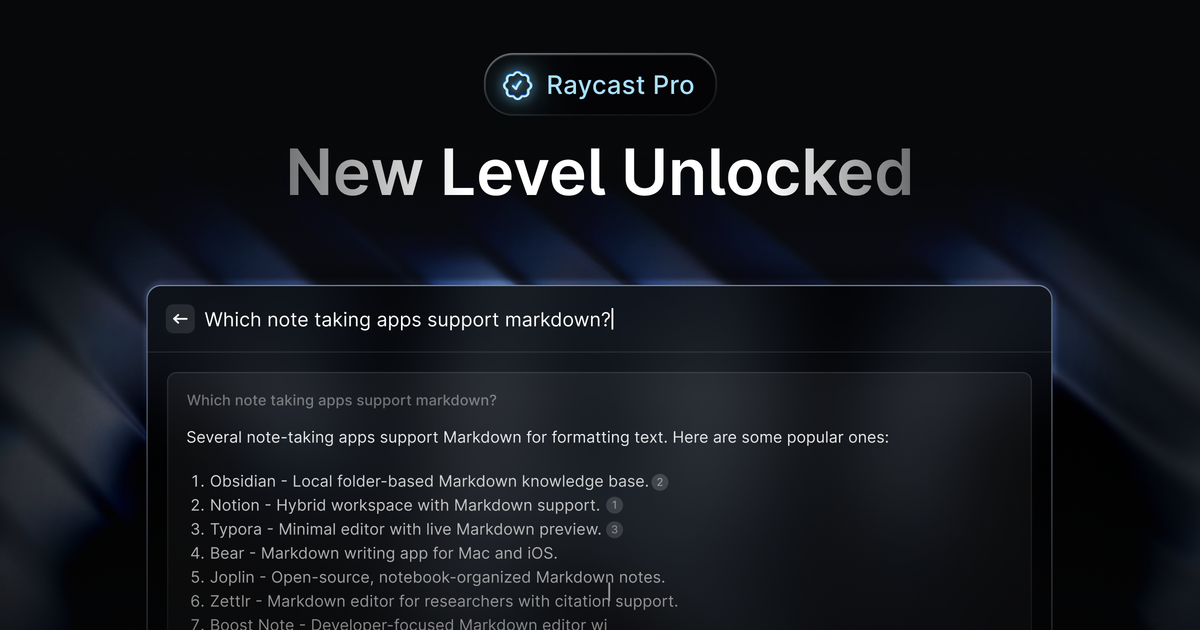
- AI Quick Chat on your OS: Ask questions and get answers “anytime, anywhere” using Quick AI, which combines AI with web-powered responses.
- Always-on ChatGPT-style chat: Use an in-launcher chat experience to get help with tasks such as writing emails or getting unstuck while coding.
- AI Automation Assistant via AI Commands: Create AI Commands to automate repetitive work and reduce manual chores.
- Model selection for Raycast AI: Choose from many LLMs (e.g., OpenAI, Anthropic, Perplexity, Groq, Together AI, Mistral AI, Google Gemini, xAI) and select models based on speed vs. complexity; advanced models may require an add-on.
- Cloud Sync: Keep your Raycast workflow consistent across multiple Macs (and, when enabled, your AI chats are saved to servers).
- Unlimited Clipboard History: Search and retrieve previously copied items, including images.
- Custom Window Management: Use commands to position and resize windows.
- Raycast Notes: Save and organize unlimited notes, including meeting notes.
- Custom Themes: Craft a theme or choose from community themes.
How to Use Raycast Pro
- Upgrade to Raycast Pro (and any related add-ons, if you want advanced AI models).
- Open Raycast’s launcher and use AI Quick Chat to ask questions and search for apps/commands from within the interface.
- Start a chat session when you need ongoing help (for example, drafting messages or reviewing coding tasks).
- Create AI Commands for repetitive workflows, then trigger them from Raycast.
- Enable Cloud Sync if you use multiple Macs, and configure personalization such as custom themes.
Use Cases
- Answer questions while you work: Use AI Quick Chat from the Raycast launcher to get answers to questions without switching contexts.
- Writing and communication help: When drafting an email or message, use Raycast Pro’s AI chat to support the writing process.
- Coding assistance: If you’re stuck while coding, use the always-on chat to get guidance and help writing code-related outputs.
- Automate routine tasks: Turn frequent steps into AI Commands so you can run them quickly from Raycast instead of repeating the same actions.
- Cross-Mac continuity: Enable Cloud Sync so your Raycast workflow stays consistent across multiple Macs and AI chats can be accessed across devices (when enabled).
- Organize work and media: Use unlimited Clipboard History and Raycast Notes to find copied images later and keep notes (including meeting notes) organized.
FAQ
How does Raycast handle my data? Raycast states it values privacy and does not collect sensitive information. None of your inputs are recorded or used to train models. Raycast AI features are powered by separate AI providers (including OpenAI, Anthropic, Perplexity, Groq, Together AI, Mistral AI, Google Gemini, xAI, and Replicate). If Cloud Sync is enabled, AI chats are saved on Raycast servers and encrypted at rest and in transit.
What’s the difference between Pro and the Team plan? The Pro plan is for individuals and includes Raycast AI and Cloud Sync. The Team plan is for organizations and adds private sharing of Extensions, Snippets, and Quicklinks on top of Pro features.
Can I use my own OpenAI API key? Yes. Raycast supports BYOK (Bring Your Own Key) for custom keys for OpenAI, Anthropic, and Google.
Which models does Raycast AI support? Raycast Pro provides access to multiple LLMs from providers such as OpenAI, Anthropic, Perplexity, and others. The page also notes that more advanced models can be available as an add-on.
Do teams need to enable advanced AI separately? For the Team plan, a Team Manager can add the Advanced AI add-on in account settings; enabling it activates the add-on for all members.
Alternatives
- Productivity launcher + AI assistant: Look for macOS launcher tools that integrate AI chat/search directly into the command palette workflow; compare how they handle AI access, chat persistence, and command creation.
- Clipboard history and notes tools: If your main need is retrieval and organization (clipboard history, notes), consider dedicated clipboard managers or note apps, then compare how tightly they integrate into a launcher.
- Window management utilities: If your primary focus is positioning and resizing windows with shortcuts, consider standalone window management tools and compare shortcut customization and automation depth.
- Team knowledge/workflow platforms: For collaboration features like sharing snippets and extensions, compare against enterprise productivity platforms that support private sharing and team libraries (rather than an individual-focused launcher).
Alternatives

BookAI.chat
BookAI allows you to chat with your books using AI by simply providing the title and author.

Lasso
Lasso is an AI-first PIM for ecommerce teams that enriches product attributes and descriptions, processes supplier data, and monitors competitors via app or API.

Biji
Biji is a versatile platform designed to enhance productivity through innovative tools and features.

Struere
Struere is an AI-native operational system that replaces spreadsheet workflows with structured software—dashboards, alerts, and automations.

Ably Chat
Ably Chat is a chat API and SDKs for building custom realtime chat apps, with reactions, presence, and message edit/delete.

garden-md
Turn meeting transcripts into a structured, linked company wiki with local markdown and an HTML browser view. Sync from supported sources.