

Recordly
Recordly is an open-source screen recorder for macOS, Windows, and Linux with auto-zoom, animated cursors, and minimal-interface capture. Export to video or GIF.
What is Recordly?
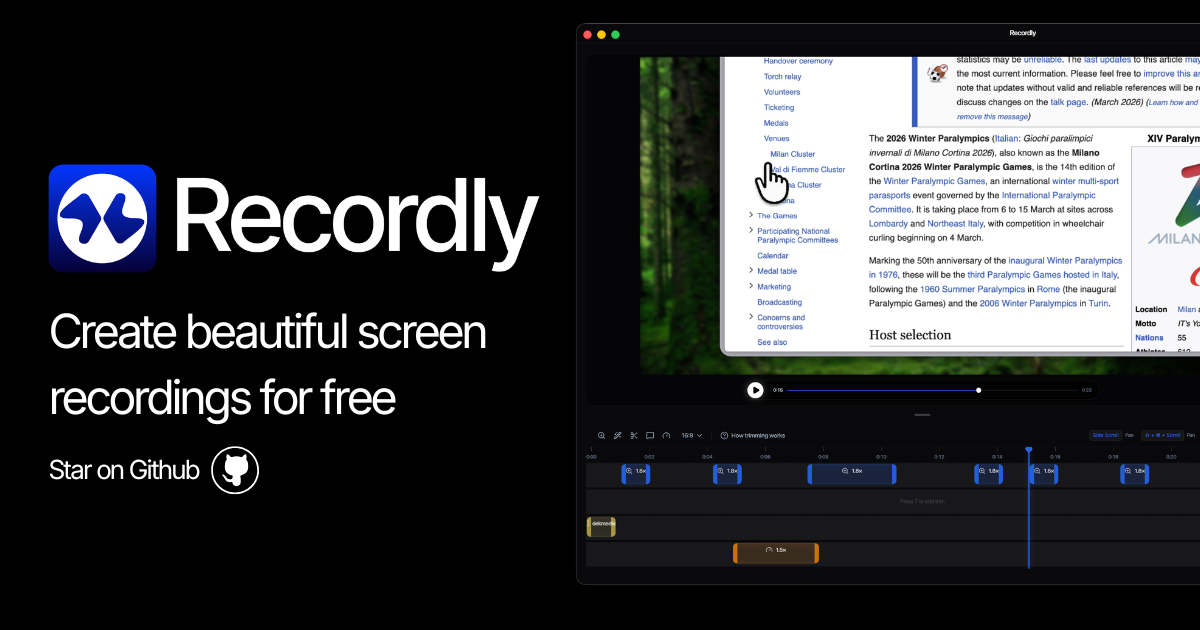
Recordly is an open-source screen recording app for macOS, Windows, and Linux. It’s built to help you capture on-screen activity quickly and produce polished recordings with features like auto-zoom, animated cursors, and easy timeline-based editing.
The core purpose is to reduce the time spent preparing demos and walkthroughs by generating a more “finished” recording directly during capture, with the option to refine timing and on-screen elements using a timeline editor.
Key Features
- Instant capture and fast export: Start recording immediately and export your result in minutes, targeting a workflow where you can create deliverables quickly.
- Auto-zoom suggestions: Recordly focuses on important parts of the interaction by applying auto-zoom during the recording process to reduce manual editing later.
- Animated cursors with motion-responsive effects: Cursor sway effects animate cursor motion in response to mouse movement and velocity, plus animated cursor styling intended to look smoother.
- Beautiful backgrounds for recordings: Recordings include a styled background so the output is cleaner before you do further edits.
- System audio and microphone capture: Record system audio and (optionally) microphone input together, which supports narration-style demos and walkthroughs.
- Timeline editing with drag-and-drop controls: Use a timeline interface to adjust video speed, zooms, annotations, and video length, and save the editing state as .recordly project files.
- Multiple outputs: video and GIF: Export to video or GIF, with configurable quality, framerate, and aspect ratio.
- Seamless looping for auto-playing GIF/video: Create loops designed to look like they never end by connecting the last cursor position to the initial position.
- Annotations on the timeline: Add text, images, and arrows by choosing points on the timeline to highlight where viewers should look.
How to Use Recordly
- Install Recordly on your target OS (macOS, Windows, or Linux) and launch the app.
- Start a screen capture to record your interaction. As you record, use the built-in behaviors such as auto-zoom and cursor animation to generate a cleaner base output.
- Record audio as needed by capturing system audio and, if you want narration, microphone input as well.
- Edit using the timeline: open your project and adjust speed, zooms, annotations, and overall length using drag-and-drop pieces.
- Save and export: save your work as a .recordly project to continue later, then export to your preferred video or GIF format with the chosen quality/framerate/aspect ratio.
Use Cases
- Product demos and onboarding videos: Capture key UI flows with auto-zoom and animated cursors, then add arrows and text to guide viewers through each step.
- Guided walkthroughs with narration: Record system audio and microphone narration together, then fine-tune timing and on-screen callouts with the timeline editor.
- Looping UI previews for docs or marketing pages: Export GIFs or looping videos designed to autoplay seamlessly by connecting the end cursor position back to the start.
- Iterative demo creation with saved project files: Save edits as .recordly files so you can return to a partially finished walkthrough and update speed, zooms, or annotations without restarting capture.
- Content repurposing across formats: Produce both video and GIF outputs from the same edited timeline, adjusting quality, framerate, and aspect ratio depending on where the content will be used.
FAQ
-
Is Recordly really free?
The site states that Recordly is fully open-source and free. -
Does Recordly have auto-zoom?
Yes. The app includes auto-zoom suggestions intended to focus on important parts of your recording. -
What platforms does Recordly support?
Recordly supports macOS, Windows, and Linux. -
Can I record system audio and microphone at the same time?
The site says you can record system audio and microphone input (if you want) during capture. -
How do I get support?
The site advises opening an issue on GitHub for support.
Alternatives
- Screen recording + timeline editors (general-purpose): Use tools that focus on capturing screens and editing the resulting video on a timeline. Compared to Recordly, you may need more manual effort to achieve smooth cursor animation and auto-zoom-style framing.
- GIF-first capture tools: If your primary output is looping GIFs, GIF-centric tools can be quicker for short animations. Recordly differentiates by aiming for seamless looping and an editor workflow based around a timeline and project files.
- Commercial screen recording suites: Paid recorders often provide similar end-to-end workflows (capture, annotation, export). Recordly positions itself as a free open-source option with built-in cursor animation, auto-zoom, and support for video/GIF exports.
- Documentation-focused diagram/screen capture tools: Some tools prioritize embedding captures into documentation flows. Compared to Recordly, they may emphasize publishing workflows more than cursor animation, auto-zoom, and looping output behaviors.
Alternatives

Tavus
Tavus builds AI systems for real-time, face-to-face interactions that can see, hear, and respond, with APIs for video agents, twins & companions.

Scriptmine
Scriptmine turns real audience conversations into camera-ready scripts with community questions and trending angles—helping you write, edit, and record faster.

Bezel
Mirror iPhone to your Mac with wireless AirPlay or USB, plus recording and screenshot tools with bezel and background.

Capso
Capso is a free, open-source macOS app to capture, annotate, record MP4/GIF, and extract text with OCR—built with Swift 6 and SwiftUI.

Lumox
Lumox is a macOS app for wireless iPhone screen mirroring with built-in screenshot/video recording and a Media Library for exporting results.

Ailytics
Ailytics is AI-powered video analytics that improves safety and operational efficiency for construction, manufacturing, and heavy industries.