
Wireless mirroring
Mirror an iPhone or other supported iOS device to your Mac over Wi‑Fi without installing an app on the mobile device.

Lumox is a Mac app for wireless screen mirroring from iOS devices, with screenshots, video recording, multiple devices, and fullscreen or transparent display modes.
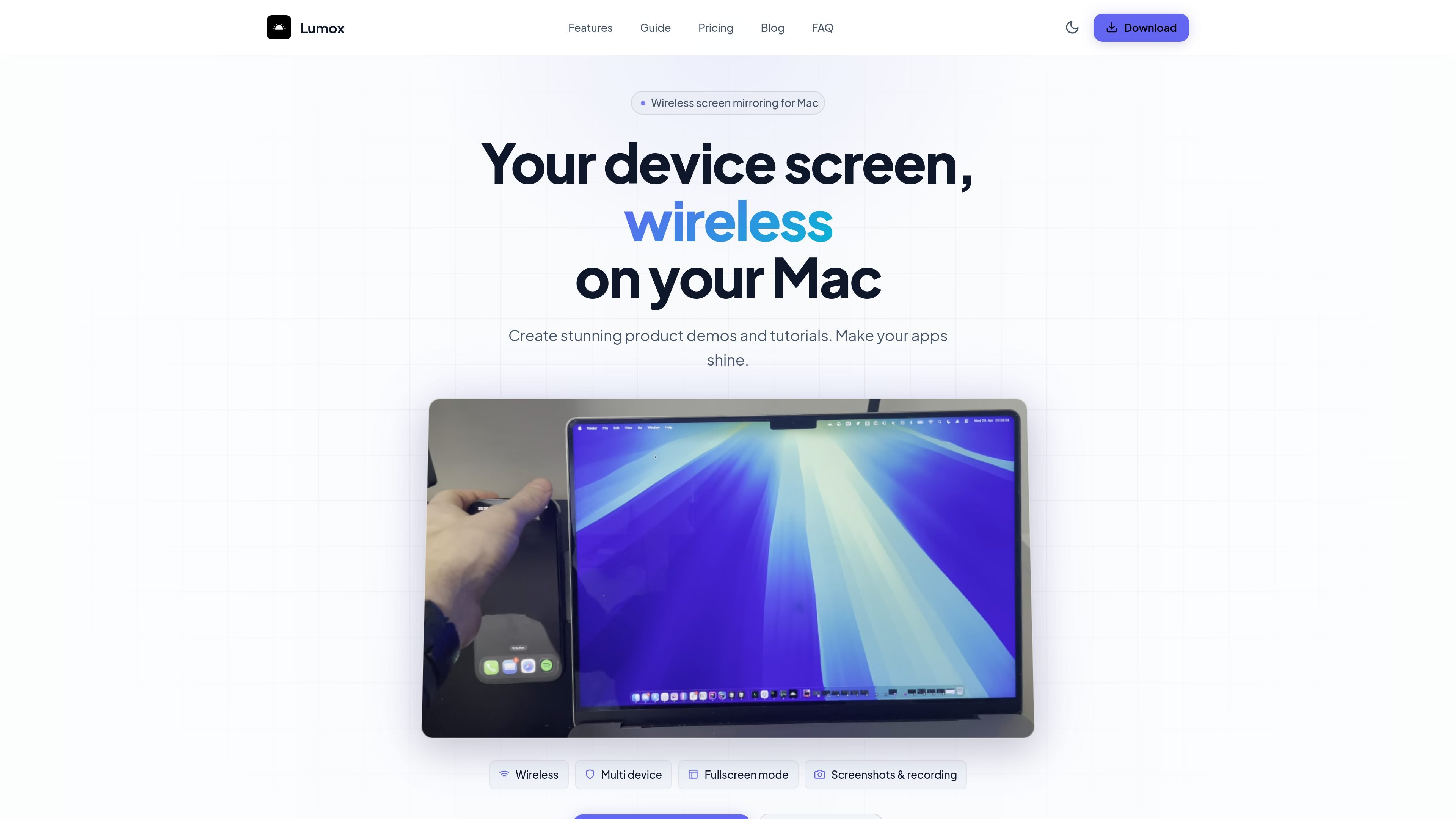
Lumox is a Mac app for wireless device screen mirroring. It is designed to mirror iOS devices over Wi‑Fi so you can present, capture, and organize device screens on your desktop without cables after the initial setup.
The app focuses on workflows that need clean visual output: screenshots, screen recordings, transparent or fullscreen viewing, custom backgrounds, and device bezels. It also supports multiple devices in one workspace and keeps captured media in a built-in Media Library.
Mirror an iPhone or other supported iOS device to your Mac over Wi‑Fi without installing an app on the mobile device.
Connect multiple devices at the same time and arrange them in one view for side-by-side demos or comparisons.
Capture screenshots and record video for product demos, tutorials, bug reports, or app store assets.
Use transparent background mode, fullscreen mode, or custom backgrounds to adapt the mirror to presentations and visual assets.
Store screenshots and recordings in the built-in Media Library for easier access and export.
Wrap devices in iPhone or generic bezels, rotate them, and customize status bars for more polished visuals.
Show an iPhone screen on your Mac during live demos, using fullscreen mode or a transparent window depending on the presentation setup.
Capture store-ready screenshots and export them in common image formats, including output sized for app store dimensions.
Record tutorials, walkthroughs, or bug reports directly from a mirrored device and keep the files organized in Lumox’s Media Library.
Mirror more than one device at once to compare screens, test layouts, or run coordinated demonstrations from a single Mac.
Adjust backgrounds, bezels, rotation, and status bar details to create realistic device mockups and polished product visuals.
Lumox is free to use, but the free version includes a watermark and a session time limit. A paid license removes both restrictions.
Lumox supports mirroring for iOS devices. Android support is currently in development.
You can mirror as many devices as your Mac can handle, with no hard limit stated. Lumox also supports running unlimited sessions.
Screenshots and recordings are saved in the Media Library inside Lumox, or in the folder you configured in settings.
Yes. Lumox supports a transparent background mode and a fullscreen mode for presentations or focused demos.

Slidesgo is a presentation template platform for Google Slides, PowerPoint and Canva workflows, with free and Premium templates plus AI-assisted creation.

Tavus is an AI video platform for real-time face-to-face agents, digital twins, and AI companions, with APIs and multilingual workflows for developers.

HiringPartner.ai is an autonomous AI recruiting platform for sourcing, screening, and interviewing candidates 24/7 with ATS-connected workflows and bulk resume uploads.

ChatBA is a generative AI tool for instantly creating slide decks from prompts, with help on templates, sharing, and data sources.

Napkin AI turns text into editable visuals for presentations, documents, and shareable content. Text-first generation, collaboration, and export to PPT, PNG, SVG, or PDF.

Beautiful.ai is an AI presentation platform for teams and enterprises. Create branded slide decks with Smart Slides, collaboration, and export options.