

Screenslice
Screenslice is a macOS utility to share a selected screen rectangle in video calls, output as a 1920×1080 region window for Zoom, Teams, Meet.
What is Screenslice?
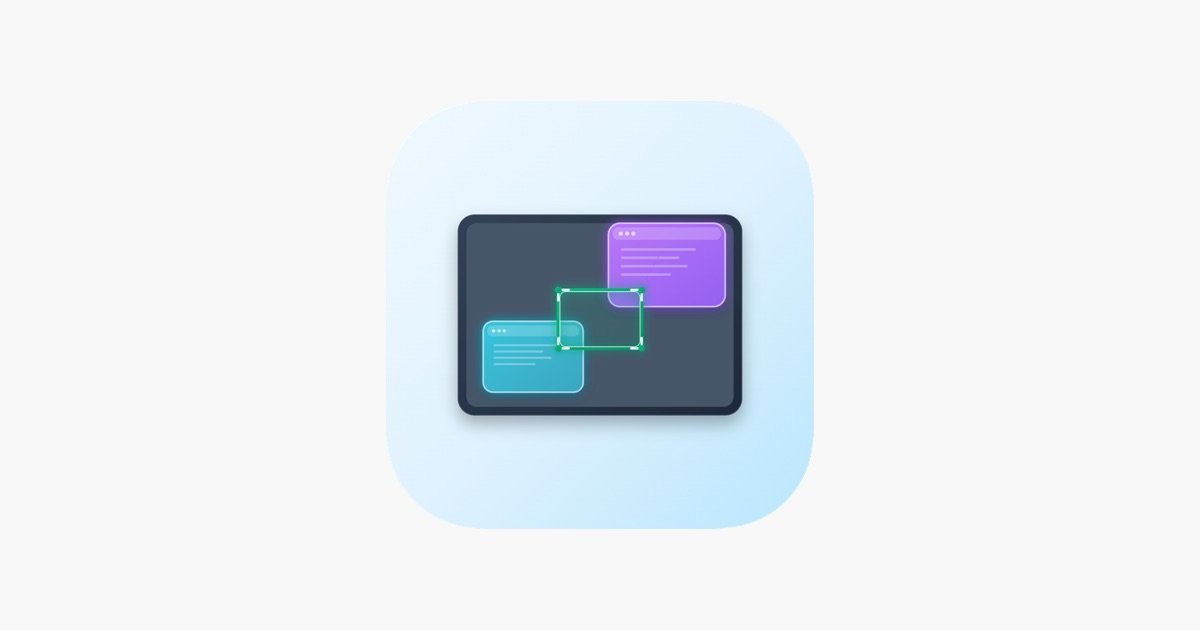
Screenslice is a macOS utility that helps you share a specific region of your screen during video calls instead of sharing your entire display. It’s designed for situations where your conferencing app’s built-in “share window” option isn’t enough, but you still want viewers to see only a defined part of what’s on your screen.
When you select an area on your screen, Screenslice outputs a dedicated region window for your conferencing app to capture. It scales the selected region to a 1920×1080 output and includes a freeze-frame option so you can pause what viewers see while you review notes or adjust your layout.
Key Features
- Select any on-screen rectangle via an overlay, then share Screenslice’s output window in your video call app (e.g., Zoom, Teams, Meet), giving you more control than “share window.”
- Viewers see only the content inside the selected rectangle, helping you avoid exposing other parts of your screen during calls.
- Scales the selected region to a 1920×1080 output so the captured region is a consistent resolution for conferencing apps.
- Freeze frame to pause the viewer’s view while you check notes or rearrange what’s on your screen.
- Runs from the macOS menu bar (no main window) and starts capturing as soon as you launch it.
How to Use Screenslice
- Launch Screenslice on your Mac; it runs in the menu bar.
- Use the selection overlay to choose the rectangular region you want to show.
- In your video conferencing app, choose to share the Screenslice output window rather than your entire screen.
- If you need time to read or adjust, use freeze frame to pause what viewers see.
Use Cases
- Present a specific section of a document or spreadsheet during a call when the built-in share options would otherwise show too much.
- Demonstrate a UI panel, tool window, or portion of a workflow without exposing other desktop content.
- Share a selected area on an ultrawide or unusual layout where conferencing apps may distort or compress content due to nonstandard resolutions.
- Pause during screen sharing to check notes or reorganize items on-screen, then resume once you’re ready.
- Use with any conferencing app that supports sharing a window, as long as you can pick Screenslice’s output window as the source.
FAQ
-
Does Screenslice have a main app window or onboarding setup? No main window is mentioned; the app lives in your menu bar and starts capturing as soon as you launch it.
-
What do viewers see during a call? Viewers see only what’s inside the rectangle you select with the overlay.
-
How does Screenslice handle resolution? It scales the selected region to a 1920×1080 output.
-
Can I pause what viewers see? Yes. Screenslice includes a freeze frame option.
-
What video apps are supported? The page specifically names Zoom, Teams, and Meet as examples of apps where you share the Screenslice output window.
Alternatives
- Built-in screen/window sharing in your conferencing app: Use your app’s standard “share screen” or “share window” options, but you may have less precise control over what portion of the screen is visible.
- Region-focused screen capture tools (manual crop before sharing/casting): These focus on selecting or cropping the capture area, typically producing a region for sharing, but workflows vary depending on whether they integrate as a shareable window.
- Virtual camera / screen-capture streaming utilities: Instead of sharing a window, they output video to be used as a camera source; this can work when direct window sharing is limited, though the workflow differs.
- Annotation and presentation overlays for screen sharing: If your goal is to guide viewers’ attention (rather than precisely selecting a region), these tools may be a better fit depending on your needs.
Alternatives

LIAM
LIAM is an AI copilot that drafts email replies, organizes your inbox with auto-labels and prioritization, and schedules meetings from your calendar.

Tactiq
Tactiq is an AI meeting assistant that provides live transcription, AI summaries, action items, and custom AI prompts for Google Meet, Zoom, and Teams.

garden-md
Turn meeting transcripts into a structured, linked company wiki with local markdown and an HTML browser view. Sync from supported sources.

Tavus
Tavus builds AI systems for real-time, face-to-face interactions that can see, hear, and respond, with APIs for video agents, twins & companions.

Scriptmine
Scriptmine turns real audience conversations into camera-ready scripts with community questions and trending angles—helping you write, edit, and record faster.

Scripta
Scripta is a privacy-first AI notetaker that records, transcribes, and summarizes your meetings directly on your device, without requiring bot access.