

AI Mode in Chrome
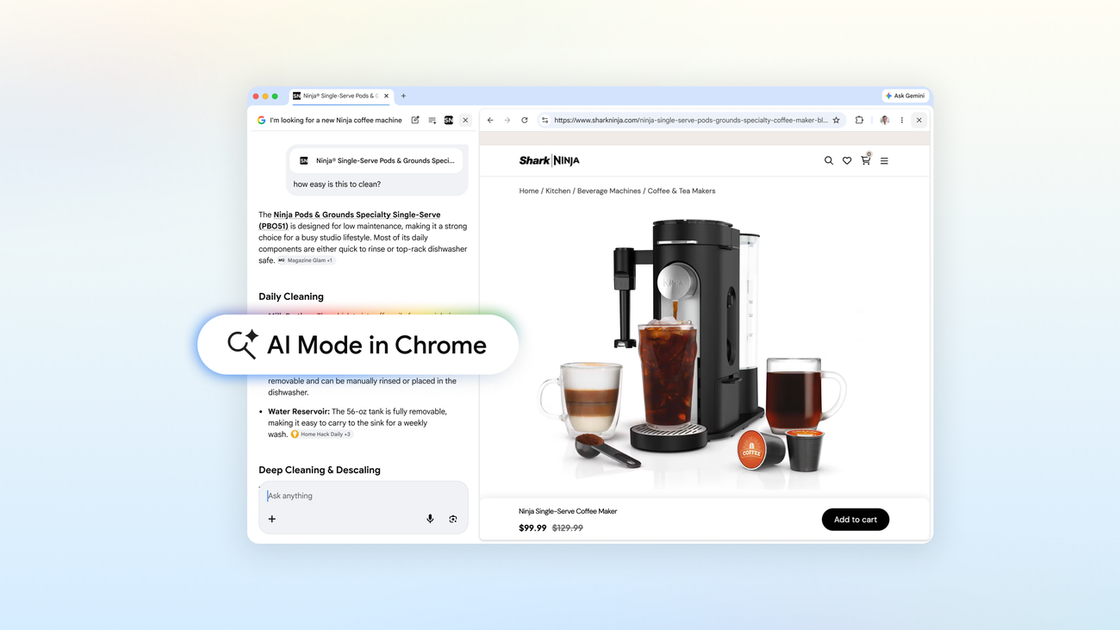
AI Mode in Chrome adds an AI-enabled search experience that keeps you in context, with side-by-side page viewing and follow-up questions.
What is AI Mode in Chrome?
AI Mode in Chrome is an AI-enabled search experience built into the Chrome desktop browser. It helps you explore the web while staying in context—so you can open relevant pages and ask follow-up questions without repeatedly switching tabs.
The updates described on this page focus on making the search-to-web workflow more fluid and on letting you bring context from your existing Chrome tabs (plus other inputs) into AI Mode searches.
Key Features
- Side-by-side webpage opening in AI Mode (Chrome desktop): When you click a link while using AI Mode, the webpage opens alongside AI Mode so you can compare details and ask follow-up questions without leaving the search context.
- Real-time follow-up Q&A while browsing: AI Mode can answer follow-up questions using context from the page and from across the web as you continue exploring.
- Search across recent tabs from Chrome: Using the new “plus” menu in the search box on the New Tab page (or an existing plus menu within AI Mode), you can select recent tabs and add them to your search.
- Mix-and-match inputs for searches: You can combine multiple tabs with images or files such as PDFs as context for AI Mode searches.
- Access to AI Mode tools (e.g., Canvas and image creation) from the same “plus” entry point: The page notes that powerful tools in AI Mode are accessible wherever you see the new plus menu in Chrome.
How to Use AI Mode in Chrome
- Open Chrome on desktop and start an AI Mode search.
- Use prompts to describe what you’re looking for.
- When you find a link you want to explore, click it while in AI Mode—on desktop the page opens side-by-side with AI Mode.
- Ask follow-up questions while reviewing the page, and use additional context by selecting recent tabs (and optionally images or files like PDFs) via the “plus” menu.
Use Cases
- Shopping comparison without losing search context: Describe what you need in a coffee maker (e.g., fit for a small apartment and latte capability). Open retailer pages side-by-side and ask questions such as how easy a model is to clean.
- Learning about a topic by following related pages: For example, when researching different McLaren Racing teams and their pit crews, open related sites and ask AI Mode follow-ups as you move from one page to another.
- Researching with multiple sources already open: If you have several websites open about local hiking trails, add those tabs to an AI Mode search to ask for similar kid-friendly trails in another location.
- Studying for a class topic using your open materials: If you have notes, lecture slides, or academic papers open, add them to an AI Mode search and request additional examples to clarify a tricky concept.
- Using AI Mode tools alongside browsing: Access tools like Canvas or image creation through the plus menu while you work through searches and supporting pages.
FAQ
Is this feature available in the U.S.?
Yes. The page states that today’s updates are available in the U.S. and will expand soon to more places around the world.
Does link clicking during AI Mode open pages side-by-side?
On Chrome desktop, yes. The page describes that clicking a link while using AI Mode opens the webpage alongside AI Mode.
Can AI Mode search include context from multiple tabs?
Yes. You can select recent tabs and add them to your search, and you are not limited to only one type of input.
What kinds of inputs can be combined with tabs in AI Mode?
The page says you can mix and match multiple tabs with images or files such as PDFs, then bring that context into AI Mode searches.
Are AI Mode tools accessible while browsing?
The page says tools in AI Mode, including Canvas or image creation, are accessible wherever you see the new plus menu in Chrome.
Alternatives
- Use standard Chrome tab-based workflows (without AI Mode): You can open links in separate tabs and search or query with AI in another context, but you would not have the described side-by-side browsing and in-flow follow-ups.
- Use AI chat apps that support web context: Some chat assistants can answer questions based on provided content, but the workflow may differ because the assistant may not be integrated directly into Chrome’s link-opening and tab-context flow.
- Use document-focused AI tools for summarization or Q&A: For study use cases involving notes, slides, or PDFs, dedicated document Q&A tools can provide answers from files, but they may not replicate the “search plus browsing context” experience inside Chrome.
Alternatives

Model Council
Model Council is a multi-model research feature by Perplexity that runs a single query across several top AI models simultaneously to generate a synthesized, comprehensive answer.

ClayHog
ClayHog tracks AI Search Visibility & GEO—see what ChatGPT, Gemini, Perplexity, Claude, and Google AI Overviews say about your brand, incl. citations and sentiment.

Grok AI Assistant
Grok is a free AI assistant developed by xAI, engineered to prioritize truth and objectivity while offering advanced capabilities like real-time information access and image generation.

AakarDev AI
AakarDev AI is a powerful platform that simplifies the development of AI applications with seamless vector database integration, enabling rapid deployment and scalability.

BookAI.chat
BookAI allows you to chat with your books using AI by simply providing the title and author.

skills-janitor
Audit, track usage, and compare your Claude Code skills with skills-janitor—nine focused slash commands and zero dependencies.