
Live editor with beautify
Paste Mermaid or PlantUML source, preview it in the browser, and apply a one-click beautify pass that re-lays out the diagram instead of changing your source.

Beauty Diagram is an online Mermaid and PlantUML editor that live-previews diagrams, beautifies layouts, and exports SVG or PNG.
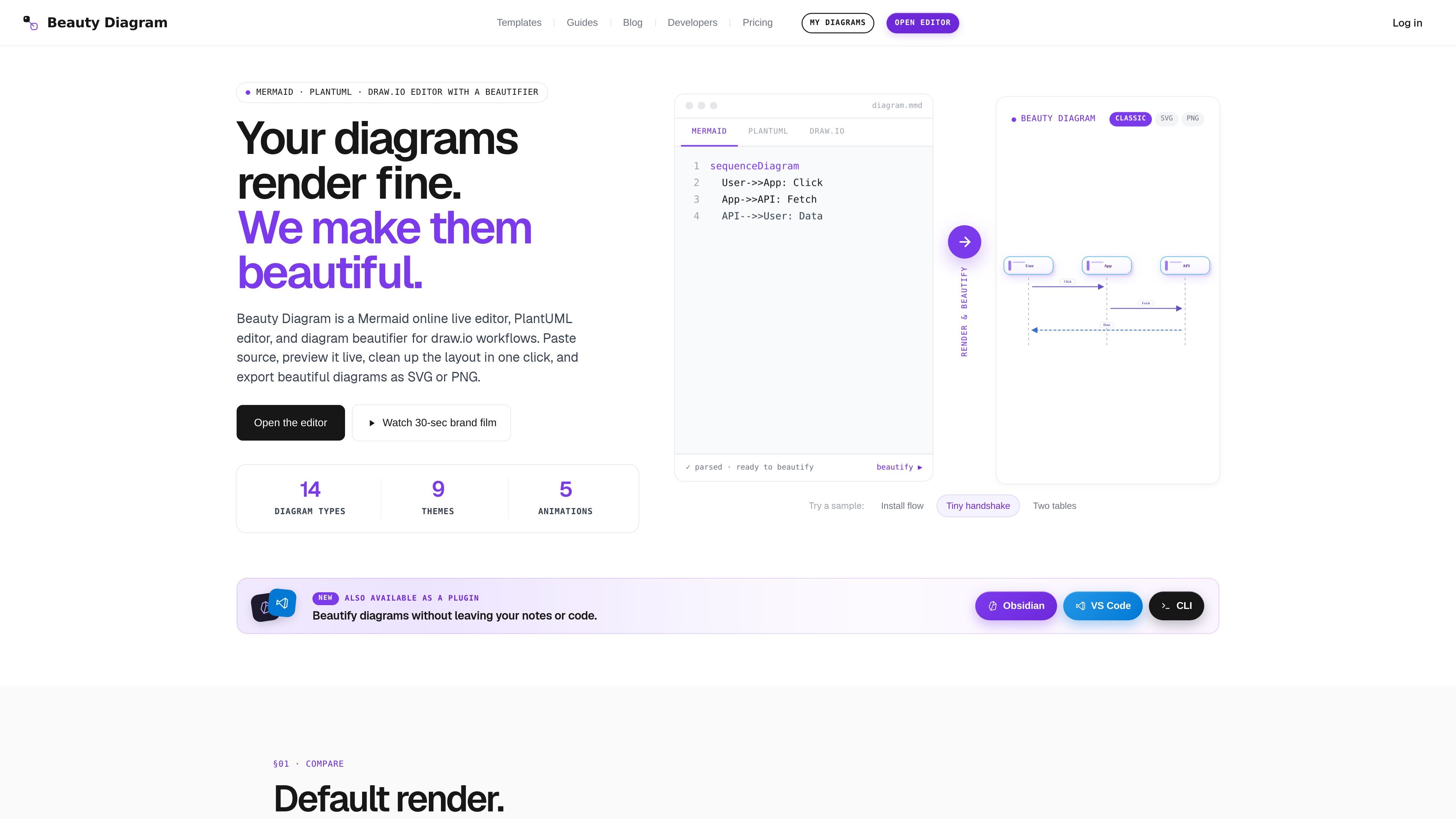
Beauty Diagram is an online diagram editor and beautifier for Mermaid, PlantUML, and some draw.io workflows. It is built for people who already write diagrams as text and want a cleaner render without manually redrawing shapes or connectors.
The core workflow is straightforward: paste source, preview it live, run Beautify to re-layout the diagram, then export the result as SVG or PNG. The site positions the product for diagrams that need to look polished in docs, notes, and slide decks, while keeping the source code intact for reuse in version-controlled workflows.
Paste Mermaid or PlantUML source, preview it in the browser, and apply a one-click beautify pass that re-lays out the diagram instead of changing your source.
Supports Mermaid, PlantUML, and Pro draw.io workflows, so diagrams can stay in the format you already use.
Exports beautified diagrams as SVG or PNG, with the site also describing 4× PNG export on Pro and no watermark for complete Pro exports.
Offers theme switching so the same diagram can be styled differently for docs, decks, or dark-mode notes without editing the underlying code.
Includes animated SVG styles such as subtle, lightning, laser, charge, and pulse, which add motion without rewriting the diagram source.
Supports AI generate and refine flows that draft Mermaid or PlantUML source from plain English and then iterate on an existing diagram.
Create or polish flowcharts and activity diagrams from Mermaid or PlantUML source, then export a cleaner version for documentation or presentation use.
Beautify diagrams directly inside Obsidian or Markdown Preview in VS Code, Cursor, Windsurf, VSCodium, Gitpod, or Codespaces without switching tools.
Import supported draw.io diagrams on Pro, convert them into Mermaid-based workflow, and keep working with text-driven edits afterward.
Use the live preview and SVG/PNG export path to produce slide-ready visuals for decks, PDFs, or other publishable assets.
Try AI generation or refinement when you want a diagram draft from plain English before editing the source by hand.
Paste Mermaid or PlantUML source into the editor, choose a sample if needed, and use Beautify to re-layout and restyle the diagram. The editor then lets you export the result as SVG or PNG.
Yes. The site states that draw.io import is available on Pro plans, and imported flowcharts or sequence diagrams are converted into Mermaid source before beautification.
The product supports Mermaid and PlantUML in the editor, with draw.io workflows available on Pro. The Obsidian and VS Code integrations also render Mermaid and PlantUML blocks.
Yes. The free tier is available for occasional use, while Pro and Premium unlock watermark-free share mode and additional themes. The pricing page also offers one-time credit packs for pay-as-you-go use.
The product provides SVG export and PNG export, and the site specifically mentions clean SVG and HD PNG output. SVG is positioned for on-screen use, while PNG is useful for decks or print workflows.

Napkin AI turns text into editable visuals for presentations, documents, and shareable content. Text-first generation, collaboration, and export to PPT, PNG, SVG, or PDF.

Slidesgo is a presentation template platform for Google Slides, PowerPoint and Canva workflows, with free and Premium templates plus AI-assisted creation.

Lucid Train is a local-first AI coding harness that turns repo code into architecture diagrams for coding agents. Desktop app and Rust CLI, local models or API keys.

Cherry Blossom is a browser-based PCB editor that turns plain-English prompts into editable schematics, PCB layouts, and fabrication files with AI checks and open exports.

ChatBA is a generative AI tool for instantly creating slide decks from prompts, with help on templates, sharing, and data sources.

Beautiful.ai is an AI presentation platform for teams and enterprises. Create branded slide decks with Smart Slides, collaboration, and export options.