

Curflow
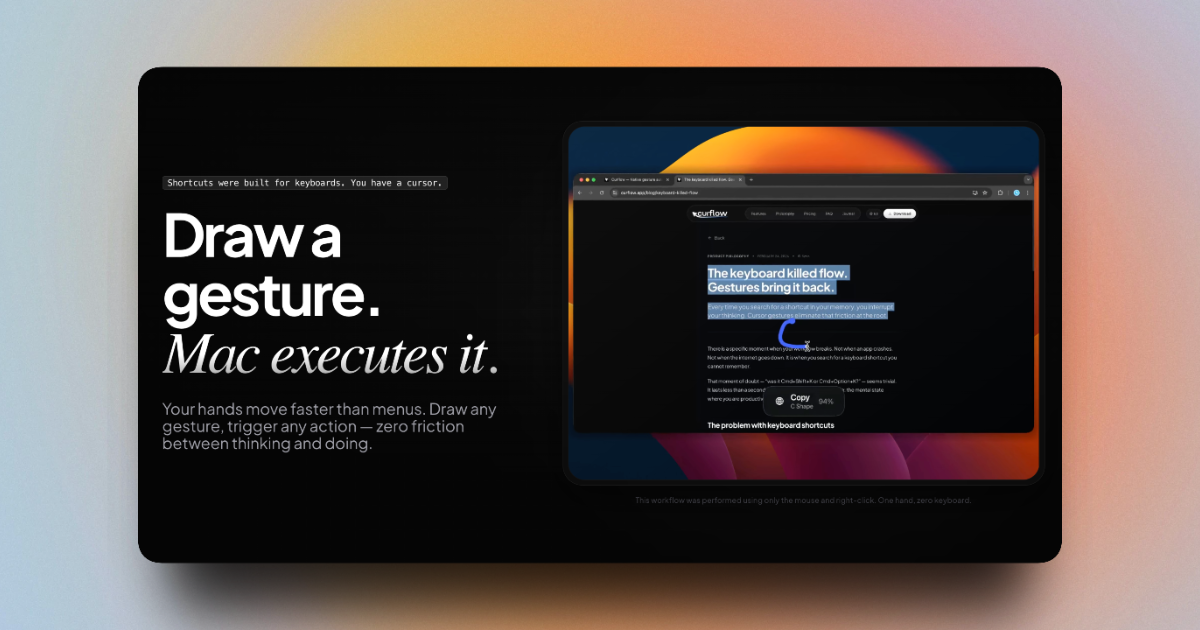
Curflow is a macOS gesture automation tool—draw mouse or trackpad gestures to trigger actions across apps, so you stay on the cursor.
What is Curflow?
Curflow is a macOS gesture automation tool that lets you draw a gesture with your mouse or trackpad to trigger actions—without switching to the keyboard. The core idea is to keep your cursor as the main control, while translating gesture movement into system-level commands.
Curflow works from the system level, so gestures can be used across macOS applications. It also supports mapping the same gesture to different actions depending on context (such as per app and per device), making it easier to keep shortcuts organized around how you work.
Key Features
- Draw gestures to trigger actions: Create gesture mappings that run actions in response to how you move the cursor.
- System-level operation across apps: Gestures can work in “any app” at the system level, including native macOS apps and common third-party apps mentioned on the page.
- Context-aware mappings: Configure how a gesture behaves based on per gesture, per app, and per device context.
- A tolerant recognition engine: Curflow interprets the dominant direction of your motion rather than requiring perfect shapes; slight curves still count toward the intended direction.
- Shortcut-to-gesture workflow: Map key combinations to gestures for actions like window/navigation control, Spotlight, Mission Control, screenshots, and other shortcut-driven commands.
- Action sequences (multi-step workflows): Chain multiple actions into one gesture execution to reduce repeated steps (e.g., switch app → paste → perform formatting).
- AppleScript action support (roadmap/published vision): The site states support for running AppleScript actions with gestures, including file management and system/app-specific workflows.
How to Use Curflow
- Start by defining a gesture (a drawn movement) and choose a scope for when it should apply.
- Map the gesture to an action—the site describes starting with shortcuts and creating gesture-triggered equivalents.
- Set the context (e.g., per app or per device) if you want the same gesture to behave differently depending on where you are.
- Create single actions or action sequences to bundle multi-step workflows into one gesture.
- Use the panel to review mappings at a glance by gesture category.
Use Cases
- Navigation without keyboard reach: Draw gestures to move forward/back, go to the next step, scroll, or manage tab navigation inside your browser workflow.
- Clipboard and quick edits: Use a gesture-driven workflow to trigger copy/paste actions so you can move content while keeping your hands on mouse/trackpad.
- App switching and tab control: Trigger app switching, create new tabs, move to previous/next tabs, or close tabs using gesture mappings tailored to your working pattern.
- Precision-free gesture control for repeated commands: Use Curflow’s direction-based recognition so gestures remain reliable even when your drawn motion isn’t an exact shape.
- Gesture-triggered multi-step operations: Run sequences that combine switching apps, pasting content, formatting, or other chained steps as a single gesture.
FAQ
Does Curflow work with any Mac application? Yes. The page states Curflow operates at the system level, so gestures work in apps such as Safari, Chrome, Figma, VS Code, Terminal, and native apps.
Can it be used with a mouse and a trackpad? Yes. The site says Curflow works with both, including Magic Mouse and external trackpads, with an experience described as identical in terms of gesture behavior.
What if my gesture isn’t precise? Curflow is described as tolerant of imprecision: it interprets the dominant direction of your movement rather than requiring exact shapes.
Does Curflow interfere with native macOS gestures? The page says Curflow only activates when it detects a gesture you have defined, and it does not interfere with native macOS gestures.
Is there a free trial? Yes. A 14-day free trial is included and does not require a credit card, according to the page.
Alternatives
- macOS shortcut customization (System Settings/Shortcuts): Use built-in keyboard shortcuts and system automation as an alternative, but this keeps you tied to the keyboard rather than mouse/trackpad gestures.
- Automation tools that run scripts/workflows: If your goal is automation via scripts or repeated steps, script-based automation can achieve similar outcomes; however, Curflow specifically focuses on gesture-triggered execution.
- Window management and navigation hotkey tools: For fast navigation and window/tab control, hotkey-focused utilities can cover similar use cases, though they typically rely on key presses instead of drawing gestures.
- Pointer/trackpad gesture utilities: Other gesture-based tools may let you trigger commands from trackpad/mouse gestures; Curflow’s differentiator is the native/system-level gesture mapping and context handling described on the page.
Alternatives

Biji
Biji is a versatile platform designed to enhance productivity through innovative tools and features.

Codex Plugins
Use Codex Plugins to bundle skills, app integrations, and MCP servers into reusable workflows—extending Codex access to tools like Gmail, Drive, and Slack.
Struere
Struere is an AI-native operational system that replaces spreadsheet workflows with structured software—dashboards, alerts, and automations.
OpenFlags
OpenFlags is an open source, self-hosted feature flag system with a control plane and typed SDKs for progressive delivery and safe rollouts.

Decision Jar
Create virtual jars of options with Decision Jar—shake your phone to pick instantly, use AI suggestions, and view decision logs over time.

Planndu: Daily Task Planner
Planndu is an intuitive productivity application designed to help users organize tasks, manage projects, build routines, and enhance focus using tools like AI generation and a built-in Pomodoro timer.