

DockFlow
DockFlow is a macOS productivity app for saving and switching between Dock presets with one click or a keyboard shortcut.
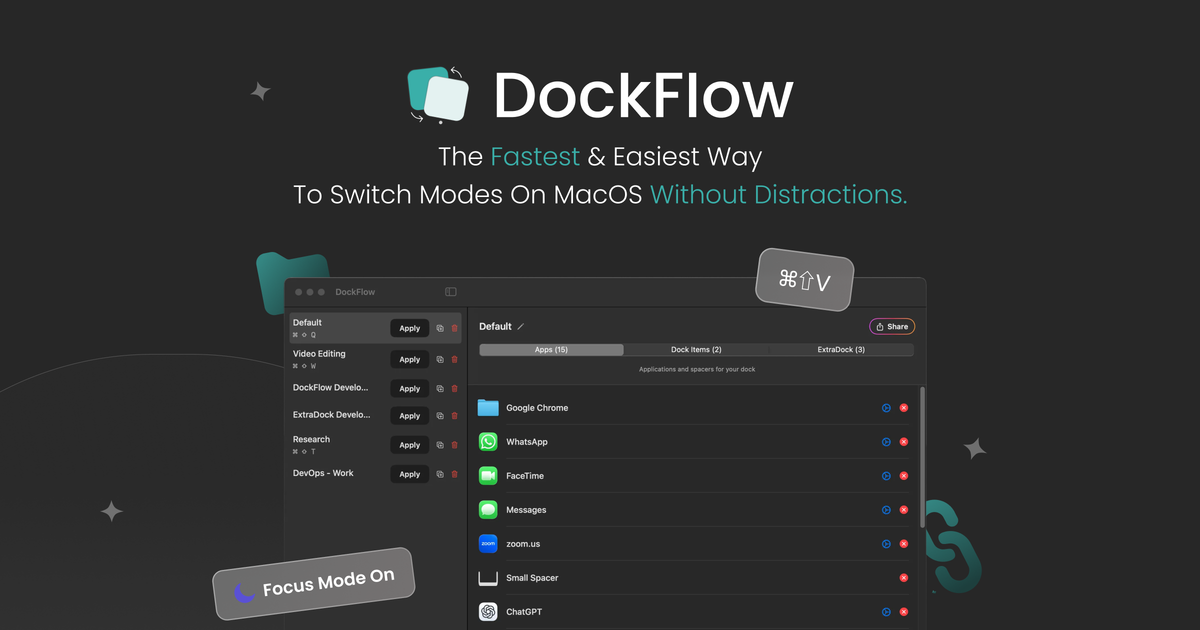
What is DockFlow?
DockFlow is a macOS productivity app for saving and switching between multiple Dock configurations, called presets. It is designed for people who move between different tasks or work contexts and want their Dock to match the apps, folders, and files they need for each one.
The app works with the native macOS Dock and lets users switch layouts with a click or keyboard shortcut. According to the product page, a preset can also close apps you do not need and launch the ones you do, helping you move between workflows without manually rearranging the Dock each time.
DockFlow also includes utility features such as Lock Dock, which helps keep the Dock from moving between displays on multi-monitor setups. The site says it requires no permissions out of the box and supports automation through Apple Shortcuts and Focus modes.
Key Features
- Save multiple Dock presets for different workflows, so you can keep separate layouts for tasks like coding, design, or writing.
- Switch presets with a single click or keyboard shortcut, reducing the need to manually drag icons around.
- Include apps, folders, and files in a preset, and optionally tie a workflow to a browser profile or IDE/project launch.
- Close apps you do not need and launch the apps you do need when changing presets, based on the product description.
- Use Lock Dock to prevent the Dock from jumping between displays on multi-monitor setups.
- Work with the native macOS Dock without requiring permissions out of the box, and connect with Apple Shortcuts and Focus modes for automation.
How to Use DockFlow
Start by opening the apps you want in a specific workflow, then give the preset a name such as a project or task type and save the current Dock. After that, you can switch between saved presets whenever your work changes.
In practice, this means setting up one preset for each recurring context, then using DockFlow to load the matching Dock layout when you begin that task.
Use Cases
- A developer can keep one preset for a coding stack, with the editor, browser, and project tools needed for active development.
- A designer can save a layout with design apps and reference files, then switch back to it when moving from other work.
- A writer or editor can maintain a simpler Dock focused on writing tools and research folders, then swap in other app sets when needed.
- Someone who works across multiple monitors can use Lock Dock to reduce Dock movement between displays.
- A user who follows Focus modes or macOS shortcuts can connect Dock presets to a more structured workflow.
FAQ
Does DockFlow work with the standard macOS Dock? Yes. The product page says DockFlow works with the native macOS Dock.
Does DockFlow require permissions? The page says it does not require permissions out of the box.
Can I automate Dock changes? Yes. The site states that DockFlow supports Apple Shortcuts and Focus modes.
What can be included in a preset? The page says presets can include apps, folders, and files, and can also be set up around browser profiles or IDE/project launches.
Is there support for multi-monitor setups? The product page mentions Lock Dock, a feature intended to prevent the Dock from jumping between displays on multi-monitor setups.
Alternatives
- Manually rearranging the macOS Dock: this is the simplest option, but it requires repeated dragging and does not preserve separate layouts for different workflows.
- General Mac automation tools: tools that automate app launching or shortcuts can help with workflow changes, but they usually do not center on Dock presets specifically.
- Window and workspace managers: these help organize open windows and screens, but they are typically broader in scope than DockFlow’s Dock-focused preset switching.
- Dock customization utilities: adjacent tools may let users modify the Dock, but DockFlow is positioned around saving and switching complete Dock setups rather than making one static Dock more configurable.
Alternatives

Biji
Biji is a versatile platform designed to enhance productivity through innovative tools and features.

Decision Jar
Create virtual jars of options with Decision Jar—shake your phone to pick instantly, use AI suggestions, and view decision logs over time.

Planndu: Daily Task Planner
Planndu is an intuitive productivity application designed to help users organize tasks, manage projects, build routines, and enhance focus using tools like AI generation and a built-in Pomodoro timer.

Carbon Voice
Carbon Voice is an asynchronous voice messaging app for teams with people and AI agents, plus transcribed updates, voice or text replies, and desktop, mobile, watch, and widget access.
MealTime
MealTime is your personal, offline-first recipe companion designed to help you save, organize, plan meals, and generate smart grocery lists, all while keeping your data private.

Clawcard
Clawcard: AI agents get a real inbox, phone number & virtual credit card for OpenClaw. Secure, autonomous agent operations.