
Folder-first workflow
Start a document by opening a folder, with no sign-up or setup required.

Magic Notebook is a desktop writing app for bloggers, journalists, and authors who want to write in local files without a cluttered interface or cloud workflow.
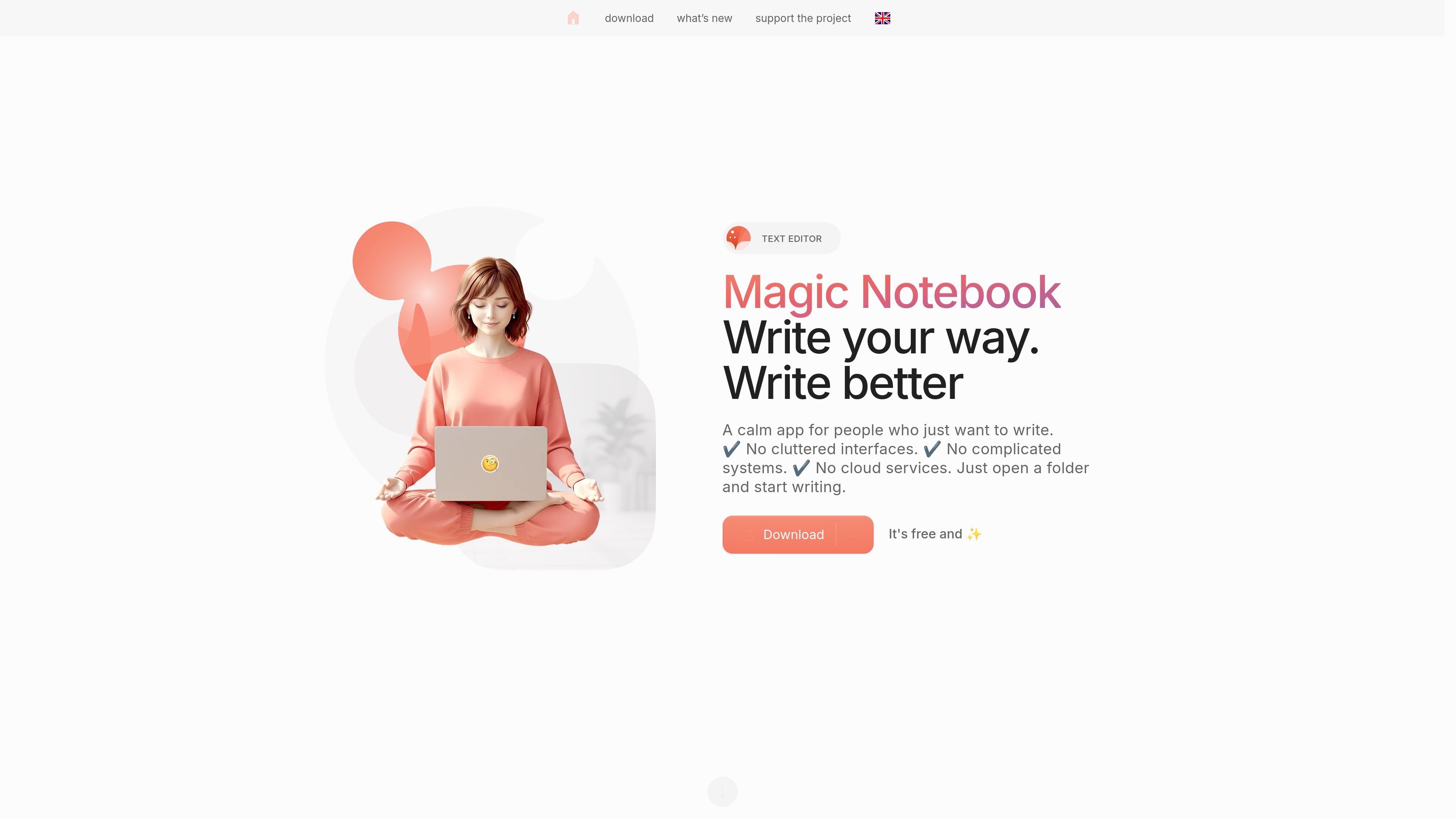
Magic Notebook is a desktop writing app for people who want a simple place to write without cluttered interfaces, cloud services, or complicated systems. The home page positions it for bloggers, journalists, authors, marketers, copywriters, students, and anyone who works with notes, articles, or documents.
The app is designed around regular local files: users open a folder and start writing, with support for DOCX, Markdown, and TXT. It also includes automatic saving, basic formatting tools, and a small set of personalization options such as light or dark theme, interface language, and developer mode.
Start a document by opening a folder, with no sign-up or setup required.
Write notes, articles, and documents with headings, lists, tables, links, and images.
Work with DOCX, Markdown, and TXT files stored in your regular folders.
Keep changes safe with automatic saving, so edits are written without manual save steps.
Choose a light or dark theme, change the interface language, and enable developer mode.
Use the app on desktop with a focus on a clean, distraction-free interface and low overhead.
Draft blog posts or articles in a focused editor that stays close to your files and avoids extra setup.
Keep notes, outlines, and working documents in regular folders while still using headings, lists, tables, links, and images.
Edit source documents in DOCX, Markdown, or TXT without moving them into a separate cloud workspace.
Use the app when you want automatic saving and a calmer interface for everyday writing sessions.
Adjust the interface language, theme, or developer mode to better match your working style.
The site presents Magic Notebook as a desktop writing app for people who want to write in regular files without a cluttered interface or cloud services. It is positioned for notes, articles, and documents.
The home page says users can download it for macOS and Windows, with Windows marked as coming in June. The macOS download is also shown with a coming-soon note on the page text provided.
The product description says it works with DOCX, Markdown, and TXT files in your regular folders, and the page also mentions headings, lists, tables, links, and images.
The site says Magic Notebook is free, and the support page says people can optionally purchase it via Gumroad or support it through Ko-fi or Patreon.
The source describes it as a single-developer project. The support page says the creator works on it in the evenings after a main job and lists future features such as an AI assistant, knowledge tools, and collaboration/version control.

Scribeist is an AI writing platform for novels, blogs, essays and notes, with project-aware AI, fiction continuity tools, SEO blog tools and publishing integrations.

Goldfish is an AI memory app for macOS that helps you reply, write, summarize, and continue with context already on your Mac. It stores memory locally and writes in your tone.

Flunkey is a voice-first productivity layer for Windows that turns speech into text, AI outputs, and remembered context without leaving your app.

ProWritingAid is a writing assistant for storytellers with grammar checking, style editing, paraphrasing, and story analysis in popular writing apps.

SpeakoFlow is a free, open-source desktop voice-to-text app for Windows, macOS, and Linux. Dictate into any app, use Flow, cleanup, translation, and a screen-aware assistant.

Paperpal is an AI tool for academic writing, offering literature reading, language polishing, citations, plagiarism checks, AI detection, and pre-submission review.