
Multiple capture modes
Record full screens, selected windows, custom areas, camera-only footage, and audio sources from a single app.

knooth is a macOS screen recording app with built-in editing, AI captions, and local audio cleanup for tutorials, explainers, and demos.
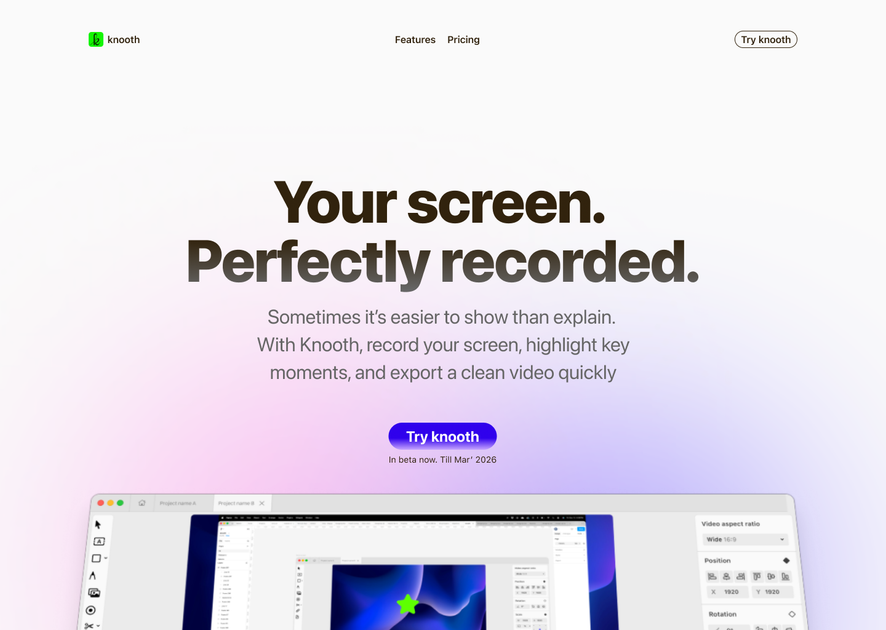
knooth is a macOS screen recording app for creating polished videos directly on the Mac. It combines screen capture, editing, captioning, audio cleanup, and export tools in one workflow so you can move from recording to finished video without switching apps.
The product is positioned for tutorials, explainer videos, and device-screen recordings. Its guide and home page show support for screen, window, area, and camera-only recording, plus built-in editing, timelines, animations, auto zoom, and local-only AI features such as captions and filler-word cleanup.
Record full screens, selected windows, custom areas, camera-only footage, and audio sources from a single app.
Edit recordings in the app with timelines, layer management, crop and split tools, media import, and playback controls.
Add text, images, audio, and vector shapes, then fine-tune layout, typography, color, opacity, and other visual settings.
Use optional AI tools for captions, filler-word cleanup, speech recognition, and local audio or text processing on your Mac.
Adjust cursor size, click sounds, click ripple, path smoothing, and auto-zoom behavior to guide viewer attention.
Export in MP4 or GIF with resolution settings, quality presets, audio mixdown, and multiple aspect ratios such as widescreen, vertical, and square.
Create software tutorials with screen capture, cursor emphasis, captions, and timeline edits so the final video is ready to publish from the same app.
Record walkthroughs and product explainers that need overlays, zooms, and animated emphasis on specific steps or interface details.
Capture an iPhone or iPad screen alongside your Mac workflow when you need to demonstrate mobile interactions.
Record just the camera feed for a presenter-style segment or a face-only intro without a screen layer.
Polish narration by removing filler words, reducing background noise, and creating captions locally before export.
knooth offers a 1 week free trial for new subscribers. After that, you can continue with a monthly subscription or a yearly subscription through Apple ID billing.
The site lists two paid plans after the trial: Monthly at $9.99/month and Yearly at $59.99/year.
Yes. You can switch between monthly and yearly subscriptions at any time through your Apple ID subscription settings.
Yes. knooth is designed for individual use, and the site says it can be used for personal or professional workflows.
No. knooth says recordings, edits, and exports stay on your device unless you choose to move them, and AI processing happens locally on your Mac.

Dina is a macOS app for polished screen recordings with automatic zoom, cursor smoothing, captions, transcript editing, and presentation-ready layouts.

FlexClip is an AI-powered online video maker and editor for creating videos from templates or from scratch with browser-based editing, scripting, voiceover, subtitles, translation, and background removal.

Ailytics is an AI-powered video analytics product for construction, manufacturing, and other heavy industries, improving safety and efficiency from site footage.

Bansi is an AI video editor for long-form content that turns raw footage into a polished first draft with cuts, captions, zooms, and audio cleanup.

CAMB.AI Streams dubs live audio in real time for YouTube, Twitch, X and other platforms, using existing live workflows and no post-production.

Tavus is an AI video platform for real-time face-to-face agents, digital twins, and AI companions, with APIs and multilingual workflows for developers.