
All-in-one capture
Records screen, audio, camera, cursor, and keystrokes in a single session, so product demos and tutorials can be captured without stitching separate assets together.

Dina is a macOS app for polished screen recordings with automatic zoom, cursor smoothing, captions, transcript editing, and presentation-ready layouts.
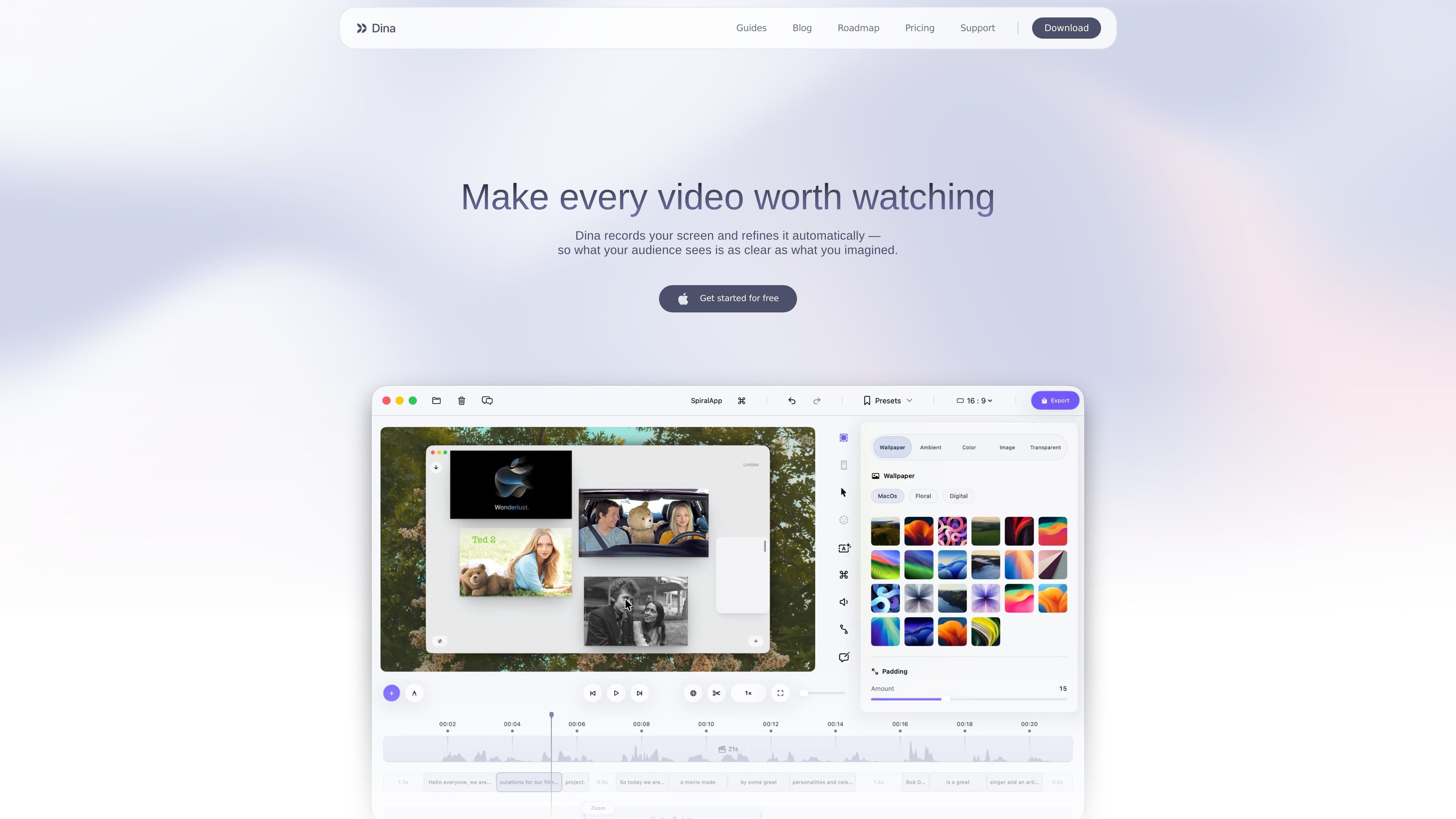
Dina is a macOS app for creating polished screen recordings and presentation-ready videos. It combines capture, editing, zoom control, captions, and visual effects in one workflow so recorded demos, tutorials, and walkthroughs can be refined as they are made.
The product is built around precision and presentation: it can record screen, audio, camera, cursor, and keystrokes, then help shape the result with automatic zoom, cursor smoothing, transcript editing, annotations, layouts, and export options. The download page says Dina requires macOS Sequoia 15.0 or later, and the pricing page describes it as a lifetime macOS license rather than a subscription.
Records screen, audio, camera, cursor, and keystrokes in a single session, so product demos and tutorials can be captured without stitching separate assets together.
Automatically zooms into key interactions, with manual zoom controls available when finer framing is needed.
Refines cursor motion and lets you customize cursor size, variant, highlight effects, and keyboard shortcut display for clearer walkthroughs.
Supports layouts for masking, slides, text, annotations, callouts, highlights, shapes, arrows, background changes, and spacing adjustments.
Generates transcripts and captions, supports transcript-based editing, and can remove fillers and silence automatically.
Creates and exports presentation-ready videos in 4K, native resolution, multiple formats, and layered exports, with shareable public links supported through cloud providers.
Use Dina to record a software walkthrough or feature demo where the viewer needs to follow cursor movement, zoomed-in interactions, and on-screen context without extra editing tools.
Create tutorial videos that combine screen capture with captions, transcript cleanup, and structured annotations to make steps easier to follow.
Record iPhone footage with original resolution, then place it inside device mockups or refine it with smooth motion for a more polished presentation.
Produce narrated videos by recording voiceovers directly in the timeline or generating AI voices from text when a script is already written.
Share a finished recording with collaborators through a public link, using a connected cloud provider when that workflow is needed.
Dina is a macOS app for recording screen, audio, camera, cursor, and keystrokes in one take, then refining the result with zoom, captions, transcript editing, and cinematic presentation controls.
The download page says Dina requires macOS Sequoia 15.0 or later.
The guides page mentions public-link sharing through cloud providers such as Vercel Blob and Amazon S3, and AI voices through ElevenLabs.
The pricing page text indicates a lifetime license model for the macOS app, with $49 per device and lifetime updates, plus files saved locally and offline use.

FlexClip is an AI-powered online video maker and editor for creating videos from templates or from scratch with browser-based editing, scripting, voiceover, subtitles, translation, and background removal.

Ailytics is an AI-powered video analytics product for construction, manufacturing, and other heavy industries, improving safety and efficiency from site footage.

Bansi is an AI video editor for long-form content that turns raw footage into a polished first draft with cuts, captions, zooms, and audio cleanup.

CAMB.AI Streams dubs live audio in real time for YouTube, Twitch, X and other platforms, using existing live workflows and no post-production.

Tavus is an AI video platform for real-time face-to-face agents, digital twins, and AI companions, with APIs and multilingual workflows for developers.

HiringPartner.ai is an autonomous AI recruiting platform for sourcing, screening, and interviewing candidates 24/7 with ATS-connected workflows and bulk resume uploads.