
Melina Studio
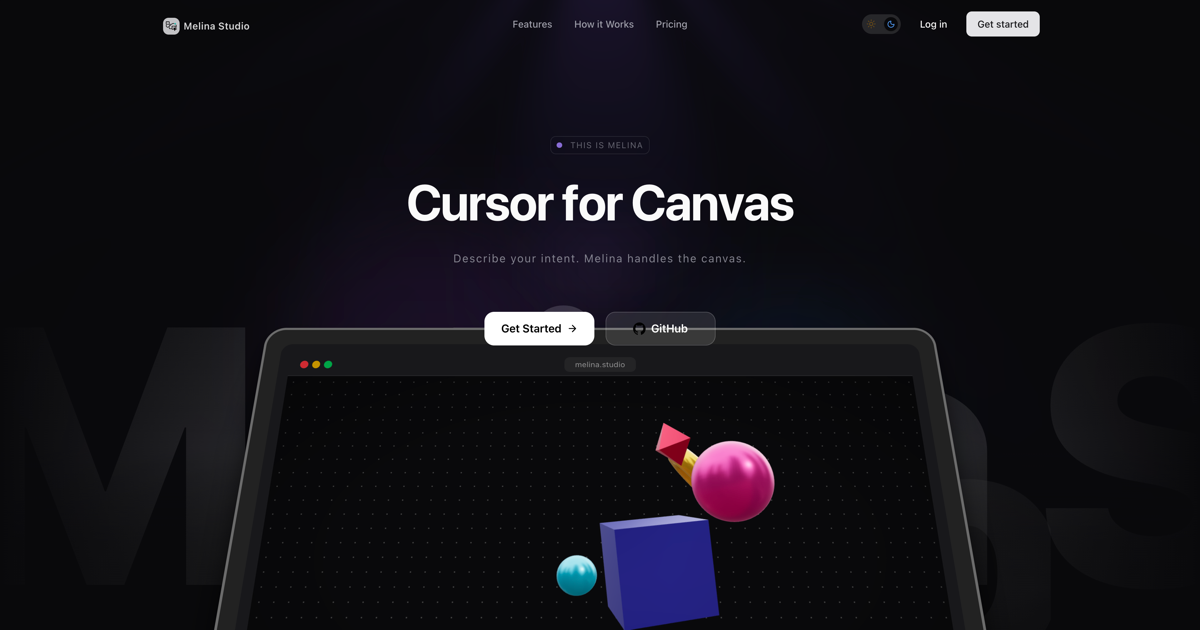
Melina Studio is an AI design tool “Cursor for Canvas” that turns your prompts into instant edits on your canvas with visual context.
What is Melina Studio?
Melina Studio is an AI design tool (“Cursor for Canvas”) that turns your conversational instructions into immediate edits on a canvas using the shapes and visual context you create.
Key Features
- Canvas-aware edits: Melina “sees what’s on your board — shapes, structure, and visual context,” so instructions like “make this into a flowchart” can be applied to the existing canvas content.
- Describe intent in natural language: You can speak what you want to change, create, or explore, and Melina handles the canvas updates based on that prompt.
- Switchable model options: Choose how Melina thinks by switching between Claude, GPT-5.1, Gemini, DeepSeek, Kimi, or Llama depending on the task.
- Instant, visible changes: When Melina edits the canvas, changes appear immediately (the page description emphasizes no refresh and no lag).
- Interactive selection and context: You can click shapes on the canvas to select what matters; Melina can then use that context in its actions.
- Saved work state: The product states that changes are saved as you work, so you don’t have to worry about losing state.
How to Use Melina Studio
- Get started: Open Melina Studio and begin a session (the page includes “Get Started” and a login option).
- Create a canvas: Use the drawing tools to create your initial content (shapes, text, or sketches).
- Select what matters (optional but supported): Click a shape to select it so Melina can focus on the relevant part of the canvas.
- Chat with Melina: Send a prompt describing what you want, such as converting shapes into a flowchart or changing colors.
- Review the result immediately: Watch the canvas update as Melina edits, and continue iterating with additional prompts.
Use Cases
- Convert existing shapes into a diagram: Draw or place shapes, then prompt Melina to convert them into a flowchart.
- Refine a layout by targeted edits: Select a specific shape or area on the canvas and ask for changes (for example, altering colors) rather than reworking everything.
- Explore visual concepts through iteration: Start with a rough sketch or set of shapes, then iterate by describing what you want to explore next.
- Create structured outputs from a mixed canvas: Combine shapes and text on the canvas, then ask Melina to restructure the content into a new format (like a flowchart).
- Compare different reasoning approaches: Switch between supported models (Claude, GPT-5.1, Gemini, DeepSeek, Kimi, Llama) to see how the assistant handles the same canvas task.
FAQ
- Is Melina Studio a general chatbot or a canvas editor? It’s positioned as an AI design tool that edits a canvas based on what’s present on your board.
- Can I select specific parts of my canvas? Yes. The workflow described includes clicking a shape to select it so Melina understands what you’re working on.
- Do edits appear right away? The page states that Melina’s canvas edits are instant and visible immediately.
- Which AI models are available? Melina Studio lists Claude, GPT-5.1, Gemini, DeepSeek, Kimi, and Llama as selectable options.
- Is there a cost to try it? The page explicitly says “Free to use” and “No credit card required,” but it doesn’t provide further pricing details.
Alternatives
- Text-to-diagram tools (diagram generators): These focus on generating diagrams from prompts. Compared with Melina Studio, they may be less directly tied to selecting and editing an existing canvas with visible, incremental changes.
- AI design/chat tools with visual editors: Other AI tools let you generate or edit designs in a UI, but may not be as explicitly “canvas-aware” about shapes and visual context as described for Melina.
- General-purpose sketching/whiteboard apps with AI assist: Whiteboards can support drawing and collaborative workflows; an AI layer may help with transformations, but capabilities vary depending on whether it can act on the board content directly.
- Code editor + AI “assistant for context”: Developer-focused tools may support AI assistance tied to the current document or workspace. Melina Studio is oriented toward visual shapes and canvas edits rather than code or text-only documents.
Alternatives

imgcook
imgcook is an intelligent tool that converts design mockups into high-quality, production-ready code with a single click.

Napkin AI
Napkin AI transforms your text into insightful visuals, making communication more effective and engaging.

Beautiful.ai
Beautiful.ai is an AI presentation maker that automates design, layout, and spacing as you build content—so individuals and teams create polished slide decks.

Refero
Refero: UI/UX design inspiration & references for web/iOS. Find tens of thousands of screenshots with advanced search for designers.

Frames
Frames helps you create launch posters and social media marketing graphics fast with premium device frames and templates for Instagram, Twitter, and Product Hunt. Free to start.

GPTIMG2 AI
GPTIMG2 AI is an image-first AI generator for product shots, posters, and marketing visuals—refine with prompts to preserve subject, layout, and readable text.