

Playground by Natoma
Playground by Natoma lets you quickly discover and try MCP servers in the browser—no setup. Browse official and category servers and run actions.
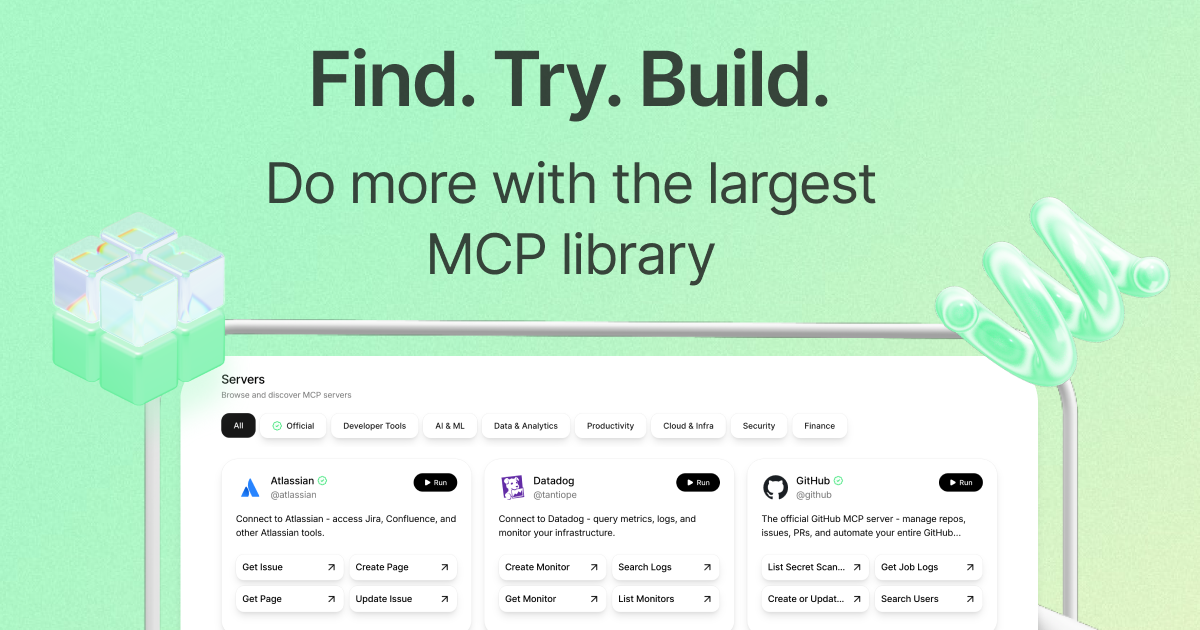
What is Playground by Natoma?
Playground by Natoma is a web interface for browsing and trying MCP (Model Context Protocol) servers. It’s designed for quick discovery—so you can find an MCP server for a specific tool or data source and run actions without setting up your own environment.
The page lists many MCP servers across categories such as Atlassian, Datadog, GitHub, Linear, Notion, Slack, Google Workspace, and databases/analytics tooling. Each server entry describes what you can do (for example, fetch issues, query metrics, search files, or run jobs) and provides an action-oriented way to “run” those capabilities.
Key Features
- Browse MCP servers by category (e.g., Productivity, Cloud & Infra, Security, Finance) to quickly narrow down what you need.
- Discover “official” MCP servers, including well-known integrations such as GitHub, Linear, Notion, Slack, and others.
- Run server actions directly from the playground (e.g., create/update items, search, and fetch logs or analytics) without additional setup mentioned on the page.
- Supports tool-specific workflows across domains, such as:
- Atlassian (Jira/Confluence-style actions like get/create/update issues)
- Observability (Datadog metrics/logs/monitors; Dynatrace logs/events/metrics/traces)
- Code and CI/CD (GitHub repo/issue/PR operations; CircleCI job/build/status)
- Business/productivity apps (Notion pages/databases; Slack messages/search/post; Linear issue/project operations)
- Provides server examples spanning cloud and data tooling, such as AWS, Azure DevOps, Airbyte, Amplitude, Elasticsearch, Docker, and Chroma (vector search/document indexing).
How to Use Playground by Natoma
- Open Playground by Natoma and browse the list of available MCP servers.
- Select the MCP server that matches your target system (for example, GitHub for repos/issues/PRs, or Datadog for metrics/logs/monitors).
- Use the server’s available actions (shown as run-capable items like “Get Issue,” “Search Logs,” “List Monitors,” “Create Page,” etc.) to try the workflow in the browser.
- Repeat with different actions or servers to compare capabilities across tools.
Use Cases
- Testing an MCP integration before building: Try actions against an MCP server (e.g., GitHub manage repos/issues/PRs) to understand the kinds of operations available.
- Observability troubleshooting: Use the Datadog or Dynatrace MCP server listings to explore log/metrics/monitor queries (and related “get traces”/“query metrics” style operations).
- Knowledge-base interaction and content updates: Use the Notion server actions to search workspace pages, read/update content, and manage databases.
- Team workflow automation exploration: Use Linear or Slack server actions to search issues/messages and perform common operations like creating or updating items.
- Data pipeline and analytics exploration: Use Airbyte server actions to list destinations/sources/connections or trigger syncs; use Amplitude/Elasticsearch/Chroma server actions to query analytics or perform search and filtering.
FAQ
- Do I need to set up anything to try MCP servers here? The page states the experience is “Simple, fast” with “No setup,” indicating you can discover and try servers directly via the playground.
- Is this limited to a single type of MCP server? No. The server list includes many categories (developer tools, productivity apps, cloud/infrastructure, security, analytics/data).
- What kinds of actions can I run? The page shows action-oriented operations such as “run,” “search,” “list,” “create/update,” and task/job/log retrieval depending on the chosen MCP server.
- Are these integrations related to specific tools like GitHub or Notion? Yes. The listing includes named MCP servers tied to those tools (e.g., GitHub, Notion, Slack, Linear, Atlassian).
Alternatives
- Direct MCP server clients/tools: Instead of browsing a centralized playground, you can use an MCP client/host you configure yourself to connect to specific MCP servers and invoke actions.
- Vendor-specific APIs and dashboards: For example, using GitHub/GitHub Actions, Slack APIs, or Datadog/Dynatrace consoles directly can provide similar capabilities, though without the unified “run MCP server actions” workflow.
- General-purpose API testing tools: Tools that let you call HTTP APIs and inspect responses can be used to prototype integrations, but they won’t be organized around MCP server actions and discovery in the same way.
- Data/observability query consoles: For data-heavy use cases, using the native query interfaces (e.g., for analytics/logging/search) can replace parts of what an MCP server playground helps you explore—depending on your integration goals.
Alternatives

AakarDev AI
AakarDev AI is a powerful platform that simplifies the development of AI applications with seamless vector database integration, enabling rapid deployment and scalability.

Lasso
Lasso is an AI-first PIM for ecommerce teams that enriches product attributes and descriptions, processes supplier data, and monitors competitors via app or API.

Ably Chat
Ably Chat is a chat API and SDKs for building custom realtime chat apps, with reactions, presence, and message edit/delete.

Tavus
Tavus builds AI systems for real-time, face-to-face interactions that can see, hear, and respond, with APIs for video agents, twins & companions.

HiringPartner.ai
HiringPartner.ai is an autonomous recruiting platform with AI agents that source, screen, call, and interview candidates 24/7, reducing time-to-hire from weeks to as little as 48 hours.

AgentMail
AgentMail is an email inbox API for AI agents to create, send, receive, and search email via REST for two-way agent conversations.