
Format-specific media pipelines
Run format-specific optimization for PNG, JPEG, WebP, AVIF, HEIC, JPEG XL, GIF, SVG, MP4, WebM, MOV, MKV, AVI, and OGV instead of relying on one generic pass.
optimo is a free, open-source CLI for optimizing and converting images and videos with ImageMagick and FFmpeg, built for web assets and batch compression.
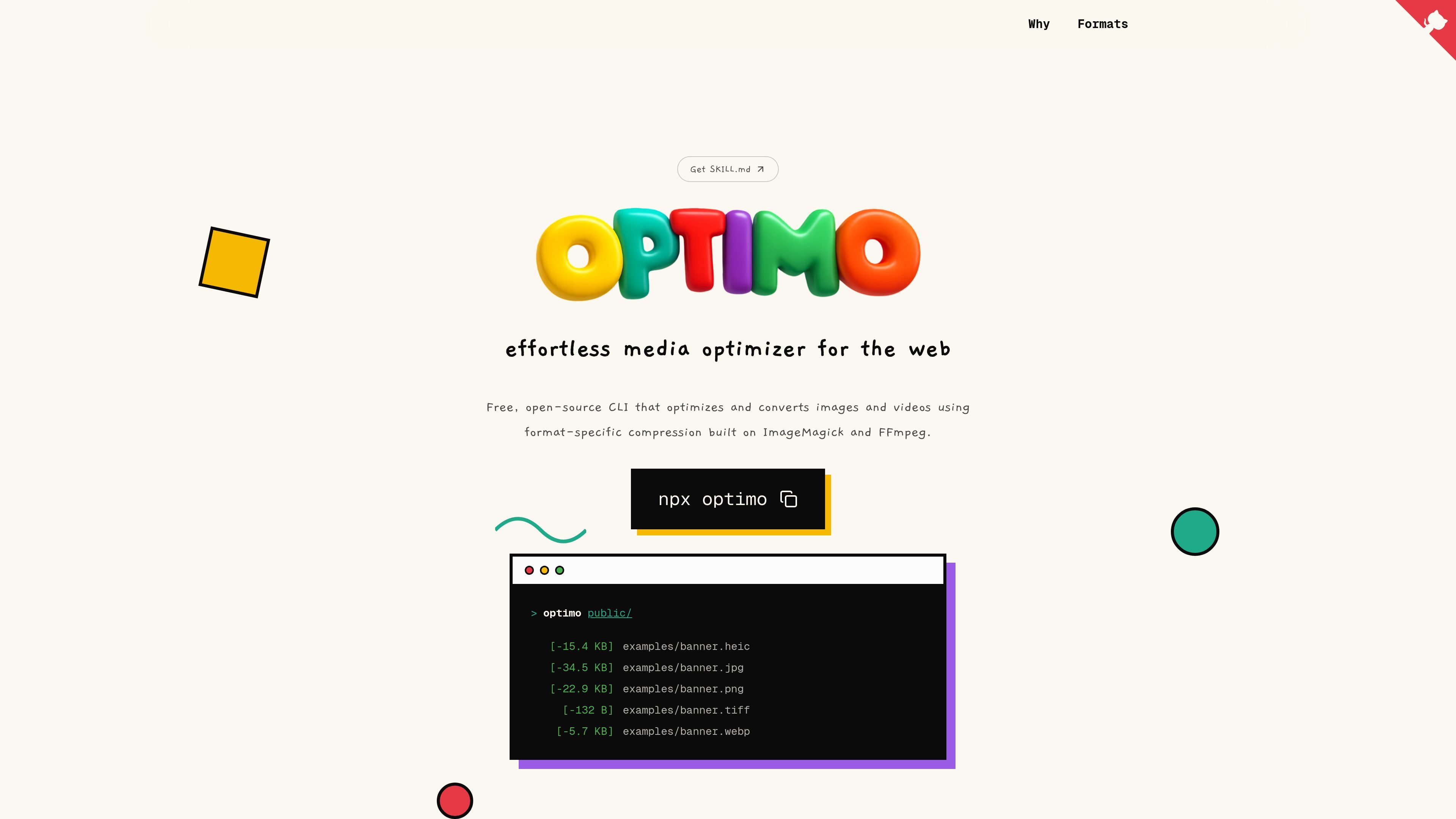
Optimo is a free, open-source CLI for optimizing and converting images and videos from the command line. It is built on top of ImageMagick and FFmpeg, and it adds format-specific commands so you can handle common media tasks without assembling your own toolchain and flags.
The product is aimed at web media workflows: shrinking image and video files, converting between formats, resizing assets, and preparing directories for delivery or commit-time automation. The site positions it as a practical tool for people who want predictable compression behavior, sensible defaults, and a workflow that can be repeated across files and projects.
Run format-specific optimization for PNG, JPEG, WebP, AVIF, HEIC, JPEG XL, GIF, SVG, MP4, WebM, MOV, MKV, AVI, and OGV instead of relying on one generic pass.
Use resizing flags to scale by percentage, target a file size, or constrain output by width or height.
Choose lossless optimization by default or switch to lossy mode when maximum compression is more important than preserving all original data.
Strip metadata automatically for smaller outputs, with an explicit flag to preserve EXIF when it matters.
Preview changes without writing files, which is useful for CI checks and validating a batch before committing it.
Process files through a Node.js API with TypeScript support for single files or entire directories.
Use Optimo to batch-optimize website assets before deployment, especially when you want smaller PNG, JPEG, WebP, AVIF, GIF, SVG, MP4, or WebM files without manually tuning each format.
Run `--dry-run` first, then process a directory recursively to compress a large media folder while skipping unsupported files and hidden entries.
Convert legacy or camera formats such as HEIC, MOV, MKV, AVI, or OGV into more web-friendly outputs like JPEG, WebP, MP4, or WebM.
Use the Node.js API in build scripts or asset pipelines when you need file-by-file or directory-level optimization from code instead of the shell.
Hook Optimo into pre-commit workflows so staged images and videos are optimized before changes are committed.
Optimo is a free, open-source CLI tool built to optimize and convert images and videos using format-specific commands on top of ImageMagick and FFmpeg.
Optimo uses different pipelines for different formats. For images it relies on tools such as ImageMagick, SVGO, Gifsicle, and MozJPEG; for videos it uses FFmpeg. It runs lossless optimization by default and keeps the original if the optimized output is not smaller.
The supported formats shown in the docs are PNG, JPEG, WebP, AVIF, HEIC, JPEG XL, GIF, SVG, MP4, WebM, MOV, MKV, AVI, and OGV.
Yes. Optimo is described as free and open-source under the MIT license, and it can be run with `npx optimo` or installed with `npm install -g optimo`.
Optimo is documented as working on macOS, Linux, and Windows wherever Node.js, ImageMagick, and FFmpeg are available.

Converleon is an offline Mac file converter for images, video, audio, documents, PDFs, and archives, with batch conversion and no uploads.

ArtDeck is a visual reference board app for iPhone, iPad, and Mac. Collect mixed references on one canvas and study them with ToolBox lenses. Offline, optional iCloud sync, one-time purchase.

Codex Plugins bundle reusable skills, app integrations, and MCP servers into workflows you can install in the Codex app or use from Codex CLI.

CAMB.AI Streams dubs live audio in real time for YouTube, Twitch, X and other platforms, using existing live workflows and no post-production.

Video Effects SDK adds real-time webcam effects like background blur, replacement or removal, denoising, framing, beautification, and color grading for live video apps.

Snapmark is a VS Code extension for annotating clipboard screenshots before pasting them into AI chats. Blur sensitive details, add numbered callouts, and auto-resize large images.