
Blur sensitive regions
Blur parts of a screenshot before it leaves your machine, which is useful for hiding API keys, tokens, and personal data.

Snapmark is a VS Code extension for annotating clipboard screenshots before pasting them into AI chats. Blur sensitive details, add numbered callouts, and auto-resize large images.
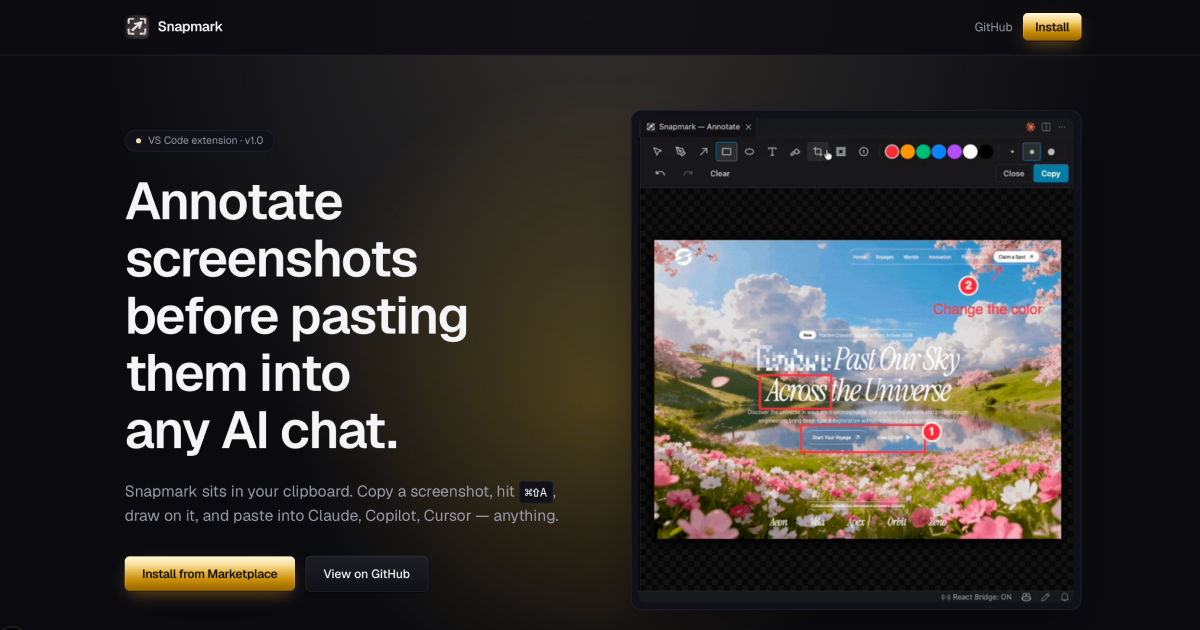
Snapmark is a VS Code extension for annotating screenshots before pasting them into AI chats. It sits in your clipboard workflow so you can copy a screenshot, mark it up, and paste the edited image into tools such as Claude, Copilot, and Cursor.
The product focuses on three specific tasks: hiding sensitive details, adding numbered callouts to explain a flow, and automatically shrinking large screenshots to a 1920 px long edge. The site says it works with any chat that accepts pasted images, and that it is free, open source, and does not collect telemetry.
Blur parts of a screenshot before it leaves your machine, which is useful for hiding API keys, tokens, and personal data.
Add 1, 2, 3 markers to explain a UI sequence or direct attention to specific elements in order.
Automatically resizes retina-sized screenshots to 1920 px on the long edge when you copy them, helping keep pasted images smaller for vision models.
Detects a clipboard image and opens the annotator from the VS Code status bar, keeping the flow inside the editor.
Exports an annotated image that you can paste into Claude Code, Copilot Chat, Cursor, and other image-capable AI chats.
Hide API keys, tokens, or personal information in a screenshot before sharing it with an AI assistant.
Label the steps in a UI capture so the model can follow the sequence without guessing which element comes first.
Paste a screenshot directly into Claude, Copilot, Cursor, or similar tools without leaving VS Code to open a separate editor.
Shrink large retina screenshots before sending them to a vision-capable chat, especially when the original image has more pixels than the model needs.
Use the same clipboard-based process with any app that accepts pasted images, not just the named AI products on the homepage.
Snapmark is a VS Code extension that annotates screenshots from your clipboard before you paste them into AI chats. It is designed for image-based prompts in tools such as Claude, Copilot, Cursor, and other apps that accept pasted images.
The page shows Snapmark working with Claude, GitHub Copilot, Cursor, OpenAI Codex, Gemini Code Assist, and Cline, and says it works with anything else that accepts pasted images.
Yes. The page describes blur tools for hiding sensitive regions and says you can add numbered callouts to guide the model through a UI flow.
The site says Snapmark is free, open source, and has no telemetry. The pricing page does not provide any additional pricing details.
The workflow shown is: take a screenshot, let Snapmark detect it in the clipboard, open the annotator from VS Code, edit the image, then copy and paste it into your chat.

ArtDeck is a visual reference board app for iPhone, iPad, and Mac. Collect mixed references on one canvas and study them with ToolBox lenses. Offline, optional iCloud sync, one-time purchase.

Codex Plugins bundle reusable skills, app integrations, and MCP servers into workflows you can install in the Codex app or use from Codex CLI.

PDFTools is a browser-based suite of free and premium PDF tools for editing, conversion, and document handling—process PDFs locally without uploading files.

Arduino VENTUNO Q is an edge AI computer for AI and robotics, combining AI inference and deterministic control on one board with Arduino App Lab support.

Open Computer Use is an open-source Computer Use service wrapped as MCP for macOS, Linux, and Windows. It helps AI agents and MCP clients run desktop automation workflows through client setup commands or manual MCP configuration.

CloudFuze guides Claude to Gemini migration, moving conversation history and context into Google Drive and Gemini Gems for continuity.