

Recordly
Recordly is an open-source screen recorder for macOS, Windows, and Linux with auto-zoom, animated cursors, and video/GIF exports for demos.
What is Recordly?
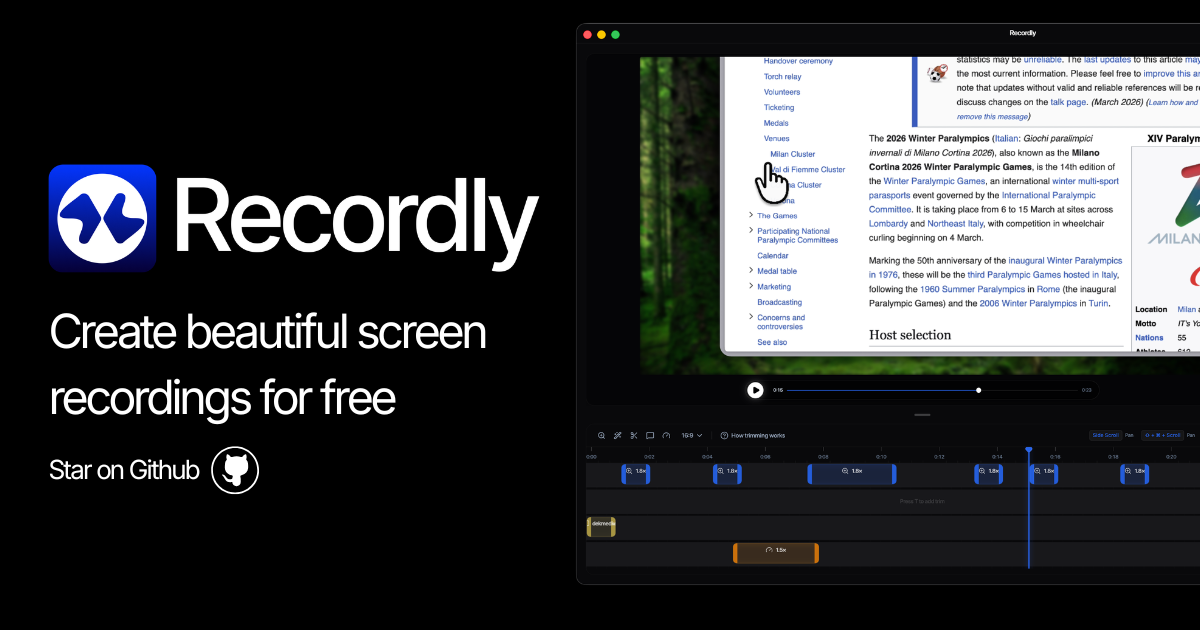
Recordly is an open-source screen recorder for macOS, Windows, and Linux. Its core purpose is to help you produce polished screen capture content—such as product demos and walkthroughs—with automated cursor and camera-style effects.
The app focuses on reducing post-editing by generating features directly during capture and organizing edits with a timeline interface. Recordly can export screen recordings as video and GIFs, including looping outputs designed to autoplay seamlessly.
Key Features
- Instant capture and fast export workflow, so you can move from recording to deliverables quickly.
- Auto-zoom with suggestions to focus on key areas during a screen recording, aiming to reduce manual editing.
- Animated cursor presentation, including cursor sway effects driven by mouse movement and velocity, plus “silky” cursor animations.
- Backgrounds for recordings, designed to improve the visual presentation without requiring extensive editing.
- Seamless looping outputs for videos and GIFs, including animated connections between the final and initial cursor positions to help loops autoplay smoothly.
- System audio and optional microphone input recording, enabling narrated demos and walkthroughs while capturing audio.
- Timeline editing interface with drag-and-drop pieces to control playback speed, zooms, annotations, and total length.
- Project files saved as .recordly to resume work later or continue editing an existing project.
- Configurable export settings, including export format, quality, framerate, and aspect ratio for video and GIF output.
- Annotations at chosen timeline points, including text, images, and arrows that point to specific areas.
- Fully open-source and free, positioned as an alternative to paid screen recording tools.
How to Use Recordly
- Install Recordly on your target OS (macOS, Windows, or Linux).
- Start a new capture and record your screen, optionally including system audio and microphone input if you want narration.
- Review the recording and adjust how it will appear by using the timeline editor, where you can drag-and-drop segments to control speed, zooms, annotations, and length.
- Add on-screen guidance using timeline-based annotations (text, images, and arrows) at specific moments.
- Save your work as a .recordly project file if you want to return to editing later.
- Export when ready, choosing the output type (video or GIF) and selecting export quality, framerate, and aspect ratio. If you need autoplay-friendly looping content, use Recordly’s looping output capabilities.
Use Cases
- Product demo creation: Capture the key steps of using a feature and add timeline annotations (text, images, arrows) to guide viewers through the flow.
- Guided walkthroughs with narration: Record screen actions while capturing system audio and microphone input so you can explain what’s happening as it occurs.
- Autoplaying GIF/loop content for UI feedback: Generate GIF loops designed to appear seamless when they restart, including connecting the cursor’s last and first positions.
- Iterative editing for demos: Save a .recordly project, return later to adjust zooms/speed and add additional callouts without re-recording everything.
- Short promotional clips and UI previews: Use export settings to select an appropriate aspect ratio, quality, and framerate for embedding in different contexts.
FAQ
Is Recordly really free?
Recordly is fully open-source and free, and it is described as an alternative to overpriced screen recorders.
Does Recordly include auto-zoom?
Yes. Recordly adds auto-zooming (with suggestions) to help keep recordings focused on relevant areas, reducing manual editing.
What platforms does Recordly support?
The site states support for macOS, Windows, and Linux.
Can Recordly record audio from my system and microphone?
Recordly can record system audio, and it also supports microphone input if you want narration alongside your capture.
How do I get help or support issues?
For support, the site directs users to open an issue on GitHub.
Alternatives
- Paid screen recording tools with editing features: If you prefer a commercial workflow with built-in paid support, look for tools that combine recording with timeline trimming and callouts.
- Dedicated GIF/loop generators: For teams focused mainly on animated assets, standalone GIF workflows may be simpler, though they may not provide the same capture-time cursor animation and auto-zoom behaviors.
- General-purpose video editors: If you want maximum control over motion and visuals, a traditional editor can replicate similar outcomes, but typically requires more manual setup compared with automated cursor/zoom effects.
- Open-source or lightweight screen capture utilities: These may suit users who primarily want raw captures, with editing and annotations handled separately in another tool.
Alternatives
Threelane
Threelane is a local-first multi-cam screen recorder for Mac and Windows, syncing screen, webcam, and phone, then editing and exporting MP4s.

Tavus
Tavus builds AI systems for real-time, face-to-face interactions that can see, hear, and respond, with APIs for video agents, twins & companions.

Scriptmine
Scriptmine turns real audience conversations into camera-ready scripts with community questions and trending angles—helping you write, edit, and record faster.

Bezel
Mirror iPhone to your Mac with wireless AirPlay or USB, plus recording and screenshot tools with bezel and background.

Capso
Capso is a free, open-source macOS app to capture, annotate, record MP4/GIF, and extract text with OCR—built with Swift 6 and SwiftUI.
Lumox
Lumox is a macOS app for wireless iPhone screen mirroring with built-in screenshot/video recording and a Media Library for exporting results.