
Screen text capture
Capture text from the screen instead of retyping it. The site says Selectable works on images and videos and can be triggered from any app.

Selectable is a macOS OCR and text capture utility for grabbing text from screens, images, and videos. Copy, translate on newer macOS versions, use text-to-speech, and clean output.
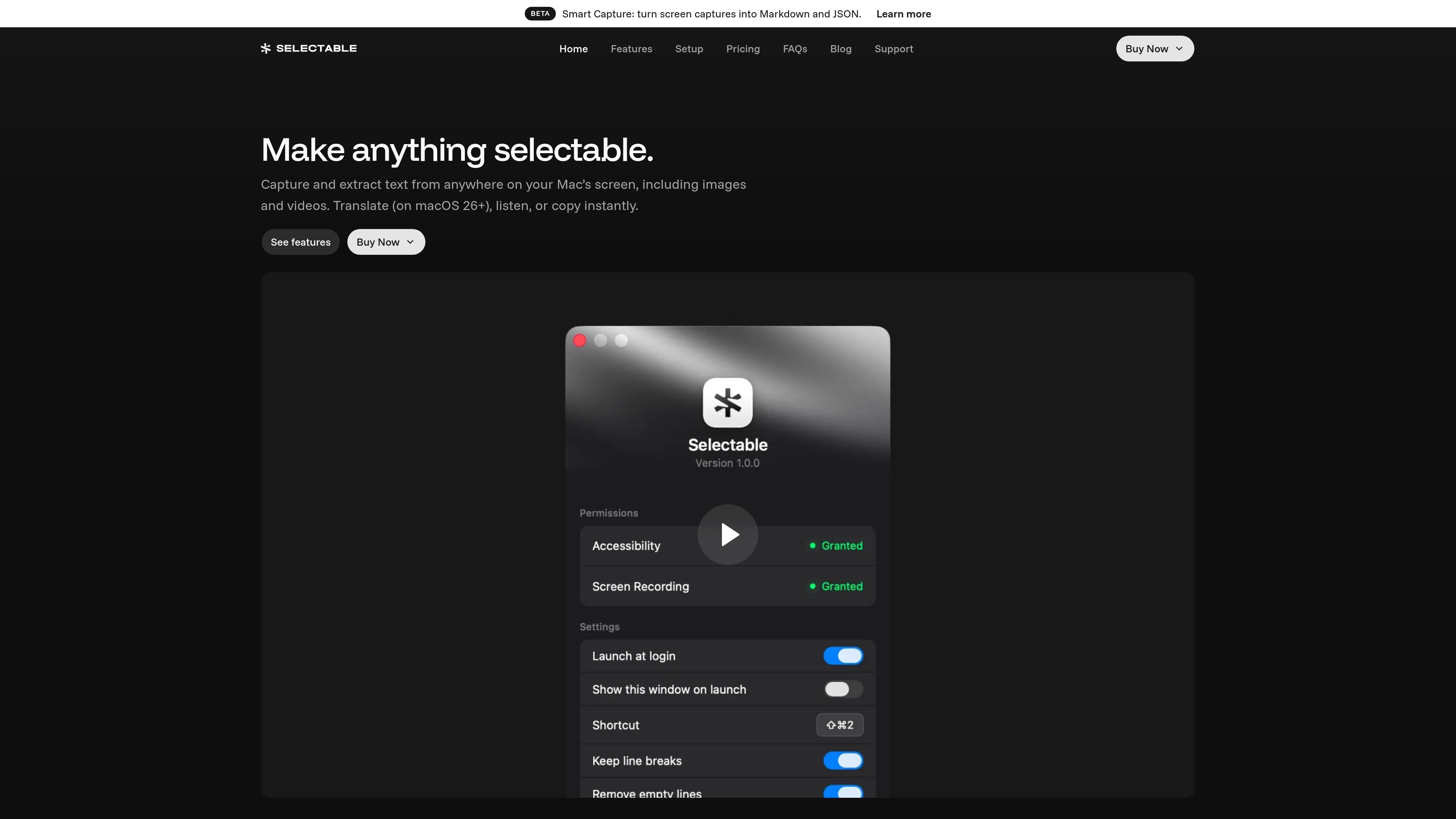
Selectable is a Mac utility for OCR and text capture. It lets you drag over text on your screen, including text embedded in images and videos, and copy the recognized text without retyping it.
The product is designed for quick capture and follow-up actions: you can translate copied text on supported macOS versions, listen with text-to-speech, or customize the output by preserving line breaks, removing empty lines, and masking sensitive data. The site also describes on-device processing and a one-time purchase model for website licenses.
Capture text from the screen instead of retyping it. The site says Selectable works on images and videos and can be triggered from any app.
Translate captured text as part of the copy flow. The homepage notes translation is available on macOS 26 and later.
Hear captured text read aloud with natural voices. The product page says text-to-speech supports multiple languages.
Keep formatting or clean it up before copying. Selectable can preserve line breaks, remove empty lines, and mask sensitive data.
Use keyboard shortcuts and the menu bar to start capture quickly. The homepage shows a global shortcut and a menu bar command for starting capture.
Handle captures locally on the Mac. The site says the app runs on-device and does not require uploads for capture.
Pull readable text from screenshots, images, and video frames when the original text is not directly selectable.
Select text in one app and paste it into another with line breaks preserved or cleaned up, depending on the target format you need.
Translate text as you capture it on supported macOS versions, which is useful when reading or sharing content in another language.
Listen to captured text with text-to-speech when reading is easier by ear than on screen.
Mask sensitive information before copying text out of a screen capture, which helps when you want to keep private data out of the clipboard.
Selectable runs on macOS and supports capture from anywhere on the screen, so it can be used from any app where you can select an area of text. The download page lists macOS 11+ for the current version.
The site says Selectable can capture text from images and videos, copy it instantly, translate it on macOS 26 or later, listen with text-to-speech, and mask sensitive data. It also mentions a Smart Capture mode that can turn captures into Markdown and JSON.
The download page says the app is opened from a DMG and activated with a license key. The support and pricing pages also point to buy-now and license recovery flows.
The site does not describe team controls or shared administration features. The licensing shown on the pricing page is organized as one Mac, up to three Macs, or an App Store option with iCloud sync and family sharing.
Selectable is described as on-device and private, and the site says capture happens without uploads. The pages do not spell out every limitation, so compatibility details should be checked against the macOS version and app workflow you plan to use.

Wallie is an open-source AI streamer that watches your screen, hears chat, and delivers live commentary in a configurable persona. Runs locally with your own keys.

nolainocr is an AI OCR tool that extracts structured data from PDF invoices, receipts, forms, contracts, and bank statements into Excel, Google Sheets, JSON, or CSV.

PDFTools is a browser-based suite of free and premium PDF tools for editing, conversion, and document handling—process PDFs locally without uploading files.

Fylom is an AI podcast generator that turns topics or questions into researched, narrated episodes with voice selection and recurring listening.

BeFreed is a personalized audio learning app that turns books and knowledge sources into narrated listening experiences with interactive audio and learning tools.

Artifacts by Samepage is a connected writing surface for product teams that turns signals and context into PRDs, release notes, bug tickets, and more, with built-in AI editing.