
AI writing generation
Generate essays, articles, research papers, emails, website copy, social posts, and other text from prompts, then refine the output in later passes.

Smodin is an AI writing and text generation tool for essays, articles, research papers, marketing copy, and plagiarism checking.
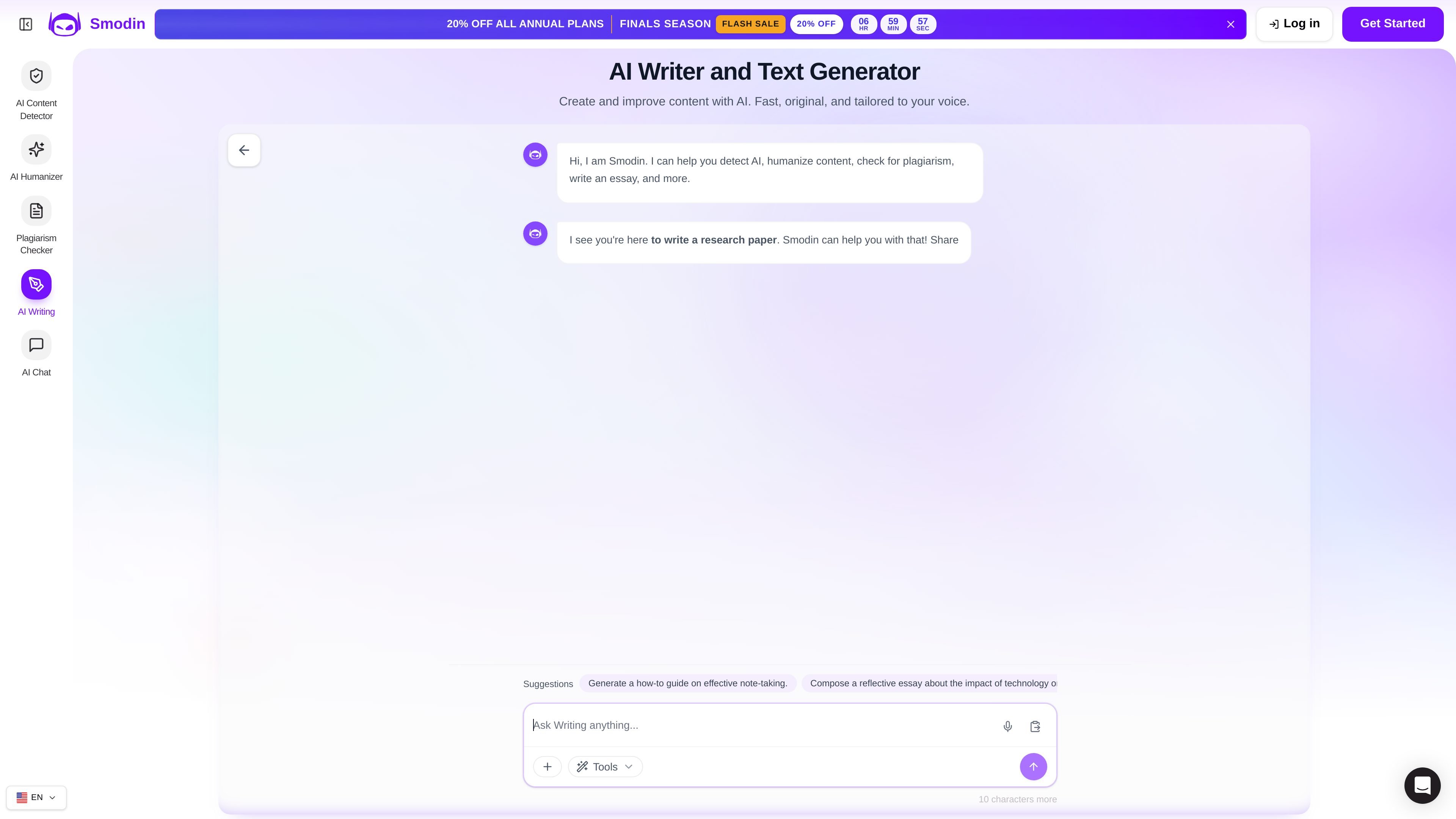
Smodin is an AI writing and text generation product that helps users draft, improve, and verify text across writing workflows. The site positions it for students, writers, and professionals who need help with essays, articles, research papers, marketing copy, and other everyday content.
Across the product pages, Smodin combines AI writing, essay drafting, plagiarism checking, AI humanization, and AI content detection in one workflow. The pricing page also shows plan differences for access levels, output limits, support, and optional tools such as a Chrome extension and API access.
Generate essays, articles, research papers, emails, website copy, social posts, and other text from prompts, then refine the output in later passes.
Turn a fuzzy prompt into a working outline and rough paragraphs, with workflows that emphasize structure, quotes, data, and revision.
Scan pasted text or uploaded documents against billions of sources and review similarity scores, matched sources, and highlighted sections.
Humanize AI text and check whether content is AI-generated, giving users a way to edit, review, and verify the text in one product family.
Work with citation styles such as APA or MLA, add references in one click, and update resources in real time for research-oriented writing.
Create content in more than 12 target languages and choose tone and length when generating output.
Generate outlines, rough drafts, and revised sections for argumentative, narrative, or expository essays while keeping the assignment requirements nearby.
Produce research papers, reports, and other academic writing with help from references, citation formatting, and source-finding workflows.
Create marketing copy, emails, website text, product descriptions, and blog posts with tone and length controls for more polished business writing.
Check essays, articles, reports, or uploaded documents for similarity before submission and review source matches to correct citations.
Rewrite or humanize AI-generated text, then scan it again to confirm the final version is original and still aligned with the intended meaning.
Smodin provides an AI writing tool, a plagiarism checker, an AI humanizer, and an AI content detector. The pricing page also shows a Chrome extension, API access, a text summarizer, a translator, AI chat, and custom AI templates for higher plans.
The home page says Smodin AI Writer can generate essays, articles, research papers, website copy, emails, social posts, and other content. The essay writer page focuses on turning a prompt into an outline and rough paragraphs for essay drafts.
Smodin’s plagiarism checker scans pasted text or uploaded files such as .txt, .doc, .docx, and .pdf documents. It compares content against billions of sources and returns similarity scores, matched sources, and highlighted sections.
The pricing page compares Starter and Premium plans and says Premium adds unlimited access, no output limits, and Chrome Extension use. It also lists email support for Starter and 24/7 priority support for Premium.
The source pages do not provide a full public integration list or a complete platform matrix. The pricing page does show Chrome Extension and API Access on the plan comparison table.

Paperpal is an AI tool for academic writing, offering literature reading, language polishing, citations, plagiarism checks, AI detection, and pre-submission review.

Scite is an AI research platform for finding papers, checking citation context, and getting answers grounded in scholarly literature and patents.

Goldfish is an AI memory app for macOS that helps you reply, write, summarize, and continue with context already on your Mac. It stores memory locally and writes in your tone.

Hype is a web tool for finding trending YouTube topics by category, time range, and scoring mode. Spot emerging ideas and review source videos.

ProWritingAid is a writing assistant for storytellers with grammar checking, style editing, paraphrasing, and story analysis in popular writing apps.

SpeakoFlow is a free, open-source desktop voice-to-text app for Windows, macOS, and Linux. Dictate into any app, use Flow, cleanup, translation, and a screen-aware assistant.