
UStackUStack
Snap icon

Snap

Snap is a floating dev dock for AI coding on macOS: capture smart screenshots, optimize prompts, dictate by voice, and manage agent sessions.
Snap

What is Snap?

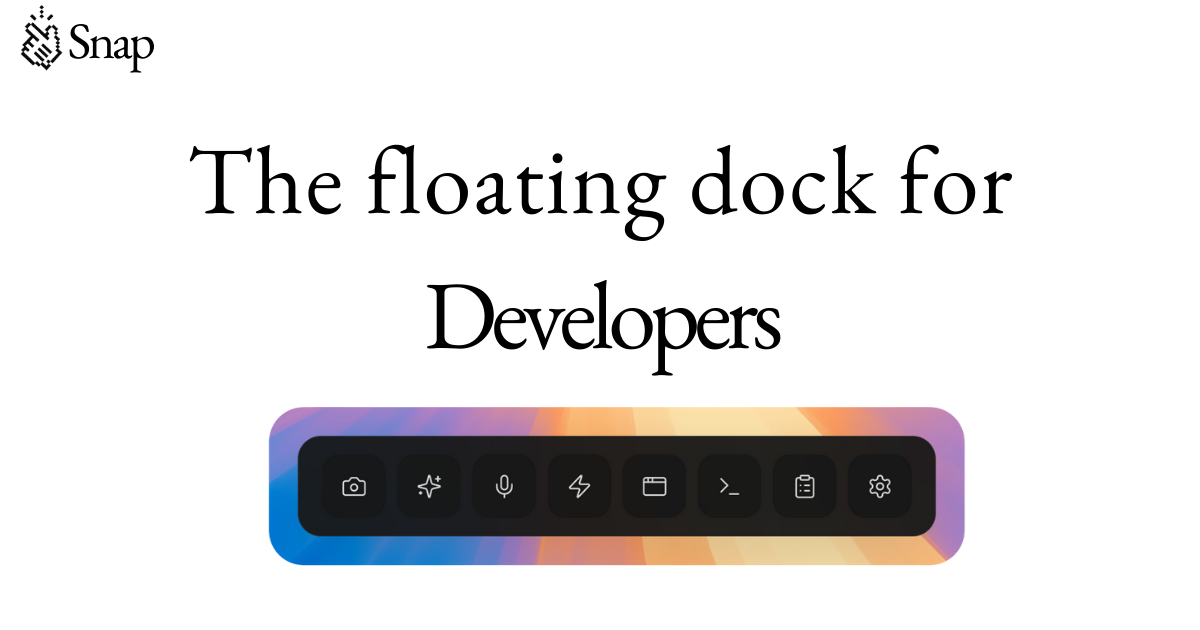
Snap is a floating “dev dock” for AI coding. It stays on top of your desktop so you can capture and reference what’s on screen, turn visual context into prompts, and run actions—without switching away from your editor.

The core purpose is to streamline common developer workflows around AI coding: saving your working state, clarifying UI/code context for an agent, managing agent sessions, and launching tools (such as VS Code, Claude Code, Cursor, or other commands) from the dock.

Key Features

  • Smart Screenshot with numbered UI elements: Select any area and Snap automatically numbers buttons, inputs, and links so you can paste a precise reference into tools like Claude or Cursor.
  • Prompt Optimizer: Type a rough instruction (e.g., “fix the sidebar”) and Snap returns a structured prompt including context, file paths, and expected behavior; the page notes outputs are under 200ms via Groq.
  • Click-to-select DOM inspector and visual editing prompts: Click elements in your app and edit CSS with visual controls; Snap converts changes into prompts that an AI agent can use.
  • Voice input for prompt creation: Press record and dictate what you need; the site describes real-time transcription (using Whisper) that turns speech into clean text prompts.
  • Workspace Snapshots: One click saves what you have open and one click restores it later, including editors, terminals, and Claude Code.
  • Agent Session Manager: View coding agents running across projects in real time, track cost/tokens/context usage, and approve or deny actions; the site states it works with Claude Code, Codex, Cursor Agent, and more.
  • Custom dock buttons for tools and commands: Add dock buttons to open VS Code, Claude Code, Cursor, or other tools, and to run shell commands, launch URLs, or trigger scripts.
  • Educational Shorts: Short (15–60 second) coding tips curated for developer workflows, designed to play automatically while Claude is thinking.

How to Use Snap

  1. Download and launch Snap for macOS (the site indicates a macOS download).
  2. Use Snap alongside your existing tools: keep the floating dock on top while you work in your editor or terminal.
  3. Capture context for AI: use Smart Screenshot to number relevant UI elements, or use the Preview/Window interaction to select elements and generate AI-ready prompts.
  4. Create prompts faster: if you have a rough goal, use Prompt Optimizer to generate structured prompt text with context and file paths.
  5. Run and manage AI coding sessions: start agents as you normally would in supported tools, then use Agent Session Manager to monitor session status and approve/deny actions.

Use Cases

  • Ask an AI agent to modify a UI with less ambiguity: Select the exact buttons/inputs/links using Smart Screenshot so the agent can reference the intended element(s) without you describing them manually.
  • Generate a structured fix prompt from a rough instruction: Type a simple goal like “fix the sidebar,” then use Prompt Optimizer to get a prompt that includes context and expected behavior.
  • Iterate on CSS changes with visual context: Click to inspect elements and apply CSS edits; Snap turns those changes into prompts for an AI agent to implement or validate.
  • Resume a multi-tool development setup quickly: When you stop working, create a Workspace Snapshot; later restore the exact set of open editors/terminals/Claude Code.
  • Monitor agent actions across repositories: Use Agent Session Manager to track multiple agent sessions in real time, review cost/tokens/context usage, and approve or deny tool permissions.

FAQ

  • What platforms does Snap support? The page specifically mentions Download for macOS. No other platforms are stated.

  • Does Snap work with specific AI coding tools? The site says Snap works with tools including Claude Code, Codex, Cursor Agent, and more, and it also references workflows with VS Code.

  • Can Snap capture UI context from any app? Snap is described as floating “on top of any app,” and Smart Screenshot/preview interactions are described in terms of selecting elements within your app.

  • How does Snap help with writing prompts? It includes a Prompt Optimizer that turns rough instructions into structured prompts, plus smart screenshots and click/visual editing features that generate AI-ready references.

  • Can I launch tools or run commands from the dock? Yes. The page describes custom dock buttons for launching tools (e.g., VS Code, Claude Code, Cursor) and running shell commands, URLs, or scripts.

Alternatives

  • AI coding assistants integrated into an editor (IDE extensions): Similar goal (helping with code changes) but typically stays within an editor and may not provide a separate floating dock for UI element numbering or cross-tool session monitoring.
  • Screenshot-and-paste workflows with an AI chat client: You can manually capture UI/code context and describe it in chat, but you lose Snap’s numbered element references and automated prompt shaping.
  • Task-runner or launcher tools for dev workflows: Utilities that create shortcuts for launching apps/commands can cover parts of Snap (dock buttons), but they usually don’t include screenshot-to-prompt or agent session monitoring.
  • Browser devtools-based documentation for UI changes: Devtools can help inspect DOM/CSS, but Snap’s approach is focused on converting that context directly into prompts for AI agents within the developer workflow.