

Tesserac
Tesserac is a macOS app switcher with spatial ring, grid, or list layouts for fast keyboard-driven Cmd+Tab navigation and pinned apps.
What is Tesserac?
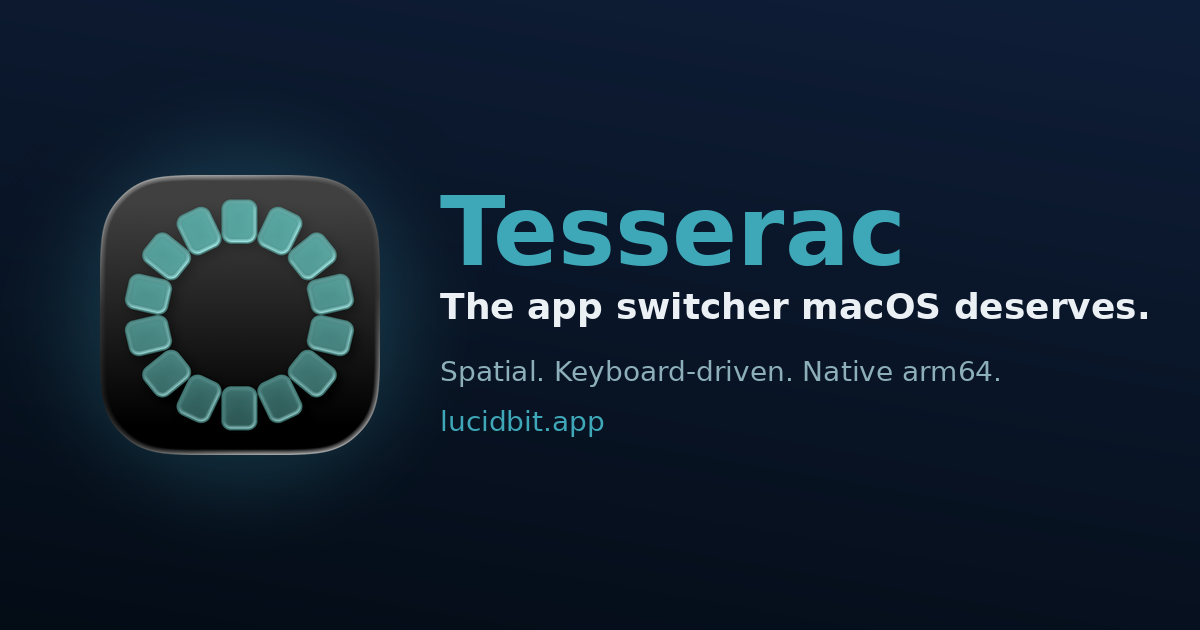
Tesserac is a macOS app switcher that replaces the standard flat Cmd+Tab-style navigation with spatial layouts. Instead of scanning a linear strip, users summon their apps around the screen center and choose one by position, hover, or keyboard action.
It is designed for keyboard-driven workflows and includes several switcher layouts, including a spatial ring, grid, list, and glass-orb style. Tesserac also lets users pin favorite apps, ignore selected apps, and control how the switcher behaves with different hold keys and shortcut options.
Key Features
- Spatial app switching: Arranges apps around the screen center so selection can rely on spatial memory rather than a linear list.
- Multiple layouts: Includes Spatial Ring, Grid, List, Spatial Tile, and Glass Orb presentation styles for different navigation preferences.
- Keyboard-first control: Can be opened by holding Control, Option, or Command, or by assigning a custom shortcut such as a multi-key combination.
- Mouse input support: Can also be invoked with the middle mouse button, giving an alternative to keyboard-only switching.
- Pinned apps: Lets users pin up to 15 apps so they always appear in the switcher, even when not currently running.
- Ignored apps: Supports an ignore list to keep specific apps out of the switcher.
- Switching modes: Offers Snap, Relaxed, and Balanced behavior to control whether switching feels immediate or more animated.
- Local-only privacy: The app states that it does not collect analytics or tracking data and keeps everything local on the Mac.
- Purchase model: Available as a one-time purchase with a 7-day free trial, and also available through the Mac App Store and direct download.
How to Use Tesserac
Install Tesserac, then choose how you want to invoke it: hold a modifier key, assign a custom shortcut, or use the middle mouse button. Once opened, your apps appear in the selected layout around the screen center.
From there, move through the available apps by glance, hover, or keyboard selection, and release to switch. If needed, pin frequently used apps or add rarely used ones to the ignored list to keep the switcher focused on the apps you actually use.
Use Cases
- Keyboard-heavy app switching: Useful for people who move between many macOS apps throughout the day and want a shortcut-driven switcher without relying on the default Cmd+Tab strip.
- Visual memory workflows: Helpful when app position matters, since the ring and grid layouts make it easier to recognize apps by where they appear on screen.
- Focused work sessions: Users can pin a small set of key apps and ignore distractions, keeping the switcher limited to the tools they reach for most often.
- Preference-based navigation: Fits users who want to choose between a compact list, a spatial ring, or a grid depending on the task and their switching style.
- Local-first macOS utility use: Suits users who prefer desktop tools that do not rely on analytics or cloud-based account features.
FAQ
Does Tesserac replace the macOS app switcher? No. The source states that it works alongside macOS and does not modify the system app switcher.
How do you open it? You can open Tesserac by holding Control, Option, or Command, using a custom keyboard shortcut, or triggering it with the middle mouse button.
Can I keep certain apps always visible? Yes. Tesserac lets you pin up to 15 apps so they always appear in the switcher, whether they are running or not.
Does it collect usage data? No. The product page says Tesserac does not collect analytics, tracking data, or personal information.
What macOS versions does it support? The page says it is a native arm64 build that runs on macOS 14 (Sonoma) or later.
Alternatives
- macOS Cmd+Tab / App Switcher: The built-in system switcher uses a flat, linear strip and is the closest default alternative for users who do not need spatial layouts.
- Other keyboard launcher utilities: Tools in this category often emphasize fast keyboard navigation across apps and windows, but they may use search-driven or list-based workflows instead of a spatial ring.
- Window switcher utilities: Similar desktop tools may focus on moving between windows rather than apps, which makes them better suited to multi-window workflows.
- Dock-based app switching: The macOS Dock is a simpler visual alternative for users who prefer clicking app icons rather than using a dedicated switcher.
Alternatives

Biji
Biji is a versatile platform designed to enhance productivity through innovative tools and features.

Decision Jar
Create virtual jars of options with Decision Jar—shake your phone to pick instantly, use AI suggestions, and view decision logs over time.

Planndu: Daily Task Planner
Planndu is an intuitive productivity application designed to help users organize tasks, manage projects, build routines, and enhance focus using tools like AI generation and a built-in Pomodoro timer.

Carbon Voice
Carbon Voice is an asynchronous voice messaging app for teams with people and AI agents, plus transcribed updates, voice or text replies, and desktop, mobile, watch, and widget access.
MealTime
MealTime is your personal, offline-first recipe companion designed to help you save, organize, plan meals, and generate smart grocery lists, all while keeping your data private.

Clawcard
Clawcard: AI agents get a real inbox, phone number & virtual credit card for OpenClaw. Secure, autonomous agent operations.