

dictate.
dictate. for iOS turns voice into text in any app with AI dictation, cloud transcription, multi-language support, and in-keyboard translation.
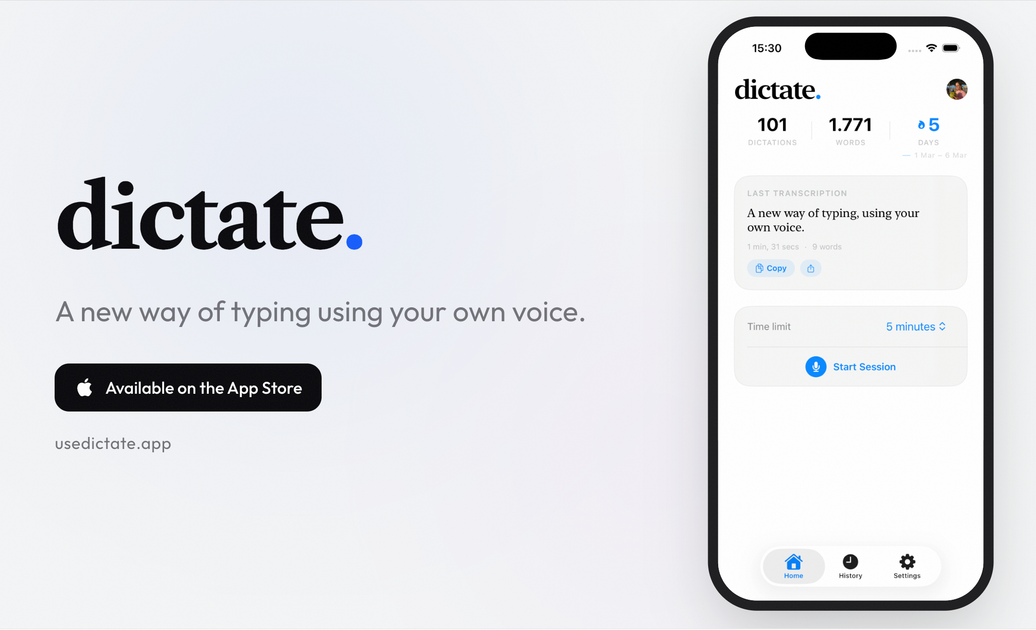
What is dictate.?
dictate. is an iOS speech-to-text keyboard that lets you replace typing with AI-powered dictation in any app. After enabling the keyboard, you tap the microphone and speak naturally—your words appear as text where your cursor is.
The app also includes cloud transcription powered by leading AI models (including Whisper and Gemini), supports multiple languages, and can translate your dictation across languages within the keyboard workflow.
Key Features
- Voice-powered typing: Tap the mic and dictate so your spoken words are converted into text instantly at the insertion point.
- Works everywhere on iOS: A custom keyboard that integrates with every app where you type, such as messages, email, and notes.
- Cloud transcription with AI models: Uses cloud transcription powered by leading AI models, including Whisper and Gemini, to recognize speech.
- Multi-language dictation: Dictate in languages including Portuguese, English, Spanish, and more, with seamless language switching inside the keyboard.
- Real-time translation: Speak in one language and type in another, with translation across 4+ languages directly through dictation.
- History and statistics: Tracks transcription history and provides usage insights such as word count and usage streaks over time.
How to Use dictate.
- Download dictate. from the App Store.
- Open iOS Settings and enable the dictate. keyboard.
- In any text field, switch to the dictate. keyboard.
- Tap the microphone and speak; the recognized text appears in the app where you’re typing.
- Use language switching (and translation, if needed) from within the keyboard workflow.
Use Cases
- Drafting messages without typing: Dictate a reply in an SMS or messaging app and have the text appear directly in the conversation.
- Writing longer notes or emails: Use voice dictation to produce paragraphs in notes or email editors without switching to a separate dictation app.
- Multilingual communication: Switch between supported languages while dictating, useful when writing bilingual or multilingual drafts.
- Translating while you write: Speak in one language and generate translated text in another during the dictation process.
- Reviewing your prior dictation: Check transcription history and usage details like word count and streaks to revisit what you dictated.
FAQ
-
How does dictate. work? It works as an iOS keyboard: you enable the keyboard in Settings, then dictate by tapping the microphone in any text field so speech is converted to text.
-
Is dictate. free? The app offers a Free plan with no cost and a weekly limit for transcriptions; there is also a Pro option with a 7-day free trial.
-
What languages does dictate. support? The app supports multiple languages including Portuguese, English, and Spanish, with additional languages listed as “and more.”
-
Does it work in every app? It’s described as a custom keyboard that integrates with every app where you type (e.g., messages, email, and notes).
-
Is my voice data private? The provided content includes an FAQ item about voice data privacy, but it does not include the actual privacy details. If privacy terms are important for your use case, review the app’s privacy information in the app or listing.
Alternatives
- iOS built-in dictation: A system-level voice-to-text feature designed for general speech recognition, typically without the same keyboard-based translation and history/statistics workflow described for dictate.
- Speech-to-text in a standalone dictation app: Apps focused on recording and transcribing speech can be useful when you don’t need dictation directly inside other iOS text fields, but they may require copying text into other apps.
- Translation and writing tools with speech input: Tools that accept voice and then generate translated or formatted text can cover similar goals (multilingual input), though they may not present dictation as a drop-in keyboard experience.
- Accessibility-focused voice input tools: Accessibility products can support voice interaction across iOS, but may prioritize navigation and controls over keyboard-style dictation in every text app.
Alternatives

Sanota
Sanota turns your voice into clear, beautiful text—capture memories and ideas easily, then start for free.

Tactiq
Tactiq is an AI meeting assistant that provides live transcription, AI summaries, action items, and custom AI prompts for Google Meet, Zoom, and Teams.

Tavus
Tavus builds AI systems for real-time, face-to-face interactions that can see, hear, and respond, with APIs for video agents, twins & companions.

ProWritingAid
ProWritingAid is a comprehensive writing assistant that helps writers improve their craft through grammar checking, style editing, and personalized feedback.

Paperpal
Paperpal is an academic writing AI tool for research workflows—smart literature reading, English editing, rewriting, writing components, and pre-submission checks.

Jenni
Jenni is an AI workspace to read PDFs, draft essays and papers, and generate in-text citations in 2.6k+ styles.