

Walkie
Walkie is a desktop speech-to-text app that inserts dictated text into any app with a hotkey. Choose Fast or Local mode.
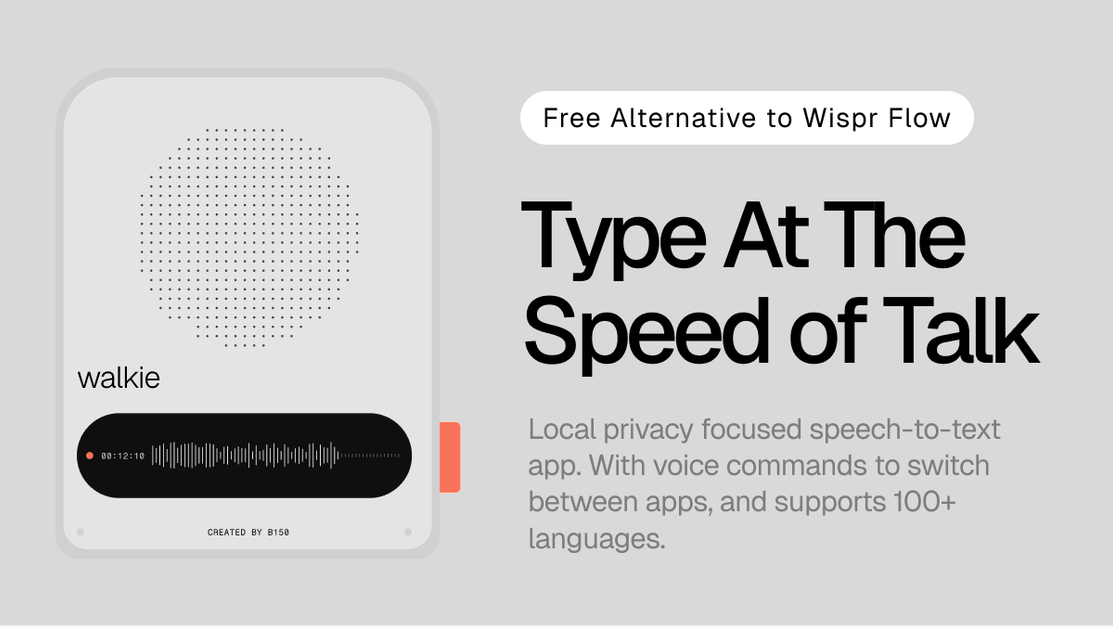
What is Walkie?
Walkie is a desktop speech-to-text tool that lets you dictate into any app using a hotkey. It turns spoken words into text in real time, with options to format output and edit common dictation issues.
It’s designed for two operating modes: Fast Mode for cloud transcription and formatting in one step, and Local Mode for fully on-device dictation when you need offline use or more control over where speech processing happens.
Key Features
- Fast Mode (cloud transcription + formatting): Walkie transcribes and formats your voice in one step, aiming to produce cleaner text immediately after you speak.
- Local Mode (fully on-device): Dictation can run fully offline, with transcription handled on your device rather than sent for cloud processing.
- Filler detection and removal: The transcription pipeline includes filler detection and removes filler words (as presented on the page).
- Smart dictionary learning: Correcting a spelling adds it to a personal dictionary automatically; you can also add industry terms, names, and unique spellings manually.
- Real-time streaming transcription: Walkie listens to the audio stream and builds a real-time transcription as you speak.
- Voice-driven commands and app launching: Voice phrases can open apps and URLs and control your workflow without using the keyboard (examples are shown on the page).
- Text style controls: Output formatting can be adjusted based on the tone you want (e.g., more professional punctuation vs. casual lowercase style).
How to Use Walkie
- Download and install Walkie (free to download).
- Sign in and choose a speech model when prompted.
- Select either Fast Mode or Local Mode depending on whether you want cloud formatting or offline, on-device dictation.
- Press and hold the hotkey, speak, then release; the transcribed (and, in Fast Mode, formatted) text appears in the active text field.
For voice commands, you can speak phrases that trigger actions such as opening apps or URLs, while for regular dictation you can keep using Walkie system-wide in whichever application has a cursor in a text field.
Use Cases
- Write and polish messages in chat apps: Dictate updates in Slack to write quickly while keeping your focus on the conversation.
- Draft emails with cleaner formatting: Use Walkie in Gmail to speak your message and receive formatted text ready for review before sending.
- Capture notes and ideas instantly: Dictate into Notes, Google Docs, or similar apps to build lists or drafts without switching away from where you’re working.
- Program while speaking: Use Walkie in VS Code, terminal/command-oriented workflows, or Cursor/Claude Code-style contexts to dictate comments, commit messages, or prompts.
- Stay offline or privacy-focused: Switch to Local Mode when you need fully on-device dictation, such as when you’re working without network access.
FAQ
Does Walkie work in apps system-wide? Yes. The page states Walkie works in every app with a text field by using a hotkey and inserting dictated text into the active application.
What’s the difference between Fast Mode and Local Mode? Fast Mode uses cloud transcription and formatting in one step, while Local Mode keeps dictation fully on-device for offline use.
How does Walkie improve accuracy for my terms and names? Walkie can learn from corrections: when you correct a spelling, it’s added to your personal dictionary automatically. You can also add terms manually.
Can Walkie do more than dictation? Yes. The page describes voice commands that can open apps and URLs and help control your workflow without using the keyboard.
Is there a setup step or configuration required? The page states there is “No special setup,” no API keys, and no cloud configuration; it advises downloading, signing in, and choosing Fast or Local Mode.
Alternatives
- On-device speech recognition tools (OS/browser-based): If you mainly need offline dictation, alternatives in the same category may focus on local transcription without the same Fast vs. Local workflow.
- Cloud speech-to-text with formatting: Services that transcribe and optionally post-process text may offer similar “dictate then clean up” output, but typically rely on cloud processing rather than a fully local mode.
- Dictation-focused keyboard apps: Some desktop dictation tools emphasize system-wide typing from voice; they may differ by how much they format text, remove fillers, or support voice commands and snippets.
Alternatives

Speech to Text Converter Online
A free online tool that converts audio and video files into accurate text transcripts in over 45 languages. It supports numerous file formats and requires no downloads or sign-ups.

Dictato
Dictato is an offline voice-to-text dictation app for macOS that transcribes on-device and inserts into any app you type in. No cloud.

Sanota
Sanota turns your voice into clear, beautiful text—capture memories and ideas easily, then start for free.

OpenAI Realtime API
Build low-latency, multimodal voice and realtime audio experiences with OpenAI Realtime API—browser voice agents and realtime transcription.

Pewbeam
Pewbeam listens as you preach, detects Bible verses in real time, and displays them instantly on screen—no typing or clicking for pastors.

Voicenotes
Voicenotes is an AI note-taker that transcribes voice notes and meetings into text in 100+ languages—so you can review and reuse.