

Workbench
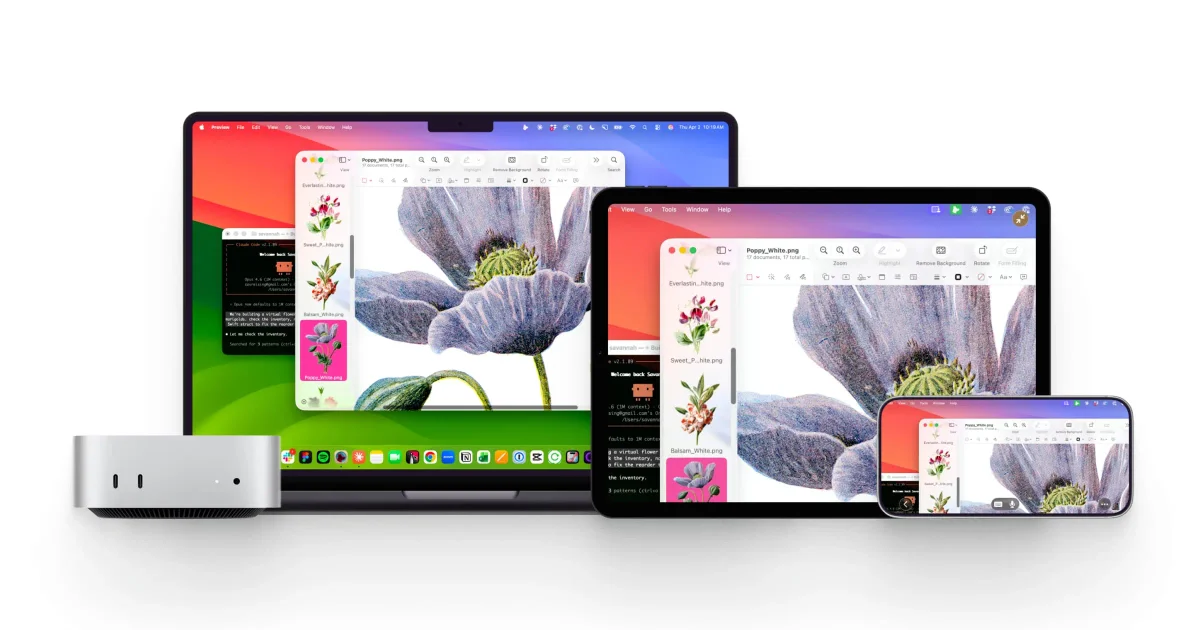
Workbench is a fast, secure remote desktop for Mac—access and control it from iPad or iPhone with low-latency, high-fidelity streaming.
What is Workbench?
Workbench is a high-performance remote desktop tool for accessing and controlling a Mac from an iPad or iPhone (and the page also notes Mac-to-iOS use). Its core purpose is to let you interact with apps and your desktop remotely with low latency and high-fidelity visuals, including scenarios where you run AI agents on a headless Mac mini.
The product is positioned for people who want to operate their Mac from anywhere without traditional IT-style setup steps, while also supporting input methods such as speech-to-text, gestures, Apple Pencil, and middle mouse for more precise workflows.
Key Features
- Fast, high-fidelity streaming with perceptually lossless visuals for smooth remote interaction.
- Retina support for higher-resolution displays and full-color visuals with minimal artifacts.
- Proprietary multi-codec system (via Astropad’s LIQUID technology) that selects an optimal codec per frame.
- Ultra-low latency interaction, with velocity control designed to keep zoom, pan, and scrolling smooth as network conditions change.
- Multi-device input support, including:
- Dictation/voice input to control prompts and commands from iPhone or iPad
- Speech-to-text to send dictated text to your Mac
- Apple Pencil support for precise cursor control
- Touch gestures for zoom, pan, and navigation
- Middle mouse support for precision workflows
- Designed for Apple devices with fully native apps built specifically for Mac, iPad, and iPhone.
- Remote monitoring and control workflows for headless setups:
- Keep tabs on AI agents running on a headless Mac mini
- Review logs and progress, spot issues, and restart automated jobs without being tethered to a desk
- Check in and make changes to a Mac mini used as a dedicated AI computer without additional monitors or peripherals.
- Global relay network that connects without requiring port forwarding, firewall/NAT “tricks,” or fragile network configuration.
- End-to-end encryption using AES-256, so the session content (screen, keyboard, mouse, and activity) is transmitted privately; the page states that no one, including Astropad, can see the session content.
How to Use Workbench
- Download Workbench for the devices you’ll use (the source indicates native apps for Mac, iPad, and iPhone).
- Start a session to access and control your Mac remotely from your iPad or iPhone.
- Use the input methods that match your workflow (e.g., gestures for navigation, Apple Pencil for precision, or speech-to-text for writing).
- If you run AI agents on a headless Mac mini, use Workbench to monitor jobs, review logs/progress, and make changes remotely.
Use Cases
- Remote work on a Mac while traveling: open and operate applications from an iPhone or iPad with low-latency interaction and Retina-friendly visuals.
- AI agent babysitting on a headless Mac mini: monitor agent jobs in real time, review logs and progress, and restart automated runs when issues appear.
- Headless “AI computer” management: check in on a Mac mini used as a dedicated AI machine and apply changes without connecting extra monitors or peripherals.
- Precision workflows on a remote desktop: use Apple Pencil and middle mouse support for more exact cursor control and interaction with 3D tools, CAD software, and other precision-focused applications.
- Hands-free prompting and text entry: dictate prompts/commands or send dictated text from your iPhone or iPad directly to your Mac.
FAQ
What are the system requirements for Workbench?
Workbench requires macOS 15 or later on Mac, iOS 26 or later on iPhone, and iPadOS 26 or later on iPad. Apple Silicon is strongly preferred. Intel Macs are supported but limited to the LIQUID codec only, and H265 is not available on Intel hardware. Windows is not supported.
Is special network setup required?
No special configuration is required. The page states Workbench routes sessions through a global relay network and adapts to network conditions in real time.
Can I use Workbench over VPN or with firewalls?
The page states Workbench works over most VPN connections and firewall configurations. It routes connections through the global relay network and does not require port forwarding or manual network configurations.
Does Workbench support Apple Pencil and gestures?
Yes. The page explicitly lists Apple Pencil support for precise cursor control and gestures for zoom, pan, and navigation from iPad/iPhone.
Alternatives
- Other remote desktop solutions for Mac-to-mobile access: These can offer screen sharing and control, but may require different network setup steps (for example, port forwarding) and can vary in visual quality and latency.
- Remote monitoring and management tools for headless machines: Useful when the main requirement is checking logs/progress and applying changes remotely, though they may not provide the same interactive, low-latency desktop experience.
- Generic screen-sharing or VNC-style approaches: These provide remote access to a desktop, but the workflow and performance characteristics (latency, codec choices, and input support) may differ from a purpose-built Apple-device remote desktop app.
Alternatives
OpenFlags
OpenFlags is an open source, self-hosted feature flag system with a control plane and typed SDKs for progressive delivery and safe rollouts.

Sleek Analytics
Lightweight, privacy-friendly analytics with real-time visitor tracking—see where visitors come from, what they view, and how long they stay.

Codex Plugins
Use Codex Plugins to bundle skills, app integrations, and MCP servers into reusable workflows—extending Codex access to tools like Gmail, Drive, and Slack.

Struere
Struere is an AI-native operational system that replaces spreadsheet workflows with structured software—dashboards, alerts, and automations.

MacSpoof
MacSpoof is a macOS MAC address changer that lets you change or randomize your Wi‑Fi MAC to reconnect and limit device logging on public Wi‑Fi.

BenchSpan
BenchSpan runs AI agent benchmarks in parallel, captures scores and failures in run history, and uses commit-tagged executions to improve reproducibility.